On your iPhone 18 Pro, you can set, cancel, or snooze alarms in the Clock app. Siri also can set alarms for you. Several users have reported that, sometimes, the iPhone alarm is not working as expected. More specifically, the reported problems include:
- the alarm does not go off or is silent, or the sound is too quiet.
- the alarm will not set
- the alarm will not repeat
This can be a very important problem because it may cause you to be late to work and miss important meetings or deadlines. This article explains how you can troubleshoot when the iPhone alarm is not working properly.
After trying each step, see if you fixed the issue.
1. Delete and re-add
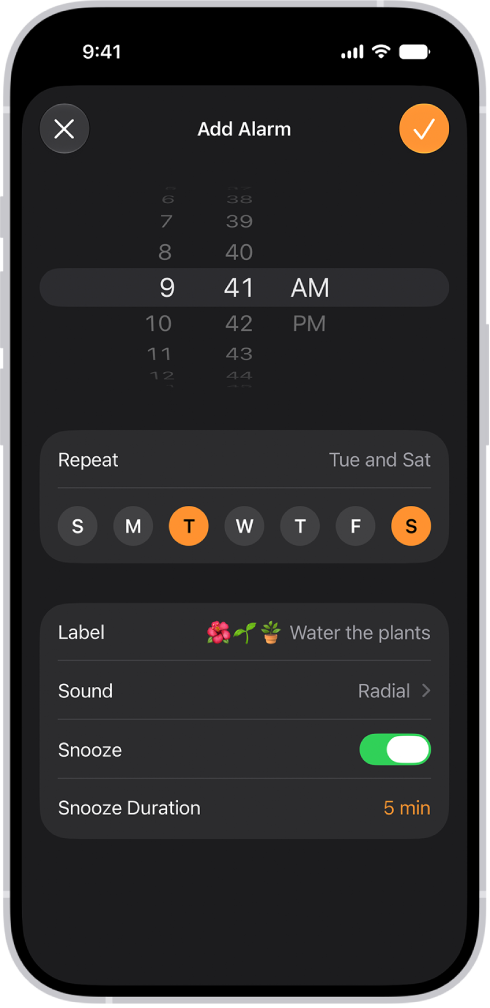
Delete the alarm that is not working and re-add it. Open the Clock app and tap Alarms. Swipe left on the alarm, then tap Delete. And then add the same alarm by tapping the plus (+) sign.
2. Update your iPhone 18 Pro
Make sure that your iPhone has the latest version of iOS. If not, update your iPhone 18 Pro to the latest version of iOS.
3. Restart your iPhone 18 Pro
You may restart your device and this may fix your problem.
4. Increase the volume
If your problem is the Alarm is too quiet then check your device volume level. There are two ways to change this:
- Press the volume up button
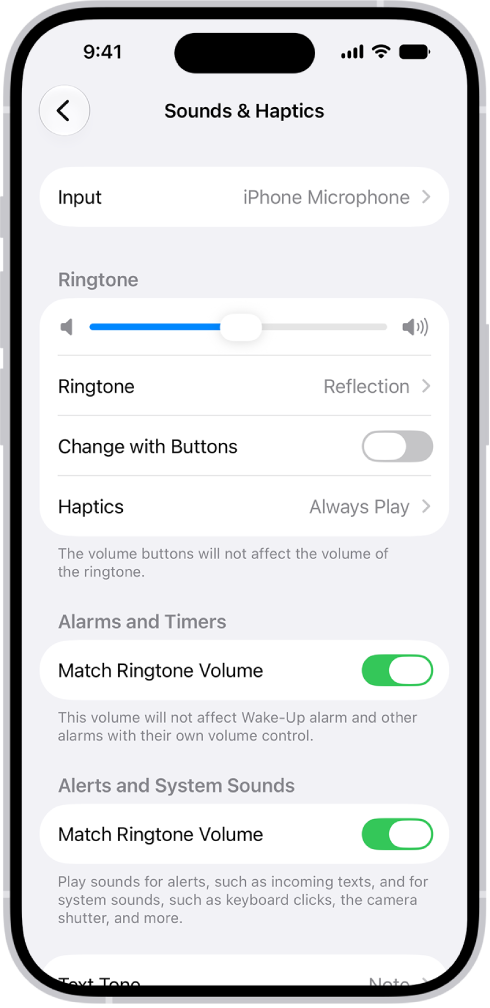
- Or, alternatively, on your iPhone 18 Pro, go to Settings. Tap Sounds & Haptics, then do any of the following below Alarms and Timers: Turn off Match Ringtone Volume, then drag the volume slider. Turn on Match Ringtone Volume.
5. Check your alarm settings
Perhaps your alarm did not go off because of a small mistake. You may want to double-check this just to be sure. What you want to do is, disable the time (you can also remove it) and set a new time. Make sure that repetition, alarm time, and sound are all set correctly. The default ringtone for the alarms is Radar. Set this to Radar (or something loud) and check if it is working. Do not set alarm sound to None.
6. Headphones and speakers
Do you have wired or wireless (Bluetooth) headphones or speakers connected to your iPhone? If so, the alarm will go through the connected devices. If your problem is that you do not hear the alarm sound, then you may want to disconnect these connected devices.
7. Set to ringtones, not to music/songs or videos
If your alarm sound is set to songs, try changing it to a loud ringtone to see if that makes any difference.
8. Time and date settings
On your iPhone, go to Settings > General > Date & Time. Make sure that Date & Time settings are correct. If not, this may affect your alarms. You may want to turn on the “Set Time Automatically” option.
9. Close all apps
Force close all apps that are running in the background. Here is how:
- Go to the Home screen
- Swipe up from the bottom of your screen
- This will open multitasking view

- Swipe up on all of the apps
And then test to see if your alarm is working.
10. Reset location and privacy
You may want to reset Location & Privacy on your phone. To do that, go to Settings > General > Transfer or Reset iPhone > Reset > Reset Location & Privacy.
If you are still having issues, you may want to contact Apple, and make a Genius Bar reservation. You can also make Apple aware of this problem.