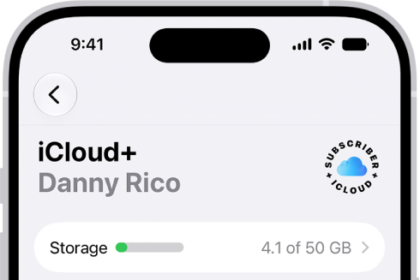
On iPad, when you subscribe to iCloud+, you can use Hide My Email to keep your personal email address private. With Hide My Email, you can generate unique, random email addresses that forward to your personal email account, so you don’t have to share your real email address when filling out forms on the web or signing up for newsletters.
If you don’t like the suggested address, you can get a new one, and you can delete a Hide My Email address at any time.
- When you’re asked for your email address on a website, tap the email address field.
- Tap Hide My Email above the keyboard.
The Hide My Email screen suggests a new, randomly generated Hide My Email address.
- If you don’t want to use the suggested address, tap the Reload button to see a new suggested address.
- Tap Continue.
At any time, you can delete the Hide My Email address; read our guide, Create and manage Hide My Email in Settings.
See also