





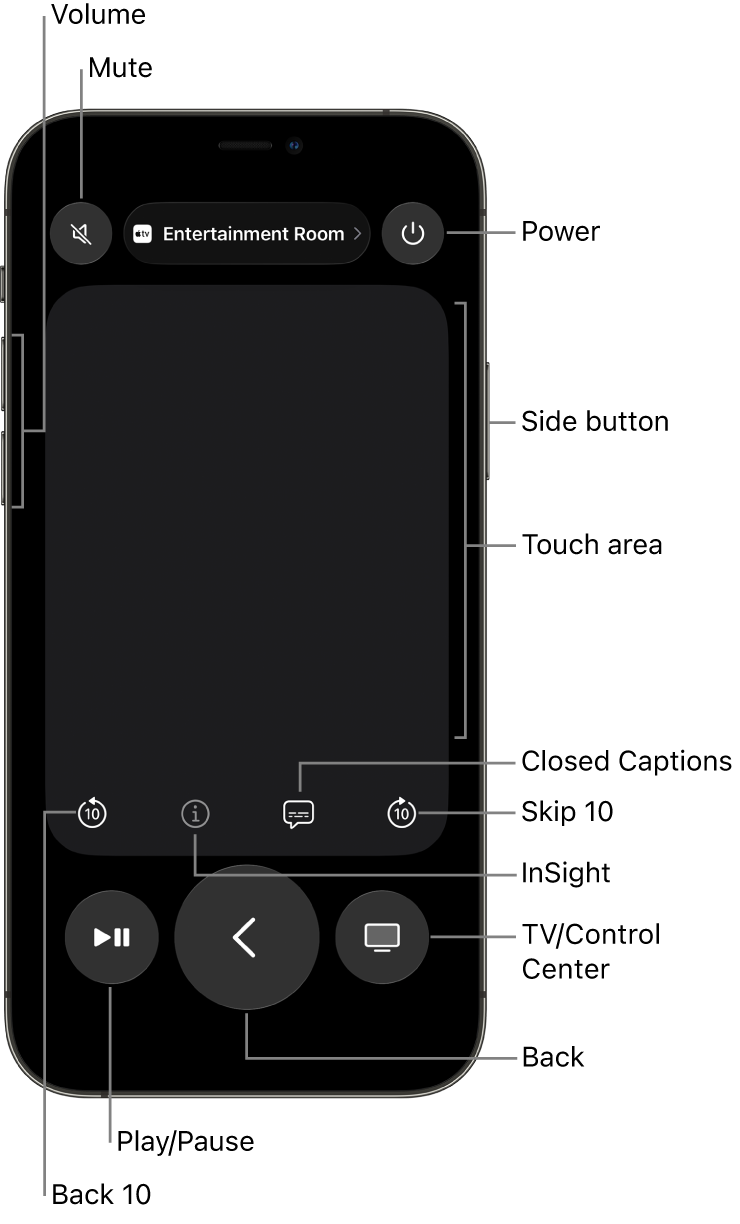
If you misplace your Apple TV 4K remote (2nd generation or later), you can use your iPhone to help find it. The iPhone must have iOS 17 or later installed. It works from the Apple TV Remote in Control Center on your iPhone.
Once your iPhone locates it, a white dot shows up and grows as you get closer. Onscreen text also lets you know if you’re near, far, or right next to the remote.
Here’s how to find your Apple TV 4K remote with your iPhone.
- On your iPhone, swipe to open Control Center. Tap the Apple TV Remote icon.
- Tap the name of the Apple TV 4K at the top of your screen and then tap the Find button for that device’s remote and wait for the notification that it has been located.
Note: You may need to move around to establish a connection with the remote.
When the remote has been located, a white dot appears and gets larger as you get closer to the remote. Onscreen text also lets you know if you’re near, far, or here (next to the remote).
- Tap the Close button when you’re finished.
Not all features and content are available in all countries or regions or on all Apple TV hardware models.
See also




 if you misplace it.)