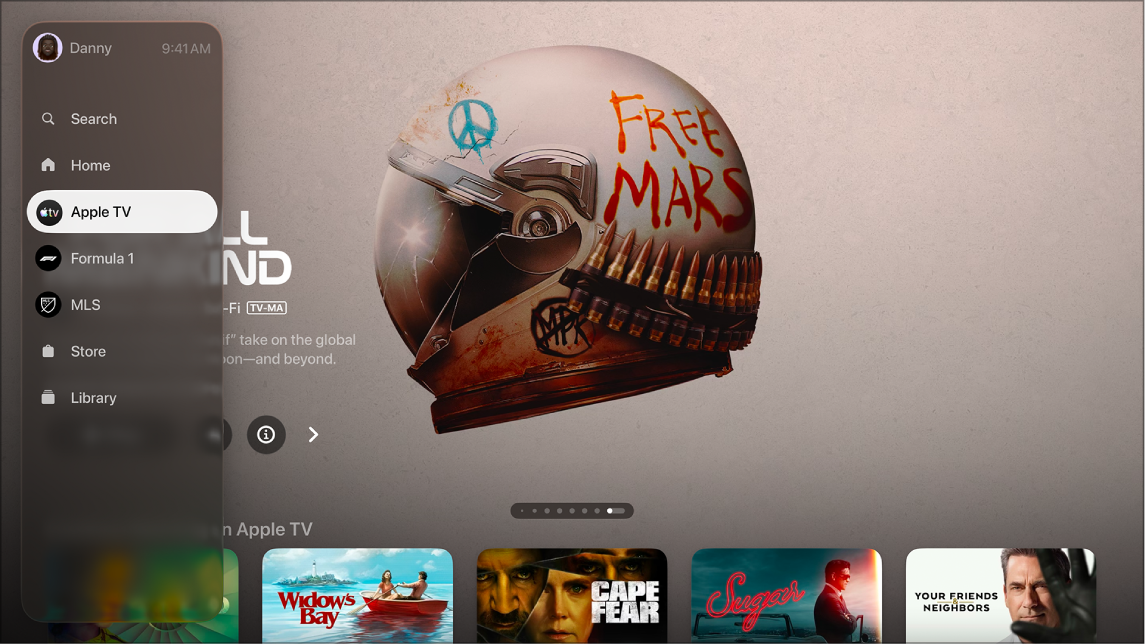
To find things to watch, you can search or browse the Apple TV app on Apple TV 4K by selecting items in the sidebar. Home is where you start watching movies, TV shows, and sports in one place, and the Store lets you browse, buy, and rent the world’s best movies and TV shows.
You can search by title, cast, genre, and more. And when you add movies and TV shows to your watchlist, they appear in the Continue Watching and Watchlist rows.
- Search: Find TV shows and movies by title, cast, or crew.
- Home: Start watching movies, TV shows, and sports in one place.
- Apple TV: Watch Apple TV, a subscription streaming service featuring Apple Originals—award-winning films, series, kids’ entertainment, and more.
- Formula 1® (U.S. only): With an Apple TV subscription, watch Formula 1 in multiple live feeds, including all practice, qualifying, Sprint, and Grand Prix™ races.
- MLS: With an Apple TV subscription, watch every match of the Major League Soccer season, Audi MLS Cup Playoffs, and Leagues Cup all in one place.
- Store: Use this all-in-one destination to browse, buy, and rent the world’s best movies and TV shows.
- Library: Find your purchases and rentals, organized by category. See View your library in the Apple TV app.
- Channels: Select a channel you’ve recently subscribed to. See Subscribe to Apple TV channels and apps.
Search in the Apple TV app
On the Search screen in the Apple TV app, you can find TV shows and movies by title, cast, genre, and more.
- Go to the Apple TV app on Apple TV 4K.
- Open the sidebar, then select Search.
- Do any of the following:
- Navigate down to browse items that appear in featured categories.
- Enter a search term in the field.
Tip: When you want to search, simply describe what you’re looking for using natural language, such as “popular dramas with a twist” or “animated movies good for the whole family.”
- Select an item to see ratings, descriptions, and purchase or rental information.
Browse in the Apple TV app
- Go to the Apple TV app on Apple TV 4K.
- Open the sidebar and select a tab.
- Do any of the following:
- Browse featured items at the top of the screen by pressing the Next button to progress through items. Press left on the remote to go back.
- Select an item in the Continue Watching row to immediately pick up where you left off.
Note: The Continue Watching row on the Home screen displays movies, TV shows, and live sports events from any channel you’ve subscribed to in the Apple TV app.
- Scroll down to see top charts, new releases, curated collections, and personalized recommendations.
- Highlight and select a row title to see all of the items in that category or view more information about a collection.
- Once you find an item you’re interested in, select it.
When the page for a TV show, movie, or sports event opens, you can play the item (if available), Buy, rent, or preorder the item, add it to your watchlist, or scroll down to view specific episodes, trailers, related items, and additional details.
Tip: Select the Info button to view more information.
Add or remove an item from the Continue Watching or Watchlist rows
Movies and TV shows you add to your watchlist for later viewing appear in the Continue Watching and Watchlist rows.
Note: Sports events you add show up in the Continue Watching and Watchlist rows when they’re live.
- Go to the Apple TV app on Apple TV 4K.
- To add an item to your watchlist, go to an item anywhere in the Apple TV app, press and hold the center button of the remote, and select Add to Watchlist.
- To remove an item from your watchlist, go to an item in your Continue Watching or Watchlist row, press and hold the center button of the remote, and then select Remove from Watchlist.
Tip: If you’re viewing a page for a movie or TV show, you can add it to your watchlist by selecting the Add button or Add to Watchlist. If the item is already in your watchlist, select the checkmark to remove it.
Note: Availability of Apple TV may vary by country or region.
Subscription required for Apple TV, which in some countries and regions may include some or all of the following: Friday Night Baseball, Major League Soccer (MLS), and Formula 1®. Not all features and content are available in all countries or regions, or on all streaming devices. Apple TV subscription does not include third-party branded subscription services or content available for rental or purchase in the Apple TV app.
See also