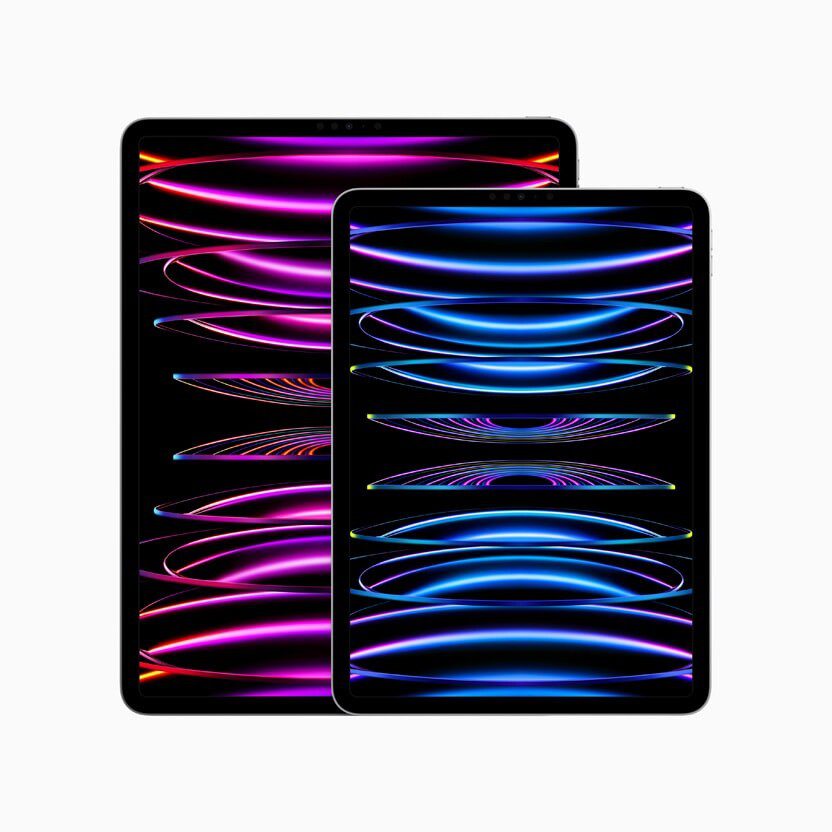
So you got a new iPad® and can’t wait to use it. But you probably want to transfer your apps, photos, videos, and contacts from your old tablet to your new one. Good news! There are four ways you can transfer your data to a new iPad.
If you still have your previous iPad, downloading your information from iCloud will be the fastest way to get up and running with your new iPad. Your apps and data will download in the background after setup, so you can start using your new iPad straight away.
Another option, if you still have your previous iPad, is to transfer your data directly to your new one using Wi-Fi. It transfers everything at once and doesn’t require an iCloud backup, but you won’t be able to use either device while the transfer completes, which can take some time.
Even if you don’t have your previous iPad anymore, you can still restore your content using an iCloud backup. This will transfer your personal data and information stored in iCloud to your new iPad using your previous iPad’s iCloud backup.
Another option, if you don’t have your previous iPad, is to use the Finder, Apple Devices, or iTunes to transfer data from your previous iPad to your new iPad. This will transfer your personal data and information to your new iPad using your previous iPad’s computer backup.
Without further ado, let’s get into it.
Transfer data from one iPad to another using iCloud
In this section, we’ll go through the steps to transfer data using iCloud and your previous iPad.
Before you start, make sure your previous iPad is nearby and backed up to iCloud. You can review your iCloud settings to check if your iPad backs up automatically or if you’d like to add categories and backup manually. Additionally, your previous iPad must be connected to Wi-Fi, Bluetooth must be turned on and both devices should be plugged in and charging until the migration process is complete. Also, make sure your previous iPad is updated to the latest version of iPadOS to transfer your data.
If you’ve already set up your new iPad, you’ll need to erase it and start the process again. To erase your iPad that’s using iPadOS 15 or later, tap Settings > General > Transfer or Reset iPad > Erase All Content and Settings. On iPadOS 14 or earlier, tap Settings > General > Reset > Erase All Content and Settings. This erases all data on your iPad. After you erase it, your iPad restarts and the "Hello" screen appears.
Here’s how to transfer data from iPad to iPad using iCloud:
Step 1: Turn on your new iPad. A "Hello" screen should appear. Follow the prompts until the Quick Start screen appears.
Step 2: Place your previous iPad near your new one, then follow the steps on your previous device, which includes scanning and animation using the camera, and continue on your new iPad when prompted.
Step 3: On your new iPad, enter the passcode that unlocked your previous iPad and follow the on-screen prompts until the Transfer Your Data screen appears.
Step 4: Tap Download from iCloud to begin transferring your previous iPad to your new one using iCloud. It could take a moment to finish signing in to your Apple account.
Step 5: You may be asked to review and accept the terms and conditions in order to continue. If you agree, tap Agree to confirm.
Step 6: Follow the prompts which may include setting up mobile network service and an eSIM.
Step 7: A loading bar will appear when your iPad begins restoring your information from iCloud. This may take a moment or two, and some content, such as photos, could take additional time to complete. When it’s finished, your iPad is ready to use.
Your apps and data will continue to download in the background when you’re connected to Wi-Fi.
Make sure you check that all of your data is transferred to your new iPad before erasing your previous iPad.
Transfer data from one iPad to another using Wi-Fi
The easiest way to transfer data from your old iPad to your new iPad is using Wi-Fi. The transfer process may take several minutes up to two hours, depending on the speed of your Wi-Fi network.
Before you start, make sure you are able to keep your previous iPad and your new one near each other until the data migration process is complete. Additionally, your previous iPad must be connected to Wi-Fi, Bluetooth must be turned on, and both devices should be plugged in and charging until the migration process is complete. Also, make sure your previous device is updated to the latest version of iPadOS to transfer your data. If you’ve already set up your new iPad, you’ll need to erase it and start the process again.
Here’s how to transfer data from iPad to iPad using Wi-Fi:
Step 1: Turn on your new iPad. A "Hello" screen should appear. Follow the prompts until the Quick Start screen appears.
Step 2: Place your previous iPad near your new one, then follow the steps on your previous device, which includes scanning and animation using a camera, and continue on your new iPad when prompted.
Step 3: On your new iPad, enter the passcode that unlocks your previous iPad and follow the onscreen prompts until the Transfer Your Data screen appears.
Step 4: Tap Transfer from iPad. It could take a moment to finish signing in to your Apple account.
Step 5: You may be asked to review and accept the terms and conditions in order to continue. If you agree, tap Agree to confirm.
Step 6: Follow the remaining prompts, which may include setting up mobile network service and an eSIM, and your device will begin transferring all your data from your previous iPad to your new one. This can take some time, so remember to keep both devices plugged in until the migration process is complete. When it’s finished, your apps and data will be fully transferred and your iPad will be ready to use.
Transfer your iPad data with iCloud backup
Don’t have your previous iPad? Let’s find out how to transfer data using an iCloud backup.
Before you start, make sure a backup of your previous iPad is stored in iCloud, and you have your Apple account password. You’ll need to have access to a Wi-Fi network in order to restore your data, and your device should be plugged in and charging after setup to download your content. If you’ve already set up your new iPad, you’ll need to erase it and start the process over.
appears.
Here’s how to transfer data from iPad to iPad using iCloud backup:
Step 1: Turn on your new iPad. A "Hello" screen should appear. Follow the prompts until the Quick Start screen appears, then tap Set up without another device and continue following the prompts.
Step 2: On the Transfer your apps and data screen, choose From iCloud backup and follow the prompts, which includes signing into your Apple account.
Step 3: You may be asked to review and accept the terms and conditions in order to continue. If you agree, tap Agree to confirm.
Step 4: Next, choose your most recent iCloud backup from your previous iPad and follow the prompts, which includes setting up mobile network service and an eSIM.
Step 5: A loading bar will appear when your iPad begins restoring your information from iCloud. This may take some time to complete.
Step 6: Follow any remaining prompts. When it’s done, you can start using your iPad.
Your apps and data will continue to download in the background when you’re connected to Wi-Fi. Some things, such as your photos, may take extra time to complete.
Transfer iPad data with Finder or iTunes
Use the Finder, Apple Devices, or iTunes to transfer data from your previous iPad to your new iPad:
Step 1: Turn on your new iPad. A "Hello" screen should appear. If you already set up your new iPad, you need to erase it before you can use these steps.
Step 2: Follow the steps until you see the Apps & Data screen, then tap Restore from Mac or PC.
Step 3: Connect your new iPad to the computer that you used to back up your previous iPad.
Step 4: Open an Apple Devices, iTunes, or Finder window on your computer and select your iPad. You might be asked to trust your device.
Step 5: Select Restore Backup. Then choose a backup. Make sure it’s the correct one by looking at the date and size of each.
Step 6: If you need to restore from an encrypted backup, enter your password when asked.
Step 7: Wait for the restore process to finish, then complete the rest of the setup steps on your iPad. If possible,
keep your iPad connected to Wi-Fi and plugged into power after setup. This allows content like your photos, music, and apps stored in iCloud to automatically download back to your device.