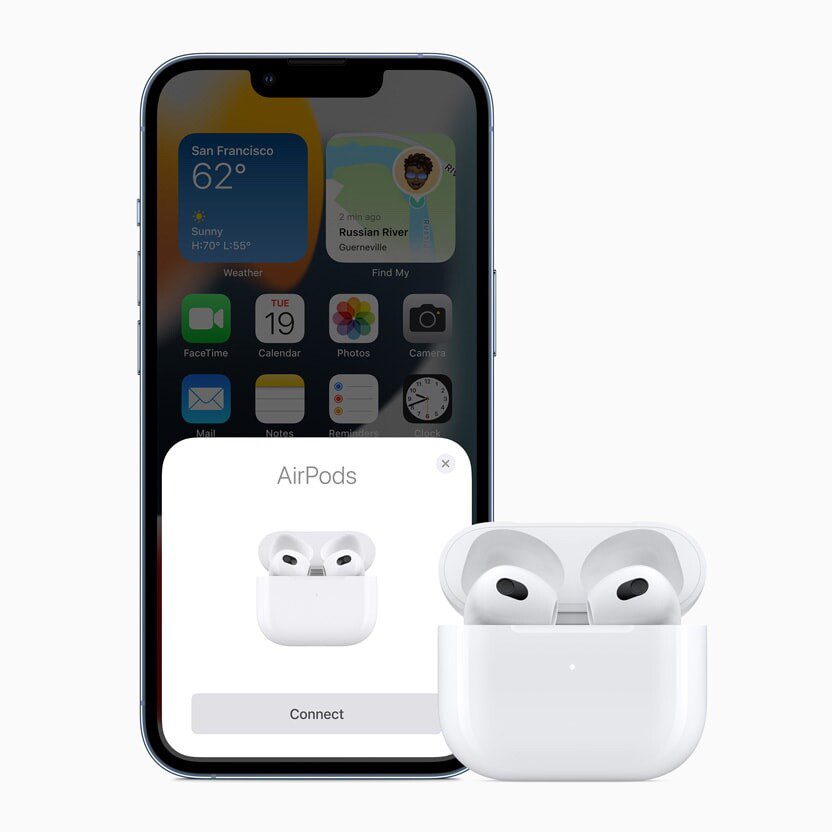
Your AirPods won’t connect to your iPhone, iPad or Mac and you don’t know why. AirPods are designed to seamlessly connect to Apple devices as soon as you take them out of the charging case, so it can be very frustrating when something goes wrong. Here are the troubleshooting steps we recommend when your AirPods won’t connect to your iPhone® or iPad®. If you’re struggling to get them to connect to your Mac® computer, scroll further down in the article for troubleshooting steps.
How To Pair Your AirPods To Your iPhone, iPad or Mac
I’d like to begin by explaining how to pair your AirPods to your iPhone, iPad or Mac.
Pair AirPods with iPhone or iPad
To pair your AirPods with your iPhone or iPad, first make sure you have Bluetooth turned on. Go to Settings > Bluetooth.
then follow these steps:
- Navigate to the Home Screen.
- With your AirPods in the charging case, open the charging case, and hold it next to your iPhone or iPad. A setup animation appears on your iPhone or iPad.
- Tap Connect.
If you don’t see the setup animation when trying to connect your AirPods, try to connect them manually.
- With your AirPods in the charging case, close the lid, wait 15 seconds, then open the lid.
- Do the following, depending on your device:
- For AirPods 4 (both models), double-tap the front of the case until the status light flashes white.
- For all other models, press and hold the setup button on the back of the case until the status light flashes white.
- Go to Settings > Bluetooth.
- When your AirPods appear in the list of Bluetooth devices, select them.
If you’re connecting AirPods Max, take them out of the smart case. When the prompt appears on your iPhone or iPad, tap connect.
If you don’t see the prompt, you can pair AirPods Max with your device manually. Go to Settings > Bluetooth, then select your AirPods. Press and hold the noise control button on AirPods Max for about 5 seconds, or until the light flashes white.
Depending on your model of AirPods, a chime might play and you might need to follow additional prompts. Your AirPods will be automatically set up with any of your other supported devices that are signed in to your Apple account and you can customize the settings for your AirPods. Just open settings and then tap your connected AirPods to view your options.
Pair AirPods with Mac
- On your Mac, choose Apple menu > System Settings, then click Bluetooth in the sidebar. Make sure Bluetooth is on, then do one of the following:
- AirPods 1, 2, or 3, or AirPods Pro (all generations): Open the case with your AirPods inside, hold it next to your device, then press and hold the setup button on the back of the AirPods case for about 5 seconds, or until the status light flashes white.
- AirPods 4 (both models): Open the case with your AirPods inside, hold it next to your device, then double-tap the front of the AirPods case so the status light flashes white.
- AirPods Max: Press and hold the noise control button for about 5 seconds, or until the status light flashes white.
- In the list of devices, select your AirPods, then click Connect.
How to fix AirPods that won’t connect to your iPhone or iPad
Restart your AirPods
If your AirPods Max, AirPods or AirPods Pro won’t connect, try restarting them. Here’s how:
- AirPods (all generations) or AirPods Pro (all generations): Put the AirPods in their case, then close the lid for a minimum of 10 seconds.
- AirPods Max: On the right headphone, press and hold the Digital Crown and the noise control button at the same time until the status light next to the charging port flashes amber (around 10 seconds), then immediately release the buttons.
Note: If you hold the buttons longer than around 10 seconds, AirPods Max return to factory settings.
Toggle Bluetooth off and on
Turning Bluetooth off and back on again can sometimes fix minor software glitches that may be preventing your AirPods from pairing with your iPhone or iPad. Here’s how to turn Bluetooth off and back on again on your iPhone or iPad:
- Launch Settings.
- Go into Bluetooth.
- Tap the switch next to Bluetooth. You’ll know Bluetooth is off when the switch is gray.
- Tap the switch again to turn Bluetooth back on. You’ll know Bluetooth is on when the switch is green.
Restart Your iPhone or iPad
Your AirPods may not be connecting to your iPhone or iPad because of a minor software problem or technical glitch. If this is the case, restarting your iPhone or iPad may fix the problem.
First, turn off your iPhone or iPad by going to Settings > General > Shut Down. Swipe the slider from left to right to shut down your device.
Wait about 15 seconds, then press and hold down the power button until you see the Apple logo appear on the screen. Your device will turn back on after a few seconds.
Charge Your AirPods And The Charging Case
One of the most common reasons why AirPods won’t connect to an iPhone or iPad is that the AirPods are out of battery life. To eliminate this as the possible issue, put your AirPods in their charging case for a little while. If your AirPods aren’t charging even after you’ve put them in the charging case, then the charging case may be out of battery life. If your AirPods charging case is out of battery life, charge it by connecting it to a power source using a Lightning cable or USB-C cable.
Pro-tip: You can charge your AirPods in their charging case while the charging case charges. I know that’s a mouthful, but it will really help you streamline the charging process!
Check for software updates
If your AirPods still won’t pair, make sure that the iPhone or iPad you are trying to pair with has the latest version of iOS or iPadOS installed. To check, open up the Settings app on your iPhone or iPad and tap General > Software Update. If a software update is available, tap Update Now, then follow the prompts.
Reset your AirPods
If you still can’t connect, reset your AirPods. Here’s how:
- Put your AirPods in their charging case, close the lid, and wait 30 seconds.
- On an iPhone or iPad that’s paired with your AirPods, go to Settings > Bluetooth.
- If your AirPods appear in the My Devices list, tap the More Info button next to your AirPods, tap Forget This Device, then tap Forget Device.
- If your AirPods don’t appear in the list, continue to the next step.
- Open the lid of your charging case.
- Depending on which AirPods you have, press the setup button on the back of your case or tap the front of the case:
- AirPods 1, 2, or 3, or AirPods Pro (all generations): Press and hold the setup button on the back of the case for about 15 seconds, until the status light on the front of the case flashes amber, then white.
- AirPods 4 (both models): Double-tap the front of the case while the status light is on. Double-tap again when the status light flashes white. Double-tap a third time when the status light flashes faster. When the status light flashes amber then flashes white, the AirPods are reset.
- AirPods Max: On the right headphone, press and hold the Digital Crown and the noise control button at the same time, until the status light next to the charging port changes from flashing amber to flashing white (around 15 seconds.
Note: When you reset your AirPods, they will be removed from all the devices where you’re signed in to the same Apple Account. You’ll have to reconnect them to your iPhone or iPad just like you did when you set them up for the first time. If you don’t remember how to connect your AirPods to your iPhone or iPad, scroll back up to the top of this article and follow our guide.
How to fix AirPods that won’t connect to your Mac
If you’re trying to connect your AirPods to your Mac, follow these simple steps. They vary slightly from the ones you may have tried for your iPhone, iPad, and iPod touch.
Restart your Mac
This is a simple but effective tip. Simply restarting your Mac may resolve your problem. On your Mac, choose Apple menu > Restart.
Check for Mac updates
Operating system updates can add support for newer Apple devices, such as AirPods, and they can also improve your MacBook’s performance and security.
If you’re trying to pair AirPods 2, make sure that your Mac has macOS Mojave 10.14.4 or later. AirPods Pro 1 require macOS Catalina 10.15.1 or later. AirPods 3 require macOS Monterey or later. AirPods Pro 2 and AirPods 4 (both models) require the latest version of macOS.
To check for macOS software updates, choose Apple menu > System Settings, click General, then click Software Update. If an update is available, follow the instructions to update your Mac.
Charge your AirPods
Your Apple AirPods may simply be out of power. Make sure to charge them and their charging case fully and try connecting them to your MacBook again.
Make sure that Bluetooth is on
Your MacBook will need to have Bluetooth enabled before it can connect to your Apple AirPods. To do this:
- Choose System Settings from the Apple menu (), then click Bluetooth.
- Make sure that Bluetooth is on.
Select your AirPods
If you’ve already connected your AirPods yet the sound is coming out of your MacBook’s speakers, click Control Center in the menu bar and make sure that your AirPods are selected as the output device.
Select your AirPods while they’re in their case
Place the AirPods in their charging case, open the lid, and then select your AirPods manually from the list of Bluetooth devices. Click Connect.
Turn off Bluetooth on other devices
Your AirPods may be connecting to another device instead of your MacBook. To stop this, turn off Bluetooth on any devices you’ve synced your AirPods to in the past.
Open the charging case lid when connecting
Don’t forget the lid needs to be open while you’re pressing the setup button on the case during the initial pairing.
Sign in with the same Apple Account
If you’ve paired your AirPods with another Apple device such as an iPhone, signing into your MacBook with the same Apple account will connect them automatically. You need to be using the same account though.