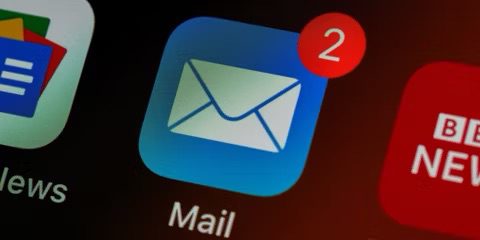
Some iPhone users have said that they are not receiving emails in Mail app. I was also affected by this problem. In this article, I explain the steps that I used to fix my problem.
Fix iPhone not receiving emails
Restart the Mail app
The first troubleshooting step is to restart the Mail app. This could be a minor glitch, and restarting the app may fix it. In fact, this is how I fixed the issue on my iPhone:
- Go to your Home Screen and swipe up from the bottom of the screen to reveal the app switcher.
- Find the Mail app and swipe it up. This will close the app.
- Go to your Home Screen again and reopen the Mail app. If you still can’t receive emails, move on to the next solution.
Make sure that your iPhone is connected to the Internet
The iPhone Mail app works using remote servers. If your iPhone is not connected to the Internet, you won’t receive emails. Ensure that your iPhone is connected to the Internet. If you’re not connected to Wi-Fi or cellular data, the Mail app won’t be able to fetch new email. If this issue occurs on cellular, ensure that Mail is allowed to use cellular data. You can check this by going to Settings > Cellular and check if Mail is enabled.
Turn off VPN
Do you use VPN? Sometimes VPN may prevent you from receiving emails on your iPhone. Turn it off and try again. Go to Settings > General > VPN & Device Management > VPN. Disconnect a VPN if it’s connected.
Check Mail Fetch and Notification settings
By default, Fetch New Data settings are based on what’s provided by your email service. If Push isn’t available as a setting, your account will default to Fetch. These settings affect how your device receives email. To adjust these settings:
- Go to Settings > Apps > Mail, then tap Mail Accounts.
- Tap Fetch New Data.
- Choose a setting — like Automatically or Manually — or choose a schedule for how often the Mail app fetches data.
Make sure that your Notification settings are correct for the Mail app:
- Open the Settings app, then tap Notifications.
- Tap Mail, then tap an email account.
- Adjust your Alerts, Sounds, and Badges.
Restart your iPhone
Simply restart your iPhone. You can turn off your device by going to Settings > General > Shut Down. Wait a minute for your iPhone to turn off completely, then turn it back on. Are your emails coming through on your iPhone now? If you are still experiencing problems, move onto the next solution.
Update your iPhone
The next troubleshooting step is to check if your iPhone is running the latest iOS software. You can check this by going to Settings > General > Software Update. If there is an update, update your iOS device. This will probably fix your issue.
Check Apple Mail Servers
The next troubleshooting step is to check is whether this is an Apple problem. If this issue occurs with iCloud Mail, this could be the reason. It is possible that Apple is having a temporary issue with its mail servers, and thus the Mail app on your iPhone isn’t connecting with Apple’s servers. This problem could be due to a temporary outage or scheduled maintenance.
Go to the Apple System Status page, look for the iCloud Mail option, and check if there is any notification indicating that the mail servers are experiencing issues.
Contact your email provider or system administrator
If you are still not receiving emails on your iPhone:
- Contact your email provider or check their status webpage to see if therey are experiencing a service outage.
- Ask your email provider or system administrator if you turned on any security features or restrictions, like two-step verification, for your email account. You might need a special password or may need to request authorization from your email provider to send and receive email on your device.
- Check your email account settings with your email provider or system administrator to make sure that they’re correct.
Remove your email account and add it again
If you are having issues receiving emails on iPhone with only one account, and if it seems the problem is persistent, you may want to consider whether there is a problem with that account’s email server. If not, you might try removing that email account and then adding it back. Here is how:
- On your iPhone, tap Settings and scroll down to Apps. Tap on that.
- Tap Mail and tap Mail Accounts.
- Tap the email account that you are having problem receiving emails.
- Tap Delete Account.
- Now we will re-add the account by going to Settings > Apps > Mail > Mail Accounts.
- Tap Add Account and then select your email account provider (iCloud, Google, Aol etc)
- Add email and password and follow the onscreen instructions.
Reset all settings
If you’re still not receiving emails on your iPhone, it’s time to reset all settings. Please note that this step will reset all custom settings (sounds, displays, network etc) to default. Here is how:
- On your iPhone, tap Settings
- Tap General.
- Tap Transfer or Reset iPhone.
- Tap Reset
- Tap Reset All Settings
- You may have to enter your passcode. It may take a few minutes.