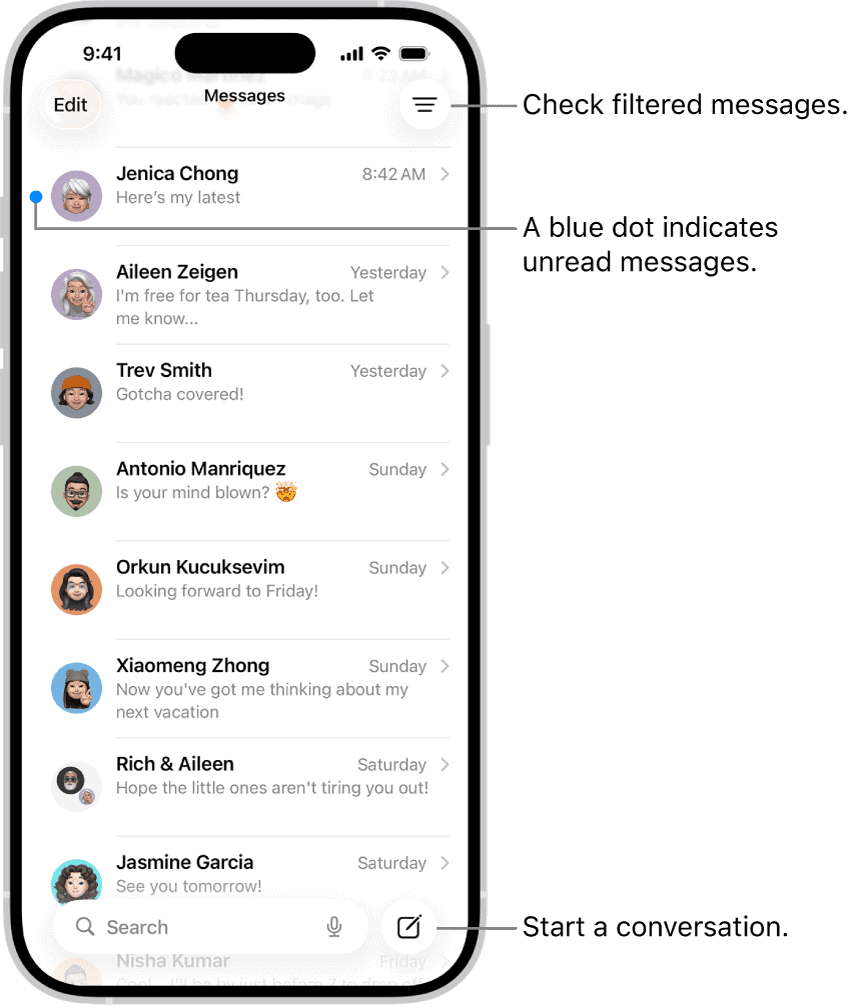
By default, your conversation with the latest messages appear at the top of the Messages screen. This order makes it easy to see what’s new, but you may find important but slower-paced conversations get pushed down the list and out of sight. To fix this problem, you can pin specific conversations to the top of the conversation list so the people you contact most always come first in the list. Pinned conversations appear as larger icons at the top of your conversation list.
How to pin a message conversation on iPhone
- Open the Messages app on your iPhone.
- Long-press a conversation, then tap Pin on the pop-up menu. Messages moves the conversation to the top of the screen.
To unpin a conversation, long-press it and choose Unpin. To unpin multiple conversations, tap Edit at the top left of the Messages list, tap Edit Pins, and then tap the pin in a yellow circle to its right. Tap the done icon (check mark) when you’re done.