SUMMARY
- You can schedule a message on iPhone up to 14 days into the future.
- Schedule messages on iPhone by typing a message, selecting "Send Later," and picking a date and time.
- You must be using iMessage. Your recipient can use any device, and they won’t know that the message was scheduled.
- You need to be online to reschedule, edit, or delete a scheduled message.
Your iPhone lets you schedule a message to be sent later. You can schedule a message up to 14 days into the future. Message scheduling is currently exclusive to iMessage users, which means it only works with other Apple users who have iMessage enabled. You won’t see the “Send Later” option appear if you’re trying to schedule a message over SMS or RCS.
On the plus side, message scheduling between iMessage users mostly works the same as regular iMessaging. You can attach media, use the”hashtag”>#images feature to add animated GIFs, and add songs from Apple Music to your messages.
Conversely, you can’t attach your location, schedule safety feature Check In, or send audio messages in advance.
How to send scheduled message on iPhone
- Open the Messages app on your iPhone.
- Go to the conversation where you want to schedule a message or start a conversation.
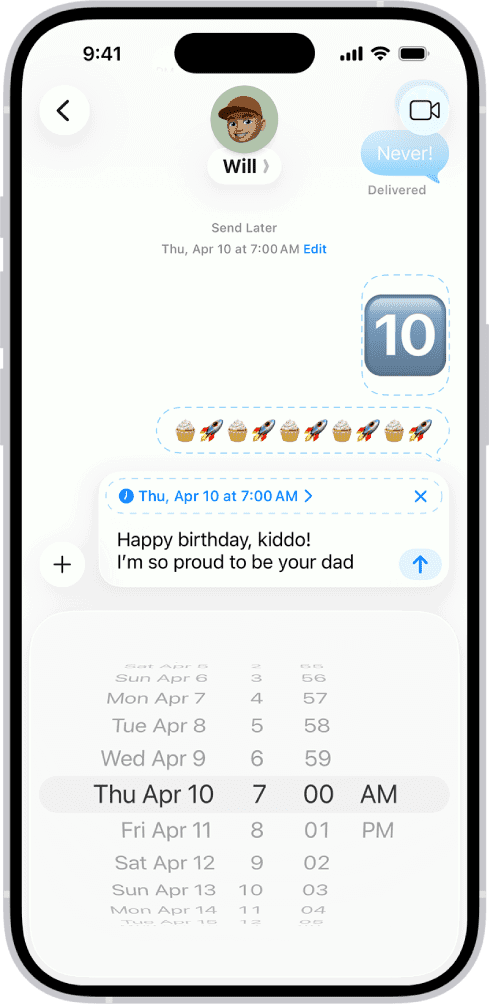
- Tap the add icon (+) to open the menu, and then tap Send Later.
- Tap the time to open the scheduler, then use the date and time controls to specify when you want to send the message.
- Compose your message, then tap the delayed-send icon (up arrow) to schedule the message for sending.
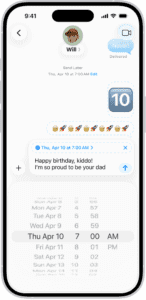
Change the time to send a message
You can reschedule a message until its delivery time.
- Open the Messages app on your iPhone.
- Go to the conversation with the message you want to reschedule.
If you don’t see your message, scroll down to the bottom of the conversation. Scheduled messages may appear below sent messages. - Tap Edit beside the date (above your scheduled message), then do any of the following:
- Reschedule it: Tap Edit Time, choose a new time, then tap away from the schedule to commit the new time.
- Send it immediately: Tap Send Message.
Edit a scheduled message
You can edit a scheduled message until its delivery time.
- Open the Messages app on your iPhone.
- Go to the conversation with the scheduled message you want to edit.
If you don’t see your message, scroll down to the bottom of the conversation. Scheduled messages may appear below sent messages. - Long-press the message bubble, then tap Edit.
- Make any changes, then tap the Send Edit button to resend with edits or the Cancel Edit button to revert.
Delete a scheduled message
When you delete a message before its scheduled time, it’s canceled and not delivered to the recipient.
- Open the Messages app on your iPhone.
- Go to the conversation with the scheduled message you want to delete.
If you don’t see your message, scroll down to the bottom of the conversation. Scheduled messages may appear below sent messages. - Long-press the message you want to cancel, then tap Delete.
See also: How to unsend a message on your iPhone