Running out of iPhone storage can be frustrating, but you don’t have to delete your favorite apps to make room. With a few smart steps, you can clear space without losing the apps you use every day. Here’s how to free up iPhone storage without deleting apps.
Note: although this article is about iPhone, the steps discussed here will also work on an iPad.
1. Clear Out Old Messages and Big Attachments
Your iPhone might be hoarding years’ worth of text messages and media without you realizing it. Every photo, video, voice note, and sticker you send or receive in iMessage gets stored locally, quietly eating up space in the background.
If you’ve ever scrolled through an old chat and stumbled across a barrage of memes or birthday videos from years ago, that’s exactly the clutter we’re talking about.
You don’t have to delete entire conversations to reclaim space. To get started, go into the Settings app. Scroll down, then tap Apps. Scroll down again then select Messages. Next, tap Keep messages under Message history. Choose how long you wish to keep messages: 30 days, 1 year, or Forever. If you choose either of the first two, your iPhone will automatically clear out older content without you having to do anything.
Better yet, go to Settings > General > iPhone Storage > Messages to view large attachments sorted by size. From there, you can manually delete bloated media files while keeping your actual message threads intact.
2. Empty Your Browser’s Cache
Another way to free up iPhone storage without deleting apps is to delete the browser cache. When you first visit a website, your browser downloads all the necessary files to display the page. These files are then stored in a cache so that the next time you visit the same site, the content can be loaded from your device’s storage instead of being downloaded again. While this can speed up page loading times, it also consumes storage space on your device. For Safari, go to Settings > Apps > Safari. Under History and Website Data, tap Clear History and Website Data. Next, choose All history, then hit Clear History.
For Chrome on iOS, open the app, tap the three dots on the bottom-right corner and select Delete Browsing Data. Next, set the Time range to All time, then tap Delete data to wipe everything out.
Clearing your browser history regularly protects your privacy, and is incredibly simple to do.
These hidden files can build up fast. Clearing them not only frees space but might also improve performance.
3. Get Rid of Offline Downloads You Don’t Need
Offline downloads can take up space long after you’ve stopped watching (or listening to) them. It’s easy to forget how many playlists, episodes, or shows you’ve saved for a flight or commute and never bothered to delete.
Start with the usual suspects: Spotify, Apple Music, YouTube, Netflix, and your favorite podcast app. Most of them have a downloads section where you can quickly see what’s taking up room. If it’s something you’ve already listened to or watched or you’re probably not going to get to anytime soon, go ahead and delete it.
You can always stream it again later if you change your mind. For now, this is about clearing space without giving anything up.
4. Offload Unused Apps
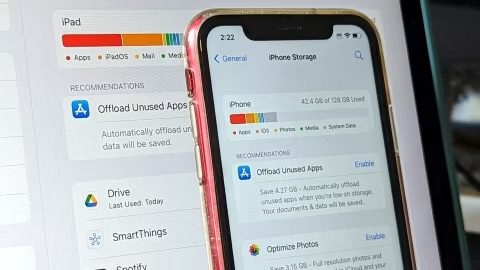
If you’ve ever done a deep scroll through your home screen, you’ve probably spotted apps you haven’t opened in months or even years. Deleting them might feel too permanent, especially if they contain saved data or you think you’ll need them later. That’s where iOS’s Offload Unused Apps feature comes in handy.
To enable automatic offloading, go to Settings > Apps > App Store and turn on Offload Unused Apps. For more control, head to Settings > General > iPhone Storage, tap an app you rarely use, and select Offload App. This small change can often free up gigabytes of space without removing anything important.
When you offload an app, your iPhone removes the app itself but keeps your data and documents. If you reinstall it later, everything is just as you left it—no lost logins or reset settings. It’s like tucking the app away in digital storage until you need it again.
The offloaded app will remain on your home screen, but you’ll need to tap to re-download to get back in.
5. Move Your Photos and Videos to the Cloud
The final method to clear storage on iPhone without deleting apps is by moving your media to the cloud. Photos and videos are among the biggest storage hogs on any iPhone, especially with modern camera quality. A few trips or family events can quietly add several gigabytes to your photo library. But you don’t need to delete these memories to free up space.
Turn on iCloud Photos and enable Optimize iPhone Storage to store full-resolution versions in the cloud while keeping lightweight copies on your device. When you open a photo, your iPhone quickly fetches the high-quality version from iCloud if needed.
To set this up, go to Settings > Apps > Photos, enable iCloud Photos, and check Optimize iPhone Storage. If you have a large library, you could see gigabytes freed up in just a few days.
If you’re low on iCloud space, even the 50GB plan—which costs less than a cup of coffee each month—can make a big difference. You can also use iCloud alternatives like Google Photos, Dropbox, or OneDrive. All offer automatic background uploads and work well as backups.
Conclusion
Running out of iPhone storage doesn’t mean you have to sacrifice your favorite apps. A bit of smart cleanup can go a long way. Think of it like a digital spring cleaning. Your phone will run more smoothly, and you’ll have room for whatever comes next.