





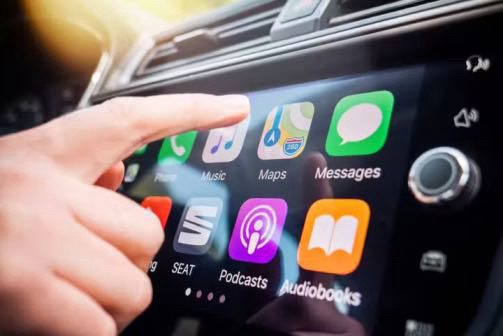
CarPlay is one of those modern conveniences that’s hard to live without once you’ve experienced it. That’s why it can be pretty frustrating if CarPlay isn’t working as it should.
I really enjoy using Apple CarPlay, both in my own car and in the vehicles I rent when I go on longer journeys and business trips.
Most of the time — well over 99.9% of the time — the tech works so seamlessly that it’s practically invisible. When Apple CarPlay doesn’t work, however, it can transform into a massive headache, especially at 4 in the morning when you’re gearing up for an eight-hour drive, and it just won’t work!
Since I drive for many hours and thousands of miles per year — last year, I did well over 35 thousand miles — I rely a lot on Waze and Audible audiobooks. While I’ve had my fair share of fights with CarPlay, I’ve never been beaten by a CarPlay problem, making me the undefeated champion of in-car entertainment.
So what do you do when Apple CarPlay isn’t working? Whatever the issue—CarPlay isn’t connecting, your CarPlay apps aren’t opening, or your phone is charging but CarPlay isn’t working—i’ll help you fix the problem.

Here’s what to do when Apple CarPlay isn’t working.
How to fix common Apple CarPlay problems
You can solve many common problems with Apple CarPlay from the comfort of your car. If you have trouble with CarPlay and your iPhone, here are tried-and-tested solutions to those problems.
Wired CarPlay? Disconnect and Reconnect
Sometimes, CarPlay disappears for no reason. Other times, it simply doesn’t initialize in the first place. One way to solve this is to force your car to start CarPlay again by disconnecting the USB cable from your device and reconnecting it.
This only works for wired CarPlay setups. It’s also worth checking both ends of the wire to make sure that the cable hasn’t slipped out of your car’s USB port.
Wireless CarPlay? Reset Your Connection
Wireless CarPlay is slightly different in that it should “just work” when it detects your phone is nearby. If things aren’t working as advertised, you can try resetting your connection between your car and iPhone by toggling Airplane Mode on and off.
Check that the USB cable and port you use supports CarPlay
For wired CarPlay users, the wrong cable can create a problem connecting your car to your iPhone. If your car uses a USB-A port for the CarPlay connection, make sure your USB-A to Lightning or USB-A to USB-C cable supports data transfer.
You can buy an official USB-A to Lightning cable from Apple or use a third-party cable that supports data transfer. However, Apple doesn’t sell a USB-A to USB-C cable for wired CarPlay with an iPhone 15 or newer. Instead, it recommends you buy a USB-C to Lightning adapter, connect that to your iPhone, and use a USB-A to Lightning cable to connect your car to the adapter.
You can use any USB-A to USB-C cable that supports data transfer for wired CarPlay, but that detail is important. Also, check that you’re using the correct USB port for CarPlay on your car. Some modern cars have more than one USB port, and only one works with CarPlay, so read the owner’s manual to find out which one you should use for CarPlay. It typically has a CarPlay or smartphone icon on or near the port cap.
A faulty cable can cause CarPlay to stop working or glitch while driving. If shaking the cable or wiggling the connector causes issues, it’s likely the culprit.
In-car life can be tough on cables — yanking, getting trapped in doors, or mangling in seat mechanisms can damage them, making CarPlay unreliable. To troubleshoot, try connecting again with a different USB cable if you have one.
Enable Siri When Locked
CarPlay uses Siri voice control, so you can ask for what you want. However, there’s a setting you’ll activate to make this possible: Allow Siri When Locked. If Siri and voice commands don’t work when your phone connects to Apple CarPlay, try these steps to make sure the setting is turned on:
- Go to Settings > Siri.
- Turn on the Allow Siri When Locked toggle.
Make sure Airplane Mode is turned off
This mostly applies to wireless CarPlay, but it’s worth a shot even if you’re having problems with a wired connection. Make sure that Airplane Mode is disabled by swiping down from the top-right corner of your iPhone screen and looking at the airplane icon that appears in Control Center. If it’s orange, tap it to disable Airplane Mode.
Make sure Bluetooth, Wi-Fi, and Auto-Join are turned on
If you use a wireless CarPlay, limited network settings could cause connection problems. Three settings must be activated for seamless use with wireless CarPlay: Bluetooth, Wi-Fi, and Auto-Join. Here’s how to turn them on:
On your iPhone, go to Settings > Bluetooth and make sure Bluetooth is turned on. Then go to Settings > Wi-Fi, and make sure that Wi-Fi is also turned on. Tap the CarPlay network, and check that Auto-Join is turned on.
Make sure VPN is turned off
A VPN may be responsible for CarPlay connection issues, so try turning off VPN and see if that solves your problem.
- Go to Settings > General > VPN & Device Management > VPN.
- If the status reads Connected, toggle off VPN so that the status reads Not Connected.
Turn on ‘Allow CarPlay When Locked’ in your iPhone settings
A permissions issue may be the problem if Apple CarPlay doesn’t start when connecting an iPhone to your car. A single toggle in the CarPlay settings determines whether your iPhone requires Touch ID, Face ID, or a password to start a connection with your car. This may be blocking an automatic connection. Follow these steps to allow CarPlay to start when your iPhone is locked:
- Go to Settings > General > CarPlay.
- Select your car from the list of CarPlay devices. It only appears if your phone is connected to your vehicle.
- Tap Allow CarPlay When Locked.
Make sure CarPlay isn’t restricted
Apple’s Screen Time settings are a great way to self-monitor your phone use or set up parental controls for a child. However, a little-known toggle in these settings could prevent your iPhone from connecting with your car and stop Apple CarPlay from starting. On the Content & Privacy restrictions page on your iPhone, make sure CarPlay is an allowed feature. Here’s how to check:
- Go to Settings > Screen Time > Content & Privacy Restrictions.
- If Content & Privacy Restrictions is on, tap Allowed Apps & Features, and make sure that CarPlay is enabled.
Tap the CarPlay icon on your car’s infotainment system
No cars on the road today use CarPlay as their only infotainment system. When connecting to CarPlay, it runs atop your car’s base operating system and user interface. If CarPlay doesn’t start automatically, tap the CarPlay icon on your car’s infotainment system. The CarPlay logo appears as a button on the side of my Sony head unit. After tapping it, CarPlay starts.
The CarPlay button appears in a different location based on your car model, so check with your manufacturer for more details. However, tapping a simple button might fix an annoying issue. If I connect my iPhone via USB before starting my car, CarPlay might not start automatically. Your mileage may vary.
Restart your iPhone
CarPlay is an extension of your iPhone’s operating system, presented in a car-friendly skin. If there’s a problem with iOS, there might be a problem with CarPlay. You can rule out crashes and bugs by restarting your iPhone as you normally would.
The easiest way to do this is to just ask Siri to restart your iPhone.
Restart your car
Restarting your car or the infotainment system can sometimes resolve CarPlay issues. Turn off the car, wait a few seconds, and then turn it back on. To do this, either turn your key to the off position and open your driver’s side door, or press the stop button on a push-to-start vehicle and open the driver’s side door. You want the infotainment system to restart completely, so make sure the screen powers down before starting the car again. Finally, connect your iPhone to your car and see if Apple CarPlay starts. If you are having issues, consult your car’s manual for specific instructions on restarting the infotainment system.
Make sure your operating system is up to date
Updating your iPhone can help in a myriad of ways, from adding new features to fixing pesky bugs. If you’re experiencing regular problems with CarPlay, make sure that your iPhone has been updated to the latest version of iOS for the best results. Here’s how to check for an iOS update:
- Make sure that your iPhone is connected to the Internet.
- Go to Settings > General > Software Update.
- If an update is available, tap Update Now and follow the onscreen instruction.
Check to see if your CarPlay stereo needs a firmware update
Check if there is a firmware update available for your car’s infotainment system. Most modern cars and head units receive OTA updates that fix bugs or solve problems. Navigate to the Settings page for your car’s infotainment system and look for a page titled software, firmware, or update. Then, follow the on-screen steps to download and apply the system update.
My Sony head unit hides the update button behind the Firmware Version page. However, every car and head unit is different, so consult your car’s manual for instructions.
Audio Problems? Switch Source and Back Again
One problem I have on Sony unit is a lack of audio after connecting to CarPlay. I’m not sure what causes the issue since it seems to happen randomly, but it appears that the car becomes confused between “Voice Control” and “CarPlay”, effectively muting any audio coming out of the iPhone.
If CarPlay is not playing audio, the fix is a simple one: switch to a different audio source using your entertainment unit (like the radio) and then head back to the CarPlay interface and tap “Play” to start playing music or a podcast again. This seems to signal to the car to switch to CarPlay as a source, fixing the issue until the next time it appears.
Another reason you might not be able to hear music or podcasts is because your car audio is muted, so make sure you crank the volume just to make sure.
Quit Any Problem Apps
Since CarPlay is an extension of your iPhone, the apps that appear on your display when using CarPlay also happen to be extensions of the apps installed on your iPhone. So if you’re using Google Maps to navigate, the Google Maps app on your iPhone is putting in the work.
This can result in issues if that app in question crashes or bugs out. The easiest way to solve this issue is to quit the app and relaunch it. On an iPhone with Face ID that means flicking up from the bottom of the screen and holding until you see a list of apps appear, swiping through the list until you find the app in question, and then flicking up again to “throw it away” and terminate to process.
You can now launch the app and try again. Crashed apps can cause all sorts of issues, from wonky behavior to black unresponsive screens.
Make sure your car supports CarPlay
Apple has a complete list of compatible cars, broken down by make and model. You can look at the list in its entirety here. There are over 800 car models offering CarPlay support. Check this list to make sure your vehicle is listed. However, this doesn’t explain whether your car supports wireless or wired CarPlay. For that, check the owner’s manual for your car or contact the manufacturer.
Instead of scrolling through every car model in Apple’s compatible list, use the Find function in your browser. If you’re still unsure if your car supports CarPlay, contact the vehicle manufacturer.
If you use a third-party head unit like Pioneer, JBL, Blaupunkt, Clarion, Alpine, Kenwood, or Sony, check with the manufacturer or manual to ensure it supports CarPlay.
Reset Apple CarPlay
Sometimes the connection between your car and your iPhone can be unstable. Resetting CarPlay can fix this. Go to Settings > General > CarPlay, tap your car, then tap Forget This Car.
Now you will need to set up CarPlay again. Here is how:
Depending on your car:
- Start your car.
- If your car supports CarPlay with a USB cable: Plug your iPhone into the USB port in your car. The USB port might be labeled with a CarPlay icon or a smartphone icon. Be sure to use an Apple USB Cable.
- If your car supports CarPlay both wirelessly and with a USB cable: Plug your iPhone into the USB port in your car. The next time you attempt to connect your iPhone to CarPlay, an alert on your iPhone allows you to connect wirelessly.
- If your car supports only wireless CarPlay: Press and hold the voice command button on your steering wheel. Make sure that your stereo is in wireless or Bluetooth mode. Then on your iPhone, go to Settings > General > CarPlay, and select your car. Check your car manual for more information.
Reset network settings
Resetting your iPhone’s network settings is a last-ditch effort to solve CarPlay issues before contacting support. This is particularly helpful if you use wireless CarPlay. Non of your personal data will be deleted, however, your Wi-Fi networks, passwords, cellular settings, and VPN/APN settings will be reset. Here’s how to do it:
- Go to Settings > General > Transfer or Reset iPhone > Reset.
- Select Reset Network Settings and follow the on-screen prompts. You may need to enter your password to continue.
Contact support
If you are still having your problem, contact Apple Support or your car manufacturer’s support line.











