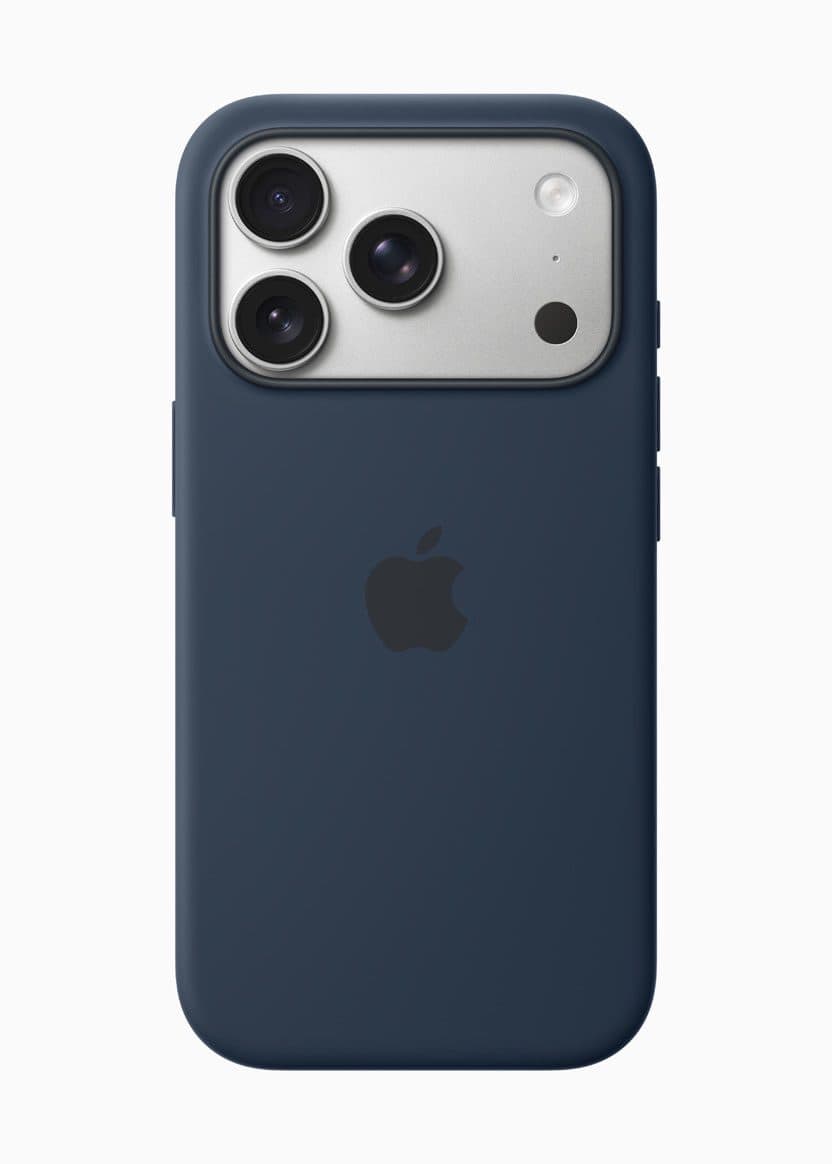
- If Apple Pay is not working on your iPhone 17 Pro or iPhone 17 Pro Max, make sure the terminal works with Apple Pay.
- If it does, try selecting the credit card manually from your Wallet app.
- Other tips include replacing your credit card in the Wallet app and signing out and back into your Apple account.
Apple Pay stands among the most advanced, widely used modern payment processing technologies. It executes transactions entirely from your iPhone. Also, since Apple Pay is accepted at over 85 percent of retailers in the U.S., you can likely use it wherever and however you want carrying nothing but your phone.
To use Apple Pay on your iPhone 17 Pro or iPhone 17 Pro Max, first look for the contactless payment symbol at checkout. Next, double-click the side button. When your default card appears, authenticate with Face ID or your passcode. Finally, hold the top of your iPhone 17 Pro near the card reader until you see Done or a checkmark on the screen.
Although using Apple Pay on the iPhone 17 Pro and iPhone 17 Pro Max is easy, the feature isn’t without its flaws. While the feature rarely crashes, it can happen. And you don’t want to be caught at the till when it does—especially if you don’t carry cash around anymore.
Fortunately, most Apple Pay issues are easy to fix. Here are seven ways you can fix Apple Pay when it’s not working on your iPhone 17 Pro or iPhone 17 Pro Max.
Make sure the point-of-sale terminal works with Apple Pay
The first thing you should do when Apple Pay is not working on your iPhone 17 Pro is too verify that the POS (point-of-sale) terminal accepts Apple Pay payments. Although mobile wallets are widely recognized payment methods accepted by most major retailers in the US, you still can’t automatically assume that all merchants accept them.
If the POS system accepts Apple Pay, ask the store clerk if they frequently encounter similar issues with mobile payments. They might know some quick fixes. For instance, they might need to check the POS internet connection or change a setting at the checkout. They could even advise you to take off your phone case or hold the phone at a specific angle to improve NFC connectivity.
Try choosing a card manually
When Apple Pay and the terminal are working normally, the Apple Pay wallet launches automatically with your default card selected when you bring the phone near the terminal. Although this feature streamlines checkouts, the NFC chips on POS terminals don’t always read Apple Pay properly.
In these instances, you’ll need to select your preferred card manually and then try the terminal again:
- Open the Wallet app on your iPhone 17 Pro.
- Choose the card you want to use for the purchase.
- Hold the top of your iPhone near the contactless reader.
If the reason why Apple Pay wasn’t working on your iPhone 17 Pro involved NFC connectivity, your transaction should finally push through. When this happen, you should see Done and a checkmark appear on your iPhone’s display.
Check the System Status of Apple Pay
If you’ve already tried choosing a card manually, it’s time to check the system status of Apple Pay. Apple Pay depends on an online service to be up and running, and if Apple Pay is offline, you won’t be able to complete the transaction. Of course, Apple Pay has a very high uptime and it’s unlikely to not be working. But if you want to know if the problem is at your end or at Apple’s end, visit the Apple System Status webpage and see if Apple Pay & Wallet has a green status light. If it doesn’t, nothing you do at your end will fix it, so you should make a purchase the old fashioned way.
Restart your iPhone
If you’re still unable to use Apple pay, you should try restarting your iPhone 17 Pro. A quick restart refreshes your device’s memory and clears the temporary cache, which might be interfering with the Apple Pay feature. If you are not in a hurry (this will take several minutes), get out of line and restart the phone, then try again after the phone is back up and running.
Replace your credit card in Apple Pay
From here on out, the potential fixes are increasingly inconvenient and time-consuming, so try them if nothing else works and you don’t want to enlist the help of Apple’s customer support.
The easiest of these more involved fixes is removing and replacing the cards in your Apple Wallet. This is especially likely to fix your problem if you have several credit cards in your wallet but only one of them fails to work. By removing and replacing that problematic card, you may be able to fix a glitch in the way that card was stored or accessed.
- Open the Settings app on your iPhone 17 Pro.
- Scroll down and tap Wallet & Apple Pay.
- In the Payment Cards section, tap the card that isn’t working properly and then tap Remove This Card. You will need to confirm this choice.
- Restart your phone.
- Return to the Wallet & Apple Pay section in Settings.
- In the Payment Cards section, tap Add Card.
- Follow the directions to add that same card back again.
Sign out and back into your Apple Account
It’s possible that something has gone awry with the way you are signed into your Apple account, so in the same way that you might have tried to restart your iPhone or replace your credit card, you can sign out of your Apple account and sign back in again.
- Open the Settings app on your iPhone 17 Pro.
- At the top of the page, tap your name.
- Scroll to the bottom of the page and tap Sign Out. You’ll need to confirm that you want to do this.
- Restart your phone.
- Return to the Settings app and sign back into your Apple account.
Contact Apple customer support
If Apple Pay is still not working on your iPhone 17 Pro, you should reach out to Apple customer support for further help. It’s possible that you have a hardware problem — for example, the NFC chip used to communicate with the point of sale terminal might not be working. This isn’t something you can easily test or troubleshoot on your own, so enlist the help of Apple.