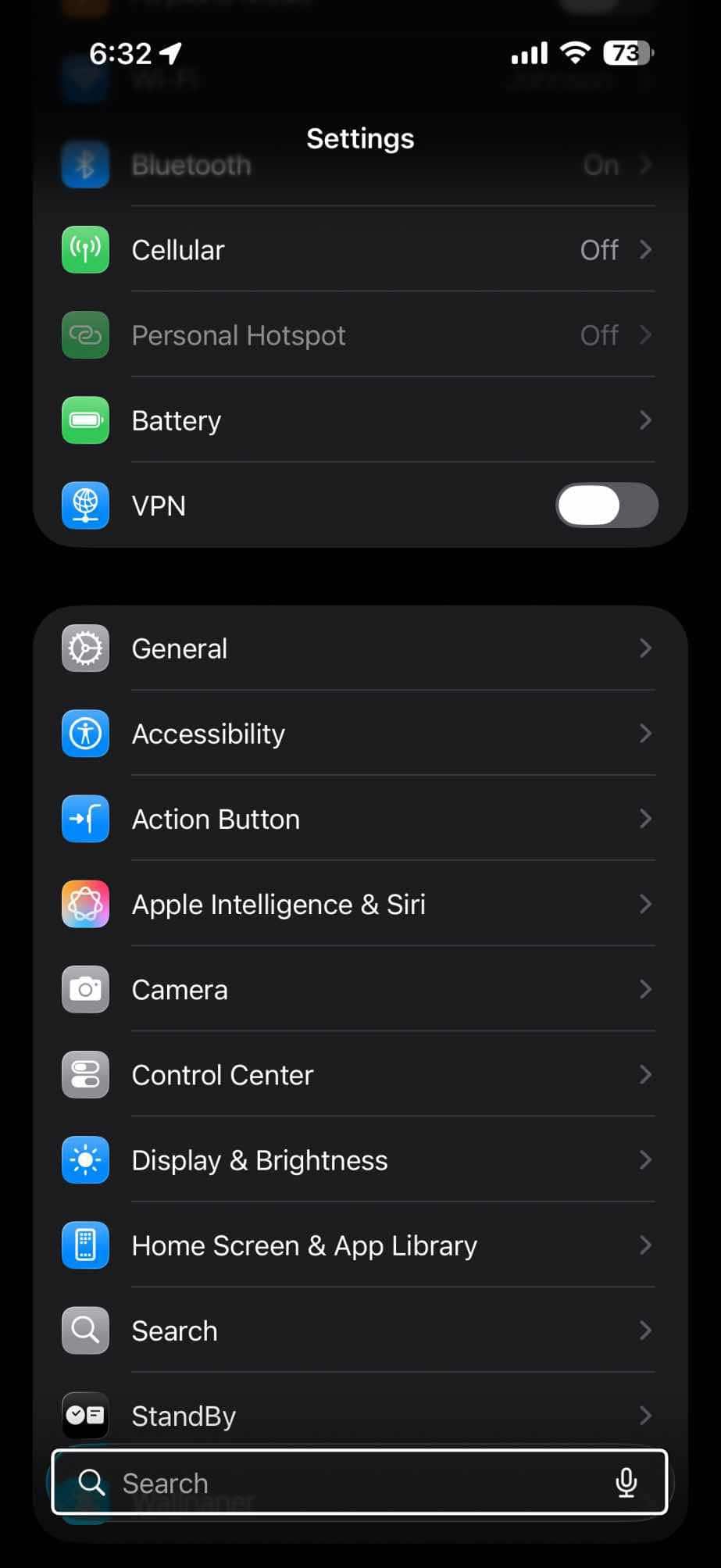
The iPhone offers a ton of settings. The Settings app alone has many options that let you adjust how your iPhone and apps work, and over the years it has become more and more crowded. Because of that, I personally use the search bar in Settings all the time to quickly find the right option instead of scrolling through endless menus.
That’s why a bug introduced with the latest iOS 26 has been so annoying for many users. After updating, the iPhone Settings search just stopped working. You could type obvious things like Battery, Low Power Mode, Notifications, or Siri–even when those settings were clearly there–and still see "No Results. Check the spelling or try a new search."
In some cases, search didn’t fully stop, but it behaved strangely. It would show installed apps, but completely ignore Apple’s own system settings. For others, it worked for a short time and then stopped again. Either way, a feature many people rely on daily suddenly became unreliable.
In this article, I explain what you can fix the problem if your iPhone Settings Search is not working. Try these fixes.
Note that this article is about the search option within the Settings app, not the Spotlight search.
Similar search issues also appeared in other parts of iOS — for example, many users have reported that Calendar search stopped working after the iOS 26 update, and several fixes including reindexing and toggling search settings have helped there too, that I included in this article as well.
1. Toggling Search options
After updating to newer iOS 26 versions, some users fixed the problem by:
- Going to Settings > Search (not the search field, the search option)
- Turning Show Recent Searchesand Show Related Content off
- Turning them back on again
2. Toggling Beta Updates
This one sounds strange, but it fixed the problem for more users than expected:
- Go to Settings > General > Software Update > Beta Updates
- Turn it on, wait a bit by selecting iOS 26 Public Beta
- Turn it off again
Many users said Settings search started working right after doing this.
3. Changing the iPhone language
Switching the iPhone language seems to force iOS to rebuild its search system. Here’s what you need to do:
- Switch between English (US) and English (UK) (or if different languages). Go to Settings > General > Language & Region.
- Restart the phone
- Wait for a while
- In many cases, Settings search suddenly worked again.
4. The full "search rebuild" method
The most reliable fix for iPhone Settings Search not working is also the most time-consuming. It forces iOS to rebuild its internal search index:
- Change language to English (UK)(or other than your primary language)
- Go to Settings > Siri and thenSettings > Search
- Turn off all suggestion options, like Suggest Apps Before Searching, Allow Notifications, Show in App Library, Show When Sharing, Show Listening Suggestions
- Optionally _turn off _search options for apps, like Show App in Search, Show Content in Search and more.
- Restart the iPhone
- Turn everything back on
- Restart again and leave the phone on Wi-Fi
- Switch back to your original language and restart