





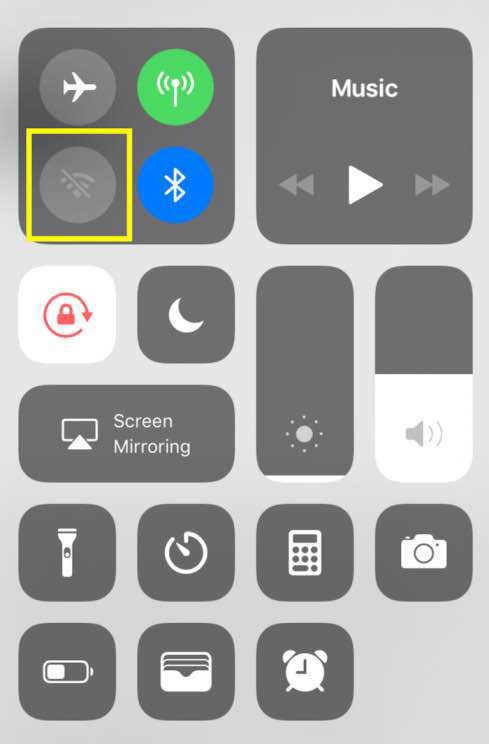
Control Center on iPhone is designed to make it easy to access certain settings and features on your iPhone. You should be able to quickly open Control Center to make changes, and if Control Center isn’t opening when you swipe down from the upper-right corner (or up from the bottom) of your iPhone screen, you may not even know how else to access some of those settings and features.
Users with many different iPhone models and various versions of iOS have had trouble with Control Center not working. There are several possibilities for why this could be happening, and in this article, we will tell you how you can troubleshoot this problem and get your Control Center working again. Here we list several reasons your Control Center may not be working. Check each until you find the cause of the problem.
How to open Control Center
For most, one of the following will be the reason you can’t get Control Center to open:
- iPhone X or later (Face ID models): Swipe down from the upper-right corner of the screen.
- iPhone SE, iPhone 8 or earlier (Home button models): Swipe up from the bottom edge of the screen.
Make sure you are swiping from the correct location for your iPhone model.
Check Control Center settings
You should check to see if you have Control Center access enabled, especially on the Lock Screen and within apps.
- Go to Settings > Control Center.
- Make sure Access Within Apps is turned on. If this is off, you won’t be able to open Control Center while using an app.
Also check that Control Center is not restricted by Screen Time:
- Go to Settings > Screen Time > Content & Privacy Restrictions.
- If Content & Privacy Restrictions is turned on, make sure that nothing is blocking Control Center access.
Restart your iPhone
If you have checked the settings above, and your Control Center is still not working, you can try restarting your iPhone.
- iPhone X or later: Press and hold the side button and volume down button until the power-off slider appears, then drag it to the right. Wait 30 seconds, then press and hold the side button until the Apple logo appears.
- iPhone SE (2nd or 3rd gen), iPhone 8 or earlier: Press and hold the side button until the power-off slider appears, then drag it to the right. Wait 30 seconds, then press and hold the side button until the Apple logo appears.
Screen protector or case
Your screen protector or case may interfere with the phone’s ability to detect your swiping, especially for iPhone X and newer. The screen needs to be able to detect your touch at the very edge of the screen in order to open Control Center. Try removing your screen protector and/or case temporarily to see if that resolves the issue.
Update your iPhone
Make sure your iPhone is running the latest version of iOS. Go to Settings > General > Software Update to check for and install any available updates.
VoiceOver
Things won’t work the same on your iPhone if you have VoiceOver enabled. If you are not sure if you have VoiceOver enabled, go to Settings > Accessibility > VoiceOver to check. You can learn more about operating your iPhone using VoiceOver gestures.
Screen damage
Additionally, if your iPhone’s screen is damaged, this could certainly affect whether you can open Control Center. If your screen is cracked or has areas that are unresponsive to touch, you may need to contact Apple Support or visit an Apple Store for repair.
See also: How to fix an iPhone touch screen that’s not working










 of your iPhone screen, learn how to fix the problem)