Several users have reported “verification failed” errors when trying to log into iCloud or the iTunes and App Store on the iPhone 18 Pro. The error message says:
“Verification failed. There was an error connecting to the Apple Account server.”
It seems that several iOS users run into this verification error when they want to use iCloud, iTunes or the App Store. This error makes some users think that their Apple Account username or password may be wrong. Please note that it is highly likely that there is nothing wrong with your Apple Account. You see this error because of other reasons such as poor connection.
This is an annoying problem. You will not be able to access several Apple services including iCloud, iTunes or the App Store if you do not resolve this. And this article explains how you can fix it:
Please ensure that you follow these instructions in order. Test between steps to check if your issue is resolved.
Apple servers
Before you do anything, make sure that Apple Servers aren’t experiencing any issues by going to the Apple System Status page. Here is how you can do this:
- On your iPhone 18 Pro, open a web browser such as Safari.
- And visit: https://www.apple.com/support/systemstatus/
- This page was created by Apple to inform users of major outages for Apple services, such as iCloud, App Store and more.
- Check this page, do you see any issues? If yes, just wait, Apple will fix the problem.
- If you do not see any issues, this indicates the problem is on your end.
Check your Internet connection
Make sure that your device is connected to the Internet. You may use a cellular service or a Wi-Fi network. First, test to see if your device is connected to the Internet. This is really easy. Just open a web browser such as Safari and then type apple.com. Does the site load? If yes, then go to the next step. If not, it is possible that you have a connection problem. You may try the following:
- On your device, turn on Airplane Mode (Settings > Airplane Mode) and wait 30 seconds and then turn back off.
- Turn off Wi-Fi and wait 1 minute and then turn back on.
- Restart everything:
- Restart your iPhone 18 Pro.
- Restart your router and modem.
- Make sure that your device is not too far away from your router.
- Use a different Wi-Fi connection if possible.
- If nothing above helps you, you may want to reset your network settings. Doing so will erase your network settings such as your saved Wi-Fi passwords etc. Here is how:
- On your iPhone 18 Pro: Go to Settings > General > Transfer or Reset iPhone > Reset > Reset Network Settings.
Restart
Restarting is simple but effective. Restarting may fix your problem. Here is how you can restart your device:
- Simultaneously press and hold the side button and either volume button until the sliders appear, then drag the Power Off slider.

Update your device
Make sure that your device is up to date. Here is how you can check for updates:
- Update your iPhone: On your device, go to Settings > General, then tap Software Update. If there is an update available, follow the onscreen instructions to install the update.
Sign out and sign in
You may want to try signing out and in. This may resolve your problem. Here is how you can do this:
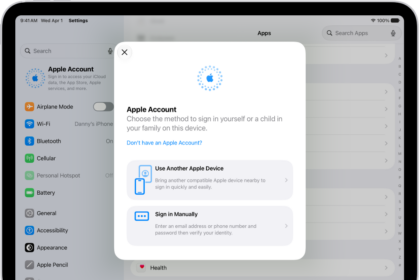
- On your iPhone 18 Pro, go to Settings > [your name] > Media & Purchases and select Sign Out. And then sign in using your Apple Account and password.
Date and time
Please ensure that the date and time settings are correct on your device. Here is how you can check:
- On your iPhone, go to Settings > General > Date & Time. Is your time zone correct? You may also want to turn on the “Set Time Automatically” option.
Verification code
You can get a verification code and that can help you sign in. You can do this if you have more than one Apple device. Here is how:
- Ensure that you’re signed in with the same Apple Account on all of your devices.
- Make sure that your device is connected to your Wi-Fi network.
- Generate a verification code from another device you own, iOS or macOS. To generate a code:
- iPhone: Settings > [your name] > Sign-In & Security > Get Verification Code.
- Now please enter the verification code in the device that is giving you this error.
VPN
If you are using a VPN server, try turning it off and then try again:
- If this is an iPhone, disable VPN by going to Settings > General > VPN & Device Management.
If you have tried all of the tips above and nothing helped you. Then it is time to contact Apple support. Apple offers:
- Live chat support.
- Genius Bar reservation.
- You can also check your Apple warranty status.