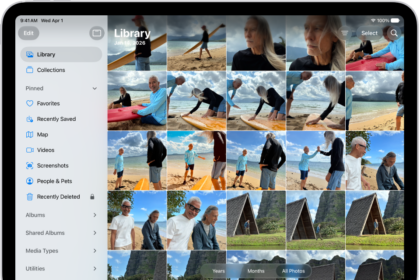
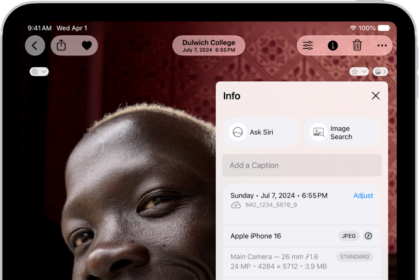
Several iPhone 18 Pro users have reported that they are unable to view their photos or videos when they open the Photos app. Users have further said that they get the following error message:
Unable to Load Video (or Photo). An error occurred while loading a higher quality version of this video (or photo).
It appears that users who are experiencing this problem may not open certain (not all) photos or videos. Furthermore, this issue may affect photos or videos that have been taken with your device or synced to your iPhone 18 Pro from a computer.
If you are experiencing this loading issue with your photos or videos, then this article is for you. In this article, we explain how you can fix this problem. Please try the troubleshooting steps below in order. After trying each step below, test to see if you can open your videos or photos.
You may also see an error message saying “Cannot Load Photo: There Was An Error Loading This Photo“. Likewise, you may receive an error message saying “Cannot Download Photo: iCloud Library“, when you want to share or edit your photos or videos.
1. Check storage
This error message may point to the lack of storage space. Check available storage on your iPhone 18 Pro. If your device does not have enough storage to save, photos in iCloud may not be downloaded to the iPhone.
Go to Settings > General > iPhone Storage. This screen will show you the used space on your iPhone 18 Pro. Ensure that your device has at least 2GB of free space. This page will display a set of recommendations. These recommendations will help you free space. You may also want to delete apps that you do not use.
2. Restart your iPhone 18 Pro
Simply restart your device to see if this can help you. Here is how you can restart your device:
- Simultaneously press and hold the side button and either volume button until the sliders appear, then drag the Power Off slider.

3. Update your device
Please ensure that your device has the latest version of iOS. You can easily update your device by going to Settings > General > Software Update. This will check for updates. And if there is an update available, follow the onscreen instructions to update your device to the latest version of the software.
4. Force restart
Here is how you can do this:
- Press and quickly release the volume up button. Press and quickly release the volume down button. Press and hold the side button. When the Apple logo appears, release the side button.

5. Check your network connection
Network problems may cause the Photos app to not access Apple’s servers to download the video or photo. Thus please ensure that your device has a Wi-Fi connection or cellular data connection. You can easily check this by connecting to a website, like apple.com, using a web browser, like Safari. If nothing loads, you may have connection issues.
If you are having connection problems, turn on Airplane Mode and wait for 30 seconds and then turn it off. This is important because, if you have iCloud Photos enabled (Settings > [your name] > iCloud > Photos), you may see this error message when your iPhone connection could not load the photo or video from iCloud.
Furthermore, if you are trying to load your photos or videos over cellular, please ensure that Use Cellular Data is on for the Photos app. You can check this by going to Settings > Cellular, Cellular Data, or tap Mobile Data and ensure that Photos is enabled.
Lastly, check to see if the “Optimize iPhone Storage” option is enabled if you are using iCloud Photos.
6. iCloud.com
If you are having this problem with only a few photos or videos, you may want to try this tip. If you are using iCloud Photos, follow the steps below:
- On your browser, visit iCloud.com and sign in.
- Click Photos.
- Find the photo or video you could not open and click it.
- Now click the share icon to email this photo to yourself.
- Open your email on your device and download the file on your device to see if you can open it.
And lastly, if you have iCloud Photos enabled, it is a good idea to check the system status page. This page will show if there’s an outage.
Still not working? Contact Apple Support.