





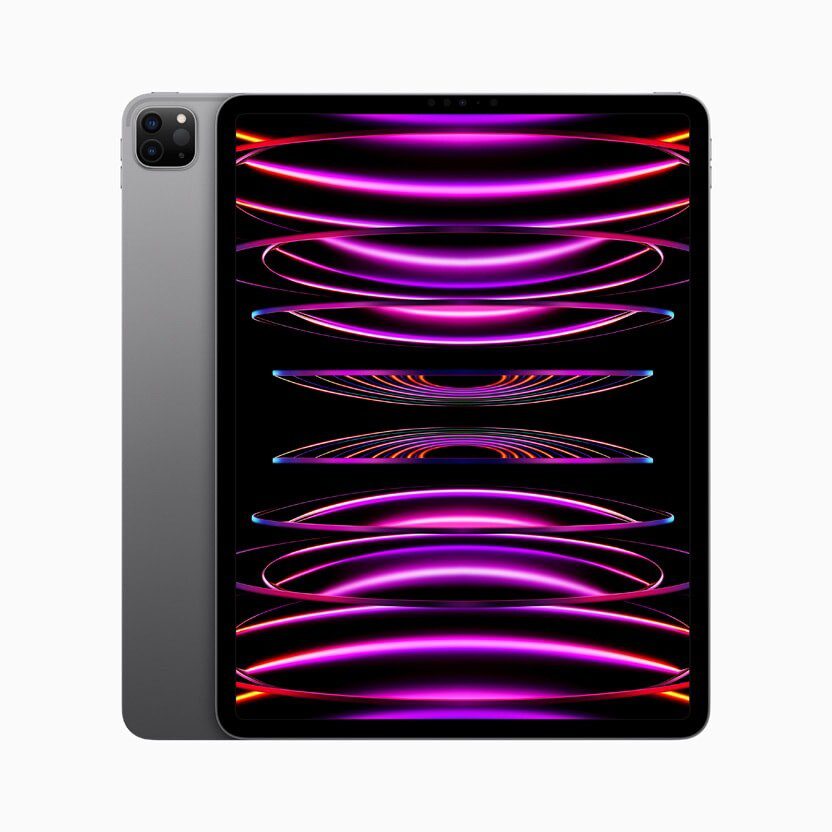
After updating to iPadOS 26, many iPad users noticed that the familiar swipe-up gesture to close apps suddenly stopped working. Instead of closing, the app simply scrolls, or nothing happens at all. Some users say they now have to rely on the three-button window controls, a mouse, or a keyboard–something they never needed before. A similar issue may also occur on Apple Watch.
If you are facing this problem, you’re not the only one. Apple Support Community discussions and Reddit show that this issue affects multiple iPad models, especially after installing iPadOS 26 or 26.1 and later. The best part? In most cases, the problem is caused by multitasking or full-screen app settings, not a hardware failure. I explain how to fix the problem if you can’t swipe up to close apps on your iPad after iPadOS 26 update.
First, let me explain how gestures work in iPadOS 26:
- Swipe up from the bottom edge to go to the Home Screen.
- Swipe up from the bottom and pause to launch the App Switcher, where you can swipe an app’s thumbnail up to force close it.
Please note that you may now see three window buttons (close, minimize, zoom) at the top of apps–similar to macOS.
Ways to Fix Can’t Swipe Up to Close Apps on iPad After iPadOS 26 Update
1. Installed the Latest Update (iPadOS)
The first thing you should do if you can’t swipe up to close apps on your iPad in iPadOS 26 is to check for the latest iPadOS 26 update. Apple frequently makes adjustments to multitasking and gestures in point updates.
To check:
- Head to Settings > General > Software Update.
- Install any available iPadOS update by following the onscreen instructions.
2. Turn On Full Screen Apps and Multitasking Gestures
This is the solution that worked for me. Here’s how:
- Launch the Settings app on your iPad.
- Go into Multitasking & Gestures. (On some models: Settings > Home Screen & Multitasking > Multitasking & Gestures).
- Turn Gestures On.
- In the same screen, look for Full Screen Apps and make sure the apps you’re using are set to open in Full Screen, not just in a floating window.
- Restart your iPad and try the swipe-up gesture again.
3. Restart or Force Restart Your iPad
Multiple iPad users said a simple reboot instantly restored the swipe-up gesture.
Normal restart:
- Head to Settings > General > Shut Down, swipe the power off slider from left to right, then power the iPad back on.
Force restart:
- For Face ID iPads: Quickly press and release the Volume Up, quickly press and release the Volume Down, then press and hold Top button until the Apple logo appears.
- For Home button iPads: Hold down the Home Top button until the Apple logo shows.
This clears temporary glitches that often appear right after a major update like iPadOS 26.
Alternatives
Even if iPad gestures temporarily fail, you can still close or switch apps with these methods:
- Window Controls: Many iPadOS 26 apps now show macOS-like top buttons:
-
Tap the × or close button to shut the window.
-
Trackpad or Mouse: If using a Magic Keyboard or Bluetooth mouse:
-
Move the pointer to the bottom of the screen and click to open the App Switcher.
-
Keyboard Shortcuts: If you use a hardware keyboard:
-
⌘H — Go to Home Screen
-
Globe ↑ — Show App Switcher












Thanks for your helpful guide, I was getting so frustrated because my new iPad wouldn’t swipe up to close apps but your advice soon got it working as I wanted. Thank you 😊