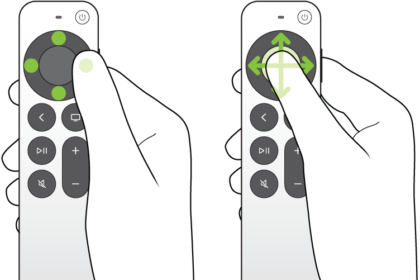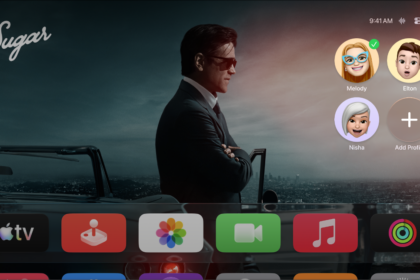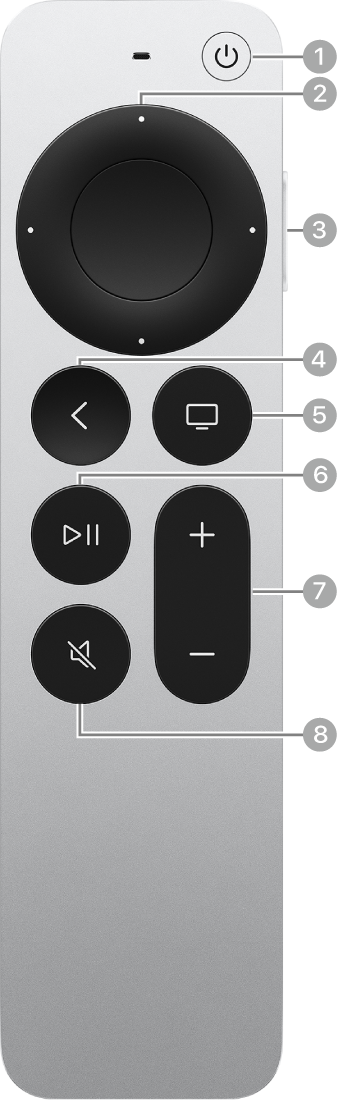
You can customize various aspects of the remote that comes with Apple TV 4K, including touch surface sensitivity and what the TV button does. For example, the TV button can open the Apple TV app or go back to the Home Screen. You can also view information about your remote, like its battery level.
- Go to Settings on Apple TV 4K.
- Go to Remotes and Devices and then adjust any of the settings listed below.
Option Description Clickpad (silver remote only) Select Click and Touch to allow both clicking and touch surface tracking (swiping), or Click Only to turn off touch surface tracking. Touch Surface Tracking Choose a Fast, Medium, or Slow touch surface tracking speed.
With faster touch surface tracking, smaller thumb swipes move farther on the Apple TV 4K screen.TV Button Changes the function of the TV button.
Select Apple TV app if you want to press the TV button to open the Apple TV app. Select Home Screen if you want to press the TV button to go back to the Home Screen.Remote Select to view information about your remote, including its battery level.
Not all features and content are available in all countries or regions or on all Apple TV hardware models.
See also