You can type Siri queries on Apple TV 4K using the onscreen keyboard, a connected wireless Bluetooth keyboard, or an iPhone or iPad, and when Type to Siri is turned on, you can also dictate text instead of entering it. Siri understands a wide range of queries.
It intuitively applies them to the current context whenever possible, and once Type to Siri is on, the Siri/Search button on your remote brings up a text field.
Here’s how to turn on Type to Siri and use it on your Apple TV 4K.
Turn on Type to Siri
- Go to Settings on Apple TV 4K.
- Go to Accessibility, then select Type to Siri to turn it on.
Type instead of speaking to Siri
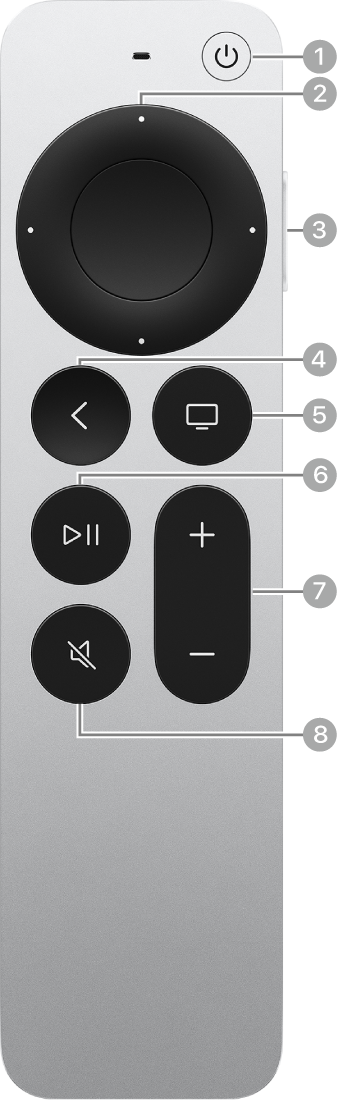
- While using Apple TV 4K, press the Siri/Search button on your remote. Then do any of the following:
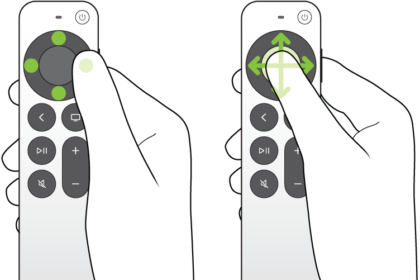
- Enter text using the onscreen keyboard: Go to an onscreen character, then select it.
To switch keyboards, press the Play/Pause button, or select letters, numbers, or special symbols onscreen.
- Enter text using a wireless Bluetooth keyboard: Make sure the keyboard is connected to Apple TV 4K and then use it to enter text. See Connect Bluetooth devices to Apple TV 4K.
- Enter text using an iPhone or iPad: Make sure the device is set up to enter text on Apple TV 4K. Use it to enter text. See Use your iPhone or iPad as a keyboard on Apple TV 4K.
- Dictate instead of type: Press and hold the Siri/Search button on the remote and say the text you want to enter. Release the Siri button.
- Enter text using the onscreen keyboard: Go to an onscreen character, then select it.
- Select Done.
Not all features and content are available in all countries or regions or on all Apple TV hardware models.