






You can answer, silence, or decline an incoming call on your iPhone. If you decline a call, it goes to voicemail. You can also respond to a call with a text.
Answer a call on iPhone
To accept a call on your iPhone, do one of the following:
- Tap the accept icon (green circle containing a white handset).
- If the phone is locked, slide the Slide to Answer slider to the right.
- If you’re wearing stereo earbuds or EarPods, tap the microphone icon or button. Microphone adapters for standard headsets may also work.

Tip: If you wear a wireless Bluetooth headset or use a car speakerphone, push the Answer button on your headset or speakerphone. With Apple’s AirPods, double-tap one of the earbuds; with AirPods Pro, press the indent on the stem.
Note: If you’re listening to music in the Music app or another audio app when a call comes in, the song pauses playing while you decide whether to take the call. If you do take the call, after the conversation ends, the music usually resumes from where it paused.
Announcing the caller
On iPhone, there are three main ways of telling who is calling you before you pick up. The first way is Caller ID. The second way is recognizing the ringtone you have assigned to a particular caller
The third way is to have Siri announce the caller’s name. To make Siri say who is calling, go to Settings ⇒ Apps ⇒ Phone ⇒ Announce Calls, and then tap Always, Headphones & Car, or Headphones Only to tell Siri when to make the announcements. Choose the fourth option, Never, when you need to keep Siri quiet — for example, when you’re in public.
See also: A Beginner’s Guide to Setting Up and Using Siri on your iPhone
Silence a call on iPhone
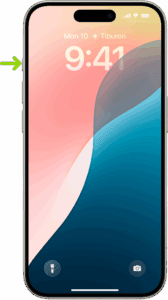
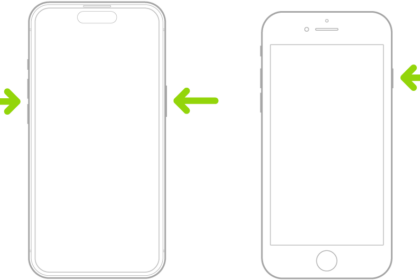
Press the side button or one of the volume buttons once when a call is coming in.
You’ll still be able to answer the call (discreetly,).
Tip: You can also automatically screen and silence calls from unknown numbers. See Screen or silence unknown numbers.
Declining the call on iPhone
To decline an incoming call on your iPhone, do one of the following:
- Tap the red decline button, which appears inside a notification at the top the screen when your iPhone is unlocked.
- Let the call ring until it goes to voicemail.
- Press the side button twice in rapid succession.
- Press and hold down the microphone button on a headset for a couple of seconds, and then let go. Two beeps let you know that the call was indeed rejected. On some Bluetooth earpieces, pressing and holding down other buttons does the trick.
Ask a caller for more information without answering a call
When you receive a call on your iPhone, you can type a message asking the caller for more information before deciding whether to answer.
Tap Type to Reply, then type the message you want your iPhone to say to the caller. Their reply will appear on your screen as text.
iPhone can help you avoid unwanted calls by identifying callers, blocking certain people, screening unknown callers, or sending spam callers directly to voicemail. You can also filter out unknown callers so they don’t appear in your recent and missed calls. To learn more, see Block calls.
Replying with a text message
When you can’t take a call, consider replying with a text message. When the banner notification for the incoming call appears on your iPhone, tap the notification to display the call screen, and then tap the Message icon. On the Respond With pop-up menu, either tap one of the three canned messages or tap Custom and type a custom message.
Tip: To customize the three canned messages, go to Settings ⇒ Apps ⇒ Phone ⇒ Respond with Text, and then type your preferred messages on the Respond with Text screen.
When you tap any of these options, the caller will get your outgoing voicemail and receive whichever of the text options you chose to send.
Note: If the incoming call is from an unknown person and a phone number isn’t shown, you won’t have the option to reply with a text. If you tap Remind Me instead of Message, you can arrange to receive a reminder notification in one hour. Meanwhile, the caller hears your voicemail message. Or you can arrange a reminder when you leave your current location.
Tip: If your iPhone has the physical action button (it’s at the top of the left side), you can set it to toggle silent mode. To do so, go to Settings ⇒ Action Button, swipe right to scroll left until Silent Mode appears, and then tap the back icon (<). On an iPhone that has the physical ring/silent switch in place of the action button, you can turn off the ringer by setting this switch so that orange is visible.
See also: How to Make International Calls for Free on iPhone






.)