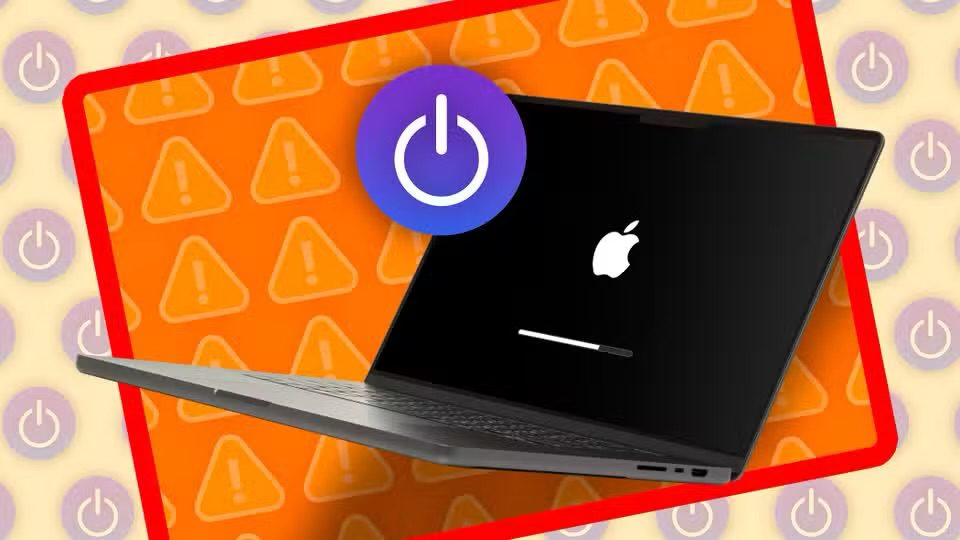
This article explains how to back up hard drive data on your Mac when macOS won’t boot. You may be having start up issues with your Mac. If your Mac won’t turn on, recovering your files can be challenging, but it is not impossible.
Your data is valuable, thus backups are important. You should back your files regularly, so you do not lose your files.
You may fix most of startup related issues on MacBook Pro, MacBook Air, and iMac. Before doing anything, however, you may want to backup your files and documents.
To back Up your Mac that won’t boot, you need to get a system image, which includes copies of your programs, system settings, and files, using macOS’s Disk Utility. This method will backup to an external hard drive.
Please note that there’s no guarantee your data is recoverable. This method may not work for you.
Here is how to back up data from Mac that won’t boot up
We are using macOS Tahoe. Earlier macOS versions have slightly different interface.
1-Connect your external hard drive to your Mac (yes you need an external hard disk). Make sure this drive has enough spare disk space to store your backup files. The drive should be formatted as APFS or Mac OS Extended (Journaled) for best compatibility.
2-Boot your Mac into Recovery Mode. The steps differ depending on your Mac type:
For Intel-based Macs:
- Shut down your Mac completely
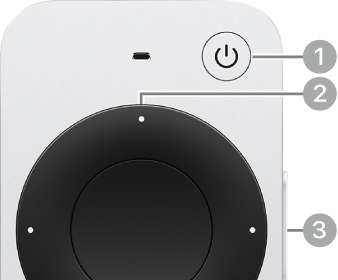
- Press the power button, then immediately press and hold Command (⌘) and R
- Keep holding them until you see an Apple logo or spinning globe
- Release the keys when the macOS Utilities window appears
For Apple silicon Macs (M1, M2, M3, M4):
- Shut down your Mac completely
-
Press and hold the power button until you see "Loading startup options"
-
Release the power button when you see the Options icon
-
Click Options, then click Continue
-
If asked, select your startup disk (such as Macintosh HD) and click Next
-
If asked to select a user, select an administrator account, enter the password, then click Continue
-
Select Disk Utility and click Continue
-
Select the volume you want to back up, such as Macintosh HD, from the sidebar
-
Select File > New Image > Image from "[volume name]"
-
You may change its name if you want to
-
Select your external drive as the destination
-
Choose "Read-only Compressed" from the format options
-
Select Save
-
Your backup process will start. It may take some time depending on how much data you have.
3-You will be notified when the process is done. The backup file will be saved as a .dmg disk image on your external drive.
If you get a new Mac and want to restore your backup, you may use Migration Assistant to transfer the data back to your Mac. Connect the external drive containing your backup, then open Migration Assistant in your Applications/Utilities folder and follow the prompts. If you are using a Time Machine backup, Migration Assistant can restore all of your personal files, apps, and user account settings.
Making backups of your files is important. Before losing anything, back up now. You may want to use the macOS Time Machine feature to easily create backup files. That is the easiest way to back up your Mac. You may also use iCloud to back up some of your files like music, photos, etc.