You can add websites to Favorites, edit favorites, and show the Favorites bar in Safari on your iPad.
You can copy, open, delete, rename, or reorder a favorite, and recently saved favorites appear at the top of the sidebar. The newest is on the left. You can even show only an icon for a webpage in the Favorites bar.
Here’s how to bookmark a website as a favorite in Safari on iPad.
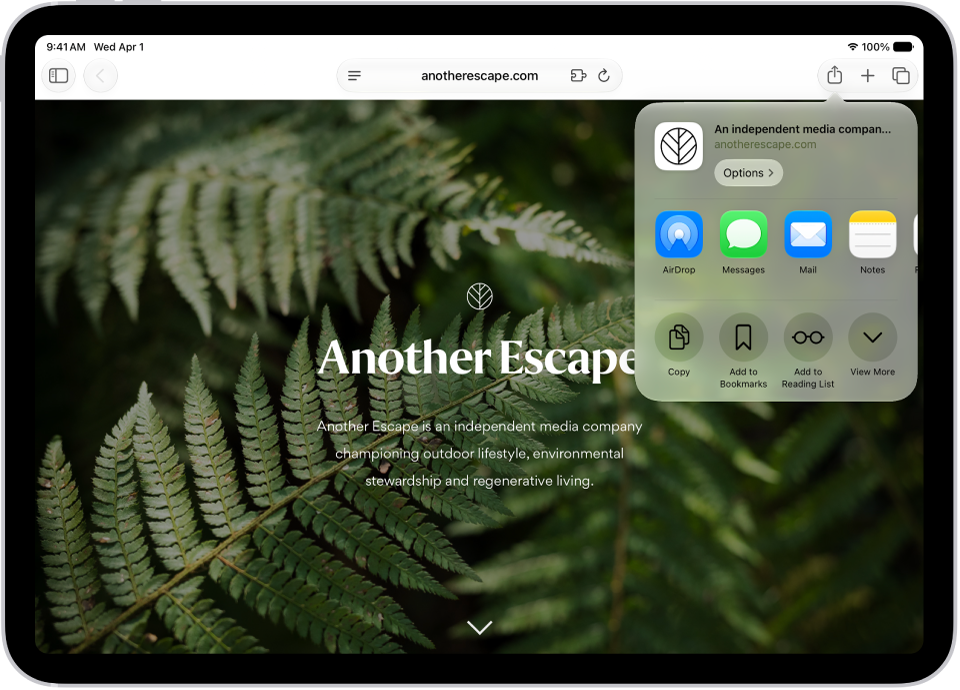
Add a website to Favorites
- Go to the Safari app on your iPad.
- Go to the website.
- Tap the Share button to the right of the search field and tap View More. Tap Add to Favorites.
Edit favorites
- Open the Safari app on your iPad.
- Tap the Show Sidebar button and then tap Bookmarks (below Saved).
Recently saved bookmarks, favorites, and reading list items appear at the top of the sidebar. The newest is on the left, and you can scroll through the others. Touch and hold a favorite to copy, open, edit, or delete it.
- Tap Favorites, then do any of the following:
- Delete a favorite: Touch and hold the favorite, then tap Delete.
- Rename a favorite: Touch and hold the favorite, tap Edit and enter a new name. Then tap Save.
- Reorder favorites: Tap the More button, tap Select Bookmarks, touch and hold the Reorder button, and then drag the favorite to a new location. Tap the Done button to return to your favorites.
Show the Favorites bar
- Open the Settings app on your iPad.
- Tap Apps, then tap Safari.
- Turn on Show Favorites Bar (below General).
Show only an icon for one webpage in the Favorites bar
- Open the Safari app on your iPad.
- Touch and hold the webpage in the Favorites bar and then tap Edit.
- Turn off Show Title, then tap Save.
Show only an icon for all webpages in the Favorites bar
- Open the Settings app on your iPad.
- Tap Apps, then tap Safari.
- Tap Favorites Bar Appearance (below General). Tap Show Icons Only.
Rename a webpage title in the Favorites bar
- Open the Safari app on your iPad.
- Touch and hold the webpage title in the Favorites bar. Then tap Edit.
- Enter a new name and then tap Save.
See also