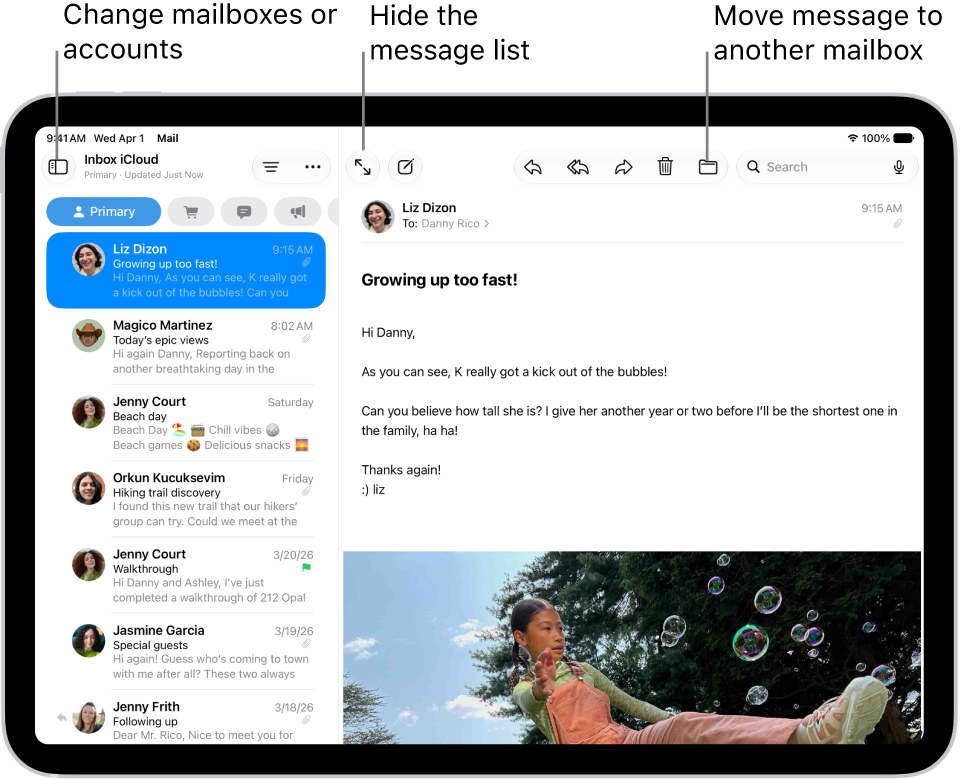
On iPad, you can change your Mail notification settings and choose which mailboxes and email threads to receive notifications from.
Busy threads can be muted so they stop interrupting you, and you choose what happens to muted messages in Mail settings. You can also get notified about replies to an email or thread, and add the Mute button to the Mail toolbar. Notifications can also let you know when email arrives in your favorite mailboxes or from your VIPs.
Here’s how to set email notifications on iPad.
Mute email notifications
To cut down on interruptions from busy email threads, mute notifications from messages in a conversation.
- Go to the Mail app on your iPad.
- Open a message in the conversation.
- Tap the More Actions button in the bottom-right corner and then tap Mute.
To specify what you want done with email messages you muted, go to Settings > Apps > Mail > Muted Thread Action, then select an option.
Quick tip: For easier access to the Mute button, add it to the Mail toolbar. Read our guide, Customize the Mail toolbar.
Receive notifications about replies to an email or thread
Mail notifications can let you know when email messages arrive in your favorite mailboxes or from your VIPs.
- Start the Mail app on your iPad.
- Do any of the following:
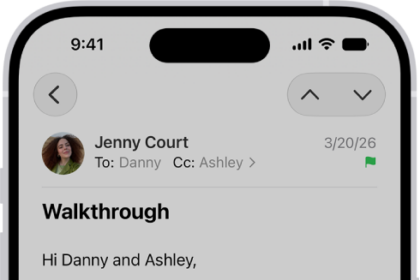
- When reading a message: Tap the More Actions button in the bottom-right corner and tap Notify Me.
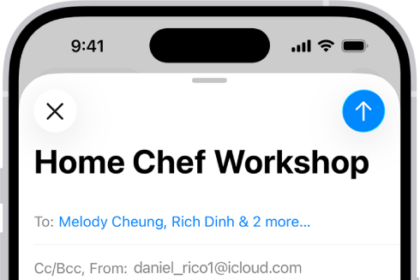
- When writing a message: Tap the Subject field and tap the Notify Me button in the Subject field. Tap Notify Me.
To change how notifications appear, go to Settings > Apps > Mail > Notifications.
Change your Mail notifications
- Start the Settings app on your iPad.
- Tap Apps and then tap Mail.
- Tap Notifications and then make sure that Allow Notifications is on.
- Tap Customize Notifications. Tap the email account you want to make changes to.
- Select the settings you want, like Alerts or Badges. When you turn on Alerts, you have the option to customize your sounds by changing the alert tone or ringtone.
You can set times for allowing notifications from the Mail app; see our guide, Change notification settings.
See also