Your iPhone doesn’t need to look like it came from 2007. There are a ton of iPhone home screen settings that can help you tweak your iPhone’s home screen the way you want. You can easily change wallpapers and/or customize iPhone Home Screen layouts by adding widgets and folders (and by hiding unwanted apps from your view).
This guide will help set up your iPhone screen so it looks exactly how you want it to.
How to customize iPhone Home Screen layout
Gone are the days when you could do nothing more than shuffle icons around. Apple now offers plenty of ways to customize your iPhone Home Screen.
Here are all the ways you can tweak your iPhone home screen to make it as fun and unique as you are.
How to remove app labels
- Touch and hold the background on any Home Screen page until the apps jiggle.
- Tap Edit in the top left corner of your screen.
- Tap Customize.
- Tap the two different-sized squares in the top-right corner of the new menu that appears at the bottom of your screen.
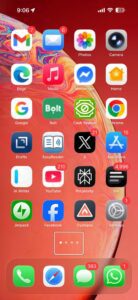
Your app icons will grow and the labels beneath them will disappear. This looks much cleaner to me: I don’t plan on displaying app labels ever again.
If you don’t like this, follow the above steps again and tap the different sized squares once more. The apps will revert to their normal size and the labels will reappear.
How to change the color of your app icons and widgets
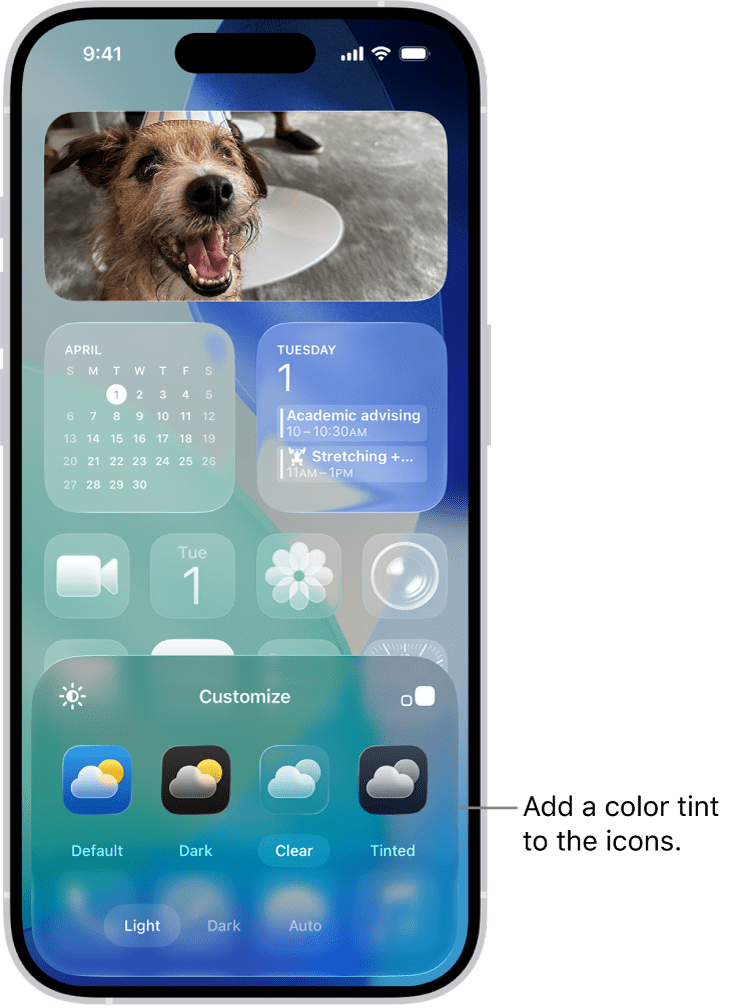
You can change the look and feel of app icons on your Home Screen. Choose between light or dark, an all-new clear option, or tinted your favorite color. Here’s how:
- Touch and hold the background on any Home Screen page until the apps jiggle.
- Tap Edit in the top left corner of your screen.
- Tap Customize.
- Choose between Default, Dark, Clear and Tinted app icons and widgets.
If you choose Dark from this top menu, Apple’s first-party apps, like Messages and Safari, will now have an almost-black background. This change applies to first-party Apple apps and some third-party apps, like the YouTube and Bluesky. Other third-party apps, like Instagram and Snapchat, are unchanged.
Choosing Dark will also darken your background, which could reduce the amount of power your iPhone uses and extend your battery life.
Clear will turn your app icons and widgets almost translucent.
If you choose Tinted, you can turn your apps and widgets every other color. Tapping Tinted causes a gradient scale to appear at the bottom of the Customize menu. You can adjust the scale until you get just the right hue. You can also tap the eyedropper icon near the bottom right corner of the menu to select a color from your background that matches your icons more closely. That way you’re not moving the sliders and getting frustrated because the colors aren’t quite matching — a total hypothetical, I swear.
If you choose Clear or Tinted, you can also give your app icons and widgets a Light or Dark tint. There’s also an Auto option that will automatically change the tint based on whether light or dark mode is active. These options appear across the bottom of the Customize menu. Personally, Clear with a Dark tint is my new favorite color scheme.
How to add widgets to your iPhone Home Screen
Widgets let you easily see the information that’s most important to you, like the current weather and upcoming calendar events. You can also complete tasks—for example, check off an item in your Reminders to-do list, or play a song in Music.
To add widgets to your iPhone’s Home Screen, follow these steps:
- Touch and hold the background on any Home Screen page until the apps jiggle.
- Tap Edit, then tap Add Widget.
How to organize apps and widgets on iPhone Home Screen
You can move apps or widgets on your iPhone’s Home Screen. Here’s how:
- Go to the Home Screen.
- Touch and hold the Home Screen background until the items begin to jiggle.
- Drag the app or widget to one of the following locations:
- Another location on the same page—including the top, bottom, or side of the screen
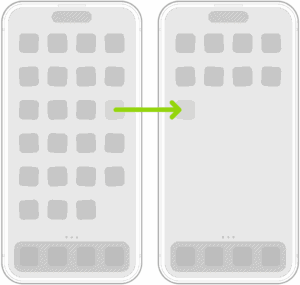
- Another Home Screen page: Drag the app or widget to the right edge of the screen. You might need to wait a moment for the new page to appear. The dots above the Dock show how many pages you have and which one you’re viewing.
- When you’re finished, press the Home button (on an iPhone with a Home button) or tap the Home Screen background (on other iPhone models).
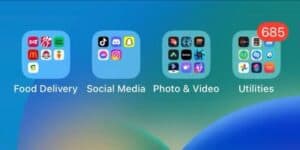
How to make a folder on your Home Screen
You can organize your apps into folders to make them easier to find on your iPhone’s Home Screen pages.
- Touch and hold the Home Screen background until the apps begin to jiggle.
- To create a folder, drag an app onto another app, then drag other apps into the folder.
- To rename the folder, touch and hold it, tap Rename, then enter a new name.
- If the apps begin to jiggle, tap the Home Screen background and try again.
- When you’re finished, tap Done.
How to hide apps from iPhone Home Screen
Hiding an app prevents others from seeing or opening it (unless they have a way to authenticate your iPhone using Face ID, Touch ID, or a passcode).
When you hide an app, its name is still visible in some places, such as Screen Time, Battery Usage By App (in Settings), and your App Store purchase history.
Note: Apps that come installed can’t be hidden—only apps you download separately from the App Store can be hidden. Apps that are set by the user as default web browser or app marketplace (available only in the EU) can’t be hidden either.
- Go to the Home Screen.
- Locate the app you want to hide.
- Touch and hold the app icon until the menu opens.
- Tap Require Face ID (or Touch ID or Passcode).
- Tap Hide and Require Face ID (or Touch ID or Passcode), authenticate using Face ID (or Touch ID or a passcode), then tap Hide App.
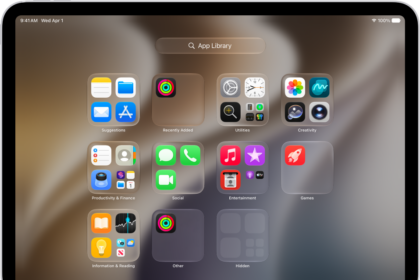
- The app disappears from your Home Screen and moves to the Hidden folder at the bottom of App Library.
Tip: To view a list of your hidden apps, go to Settings > Apps > Hidden Apps.
See also: How to find and open hidden apps on iPhone
How to add a new wallpaper for your iPhone Home Screen
- Open the Settings app, then tap Wallpaper.
- Tap Home Screen Wallpaper.
- Tap Add New Wallpaper.
- Tap Photos or Photo Shuffle to choose your own photo. You can also select a wallpaper from categories like Weather & Astronomy, Emoji, or Color.
- If you want, you can customize your wallpaper further. Then tap Add.
- Tap Customize Home Screen. Tap a color to change the wallpaper color, tap the Photo On Rectangle button to use a custom photo, or select Blur to blur the wallpaper so the apps stand out.
How to remove apps from iPhone Home Screen
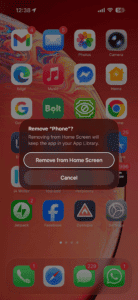
Sometimes, you might want to remove an app from your iPhone’s Home Screen but not uninstall it. This is also possible — here’s how.
- On your Home Screen, touch and hold the app.
- Tap Remove App.
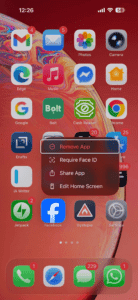
- Tap Remove from Home Screen.
How to hide a Home Screen page
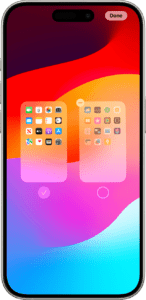
The iPhone lets you hide pages to streamline how your Home Screen looks and add them back whenever you want. Here’s how to hide a page:
- Touch and hold an empty area on your Home Screen.
- Tap the dots near the bottom of your screen.
- Tap the circle under the page that you want to hide.
- Tap Done.
How to remove the Home Screen Search Bar on iPhone
The iPhone Home Screen includes a Search bar located just above the Dock. If you don’t like this addition and prefer the dots that signify the number of active Home Screen pages you have, you can turn it off in iOS home screen settings. Follow these steps:
- Open the Settings app on your iPhone.
- Scroll down and tap Home Screen & App Library.
- Under "Search," toggle off the switch next to Show on Home Screen.
See also: How to move and organize apps on your iPhone Home Screen