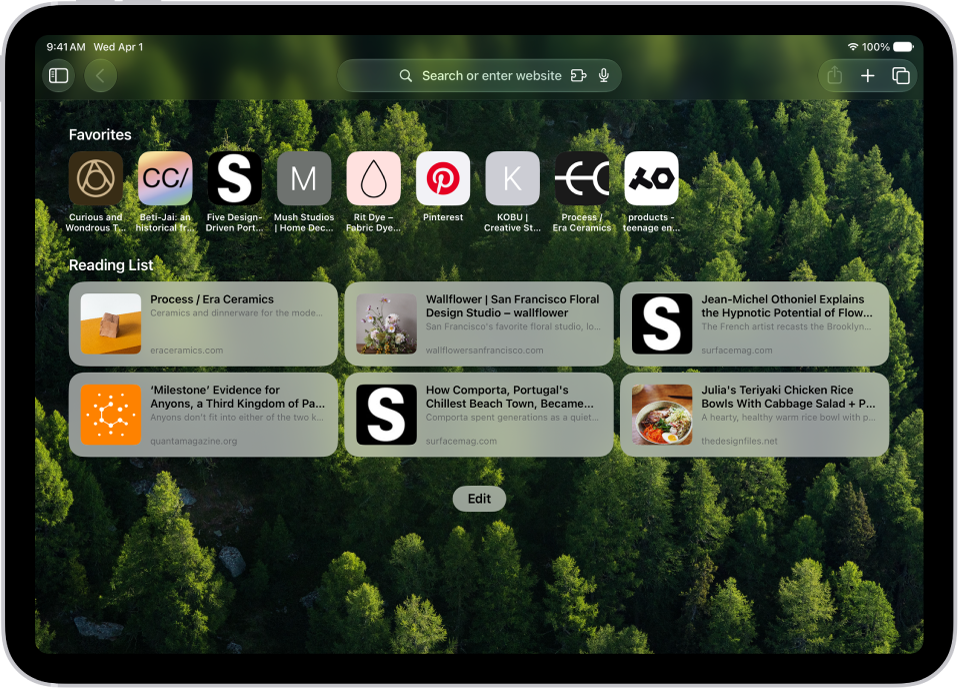
On iPad, you can customize your start page, change the text size on websites, and change display and privacy settings. Sign in to iCloud with the same Apple Account on multiple devices, and your open tabs, bookmarks, browsing history, and Reading List stay up to date across them.
Every new tab begins on your start page, which you can customize with new background images and options.
Here’s how to customize your Safari settings on iPad.
Customize your start page
When you open a new tab, you start on your start page. To customize it, add new background images and options.
- Go to the Safari app on your iPad.
- To open a new tab, tap the New Tab button at the top-right corner of the screen.
- Scroll to the bottom of the page and then tap Edit.
- Choose options for your start page.
- Use Start Page on All Devices: Use these settings on all your Apple devices where you have Use Start Page on All Devices turned on and you’re signed in to the same Apple Account using two-factor authentication.
- Tab Group Favorites: Display shortcuts to your favorite bookmarked websites in the current Tab Group. See Create a new Tab Group.
- Favorites: Display shortcuts to your favorite bookmarked websites. See Add a website to Favorites.
- Suggestions: See websites you visit most, websites shared in other apps (such as Calendar and Maps), and links shared with you in Messages, Mail, and more. See Find links shared with you.
- Privacy Report: Stay updated on how many trackers and websites Safari blocked from tracking you. See View the Privacy Report.
- Reading List: Show webpages currently in your Reading List. See Add the current webpage to your Reading List.
- Recently Closed Tabs: Go back to tabs you previously closed.
- iCloud Tabs: Show open tabs from other Apple devices where you’re signed in to the same Apple Account and Safari is turned on in iCloud settings or preferences. See Organize your tabs with Tab Groups.
- Background Image: Choose the image you want to appear in the background each time you open a new start page. To use a photo as your background, tap Select Image from Library.
Customize the Page menu
You can add your favorite Page and Tab Actions to the Page menu.
- Open the Safari app on your iPad.
- Tap the Page Menu button on the left side of the search field. Then tap Customize Menu.
- Tap the Insert button to add Page or Tab Actions to the Page menu.
Tap the Remove button to remove an action.
- Tap the Done button. Tap the Done button again.
Make the content larger or smaller for a website
Use the Page Menu button to zoom in or out on a webpage.
- Open the Safari app on your iPad.
- Tap the Page Menu button on the left side of the search field and tap Page Zoom.
- Tap Zoom In or Zoom Out. Tap Actual Size to return to the default size.
Change the display controls for a website
You can hide the search field, switch to Reader, and more.
- Open the Safari app on your iPad.
- Tap the Page Menu button and then do any of the following:
- Hide the search field: Tap Hide Toolbar (tap the top of the window to get it back).
- See a streamlined view of the webpage: Tap Show Reader (if available).
To return to the normal view, tap the Page Menu button, then tap Hide Reader.
- See what the webpage looks like on a desktop computer: Tap Request Desktop Website (if available).
- See a summary of the webpage (with Apple Intelligence): Tap Summarize. See Summarize a webpage.
Note: Apple Intelligence on iPadOS 27 or later is available on an Apple Intelligence-enabled iPad mini (A17 Pro) and iPad models with M1 or later. Apple Intelligence is not available in all languages or regions. Usage limits may apply.*
You can also adjust Safari settings in Accessibility settings. Go to the Settings app, tap Accessibility, then tap Per-App Settings. Tap Safari to adjust settings. If Safari isn’t listed, tap Add App, then tap Safari to add it.
Choose where to save downloads
When you download a file in Safari, you can choose whether to save it to iCloud or on your iPad.
- Open the Settings app on your iPad.
- Tap Apps, then tap Safari.
- Tap Downloads and then choose one of the following:
- iCloud Drive: Select this option to save downloads to the Downloads folder in iCloud Drive. This allows you to access the downloaded file on any iPhone, iPad, or Mac where you’re signed in to the same Apple Account.
- On My iPad: Select this option to save downloads to the Downloads folder on your iPad.
- Other: Select this option to save downloads in a location other than a Downloads folder.
Share website passwords with a group
Create a group of trusted contacts to share a set of passwords with. Everyone in the group gets up-to-date passwords, and you’re able to remove someone at any time.
For how that works, see our article, Share passwords or passkeys with people you trust.
Adjust privacy settings
You can choose what privacy settings you want across Safari, and create individual exceptions for websites. See Browse privately.
Use keyboard shortcuts
If you have an Apple external keyboard connected to your iPad, you can navigate in Safari with keyboard shortcuts.
To view available keyboard shortcuts, connect your keyboard, then touch and hold the Command key.
*Apple Intelligence is available with Siri and device language set to Chinese (Simplified), Chinese (Traditional), Danish, Dutch, English, French, German, Italian, Japanese, Korean, Norwegian, Portuguese, Spanish, Swedish, Turkish, or Vietnamese. Some features may not be available in all regions or languages. Some devices may not be available in all regions. Siri AI is available in beta in iOS 27, iPadOS 27, macOS 27, watchOS 27, and visionOS 27 and requires an Apple Intelligence–enabled device set to a supported language. Available in English to start. Siri AI will not be initially available in the EU on iOS, iPadOS, and watchOS. Certain Apple Intelligence features that rely on server-side models are subject to daily usage limits, including but not limited to Siri AI, Intelligent Photo Editing Tools, Image Playground, and AFM 3 Cloud models in Shortcuts. Daily limits may vary by feature, request complexity, system demand, system policies, and other factors. Expanded access to such features will be available for a fee in the future. Use of these features is subject to the Apple Intelligence Terms and Conditions.
See also