Face ID lets you securely unlock your iPhone or iPad, authenticate purchases, sign in to apps, and more — all with just a glance. Try these fixes if Face ID is not working on your iPhone after iOS 27 update.
Check Your Face ID Settings
To fix Face ID problem in iOS 27, first check if Face ID has been set up and configured correctly:
- Open the Settings app.
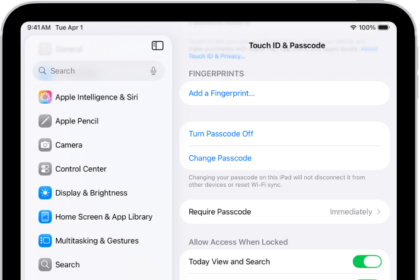
- Tap on Face ID & Passcode, then enter your passcode.
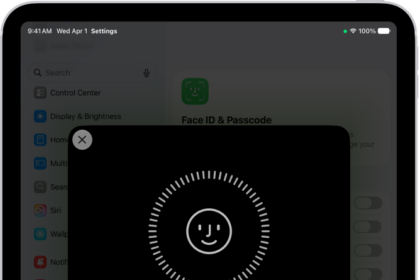
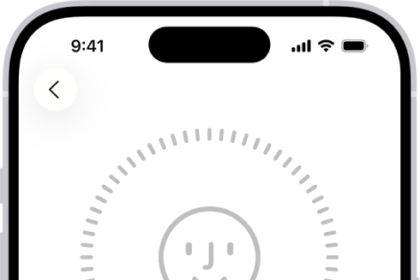
- If you see the Reset Face ID option, Face ID is already set up on this device. Otherwise, choose Set up Face ID and follow the instructions.
- With Face ID set up, turn on iPhone Unlock, iTunes & App Store, Contactless & Payments, Password AutoFill, and Other Apps underneath Use Face ID For.
Allow Face ID in Third-Party Apps
Your favorite third-party apps for banking, payment, instant messaging, etc., might use Face ID for login authentication. If you denied an app permission to use Face ID in the past, however, you’ll be prompted to enter your device’s passcode each time instead.
Here’s how to turn on Face ID for a compatible third-party app:
- Open the Settings app.
- Tap on Face ID & Passcode, and then enter your passcode.
- At the bottom of the Use Fade ID For section, touch Other Apps.
- Ensure the switch for the concerned app, like WhatsApp, is set to ON.
Alternatively, tap the desired app in the root list of the Settings app (like Settings > WhatsApp) and verify whether Face ID has been switched on.
Add an Alternative Appearance to Face ID
If Face ID works most of the time but falters when you’re wearing a specific look or outfit that significantly changes your appearance, you can add an additional appearance for more reliable authentication. To do this, head to Settings > Face ID & Passcode and then tap the “Set up an Alternative Appearance” button to get started.
The process works just as it did when you first set up Face ID. You’ll need to take multiple scans from different angles by following the on-screen instructions.
Alternative appearances could be used by others to authenticate your device. Apple recommends against this for privacy and security purposes. If you suspect someone else has set up an alternative appearance on your device, hit the red “Reset Face ID” button and set up the feature again (and consider changing your passcode too).
Enable Face ID With a Mask
Enable the “Face ID with a Mask” toggle under Settings > Face ID & Passcode if you are having trouble authenticating while wearing some sort of face covering. This doesn’t just include the sort of face mask you might wear in a medical setting but also glasses, scarves, and more.
When you toggle the feature on, you’ll need to re-scan again so that Face ID can get a better scan of the area around your eyes. You do this multiple times to add different face coverings, sunglasses, and so on.
Restart Your iPhone
A restart is the most basic fix for any issue. It involves two steps. Firstly, turn off your iPhone in Settings > General > Shut Down. And secondly, wait about a minute before turning the device back on.
The Face ID components that stopped functioning after iOS 27 update should now work perfectly. But for security reasons, you must enter your passcode to re-enable Face ID after a restart.
Update iPhone to the Latest iOS 27 Version
Apple regularly updates iOS and iPadOS to fix bugs, patch vulnerabilities, and improve its software. If Face ID doesn’t work, the problem may be at a deeper software level. In that case, update your iPhone to the latest version of iOS 27 by heading over to Settings > General > Software Update.
Check that nothing is covering the TrueDepth camera
Remove anything that might be covering the TrueDepth camera like a smudge, case, or screen protector.
Make sure that your face isn’t blocked
Make sure that your eyes, nose, and mouth are fully visible to the TrueDepth camera. By default, Face ID doesn’t work if anything is covering your mouth and nose. If you’re wearing a face mask and have already set up Face ID with a mask,* make sure that your eyes aren’t blocked. You might need to hold your iPhone higher if you’re wearing a face mask. If you wear a face mask too high or too close to your eyes, your iPhone might not unlock.
Face ID works with many sunglasses, though Face ID with a mask isn’t designed to work with sunglasses. If you’re wearing sunglasses designed to block certain types of light, then your sunglasses might be blocking the infrared light used by the TrueDepth camera. Try using Face ID without your sunglasses.
Make sure that you’re facing the TrueDepth camera
Face ID works in portrait and landscape orientation on iPhone 13 models and later. For earlier models, Face ID works on iPhone only when it’s in portrait orientation and you’re facing the TrueDepth camera.
The TrueDepth camera has a similar range of view as when you take a selfie or make a FaceTime call. Whether your iPhone is lying on a surface or you’re holding it in a natural position, make sure that your iPhone is an arm’s length or closer (10-20 inches) from your face.
Reset Face ID and Scan Again
If Face ID is only working some of the time, reset Face ID, then set it up again. Go to Settings, tap Face ID & Passcode, then tap Reset Face ID. Next tap Set up Face ID to set it up again.
Test Whether Your Front-Facing Camera Is Faulty
If the dot projector on the front of your iPhone isn’t working correctly, Face ID won’t work. Damage could be caused by simply dropping your phone on a hard surface since heavy impacts are often enough to damage or dislodge components inside the chassis.
One quick way of testing this is to open the Camera app, choose Portrait mode, and switch to the front-facing camera. If the usual Portrait mode effect of blurring the background isn’t working, this could suggest that your dot projector is faulty. Keep in mind that this is by no means an exhaustive test.
You can take your iPhone to an Apple Store for evaluation, even if it’s outside of your warranty period or you don’t have Apple Care protection against accidental damage. Apple will check your iPhone over and perform diagnostics in a bid to isolate the problem. They may offer you a free fix, but even if the fix isn’t free, you’ll need to approve any work beforehand (so there’s no risk of being charged if you’d rather go elsewhere).
Wait for a new iOS 27 Update
Sometimes, all you can do is wait. If you’ve tried everything and are still having this problem, there’s a good chance Apple is already working on a fix. You can submit a report detailing your experience on the Apple Feedback website while you wait, and keep an eye on Settings > General > Software Update on your iPhone for new iOS 27 versions.