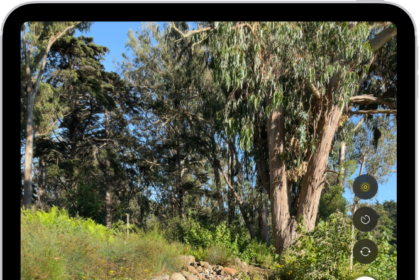
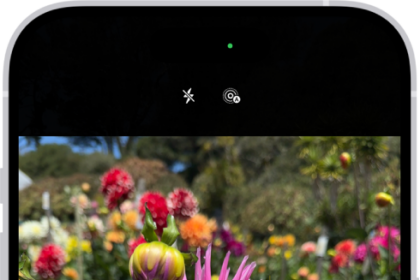
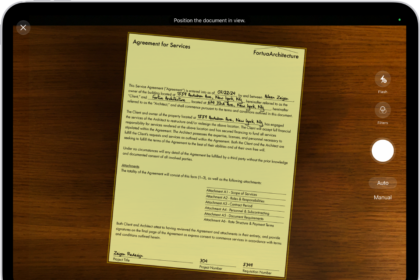
The new camera app introduced with iOS 26 looks gorgeous. The simplified, streamlined Camera layout helps users keep their attention on the moment they’re capturing. You have two options on the bottom of the display now, photo and video, but sliding your finger left or right will give you other options, like panorama shots or portrait mode. Changing resolution can be done with a tap near the top of the display.
Some users are reporting that their iPhone camera have stopped working after updating to iOS 26. This problem seems to afflict iPhone 16, iPhone 15, iPhone 14, iPhone 13, iPhone 12, and iPhone 11 users. The problem is described as the camera not loading, or the camera only rarely functioning. Also, users report their flashlight is not working.
In this article, I will show you how to fix iPhone camera not working after iOS 26 issue. We’ll also show you what to do if your camera flash is not working.
Before you do anything, open Settings and tap General -> Software Update. Tap Update Now if a new iOS 26 update is available.
How to fix iPhone Camera not working after iOS 26 update
Here are a few things to try in order to get your iPhone’s camera working again
Close Every App On Your iPhone
A lot of iPhone software problems can occur when an app crashes. If the Camera app — or another app — crashed in the background of your iPhone, it could be the reason your camera’s not working. If an app has crashed on your iPhone, closing it might get rid of the error!
First, you’ll want to open the App Switcher. To do this, double tap the Home button (iPhones without Face ID), or swipe up from the bottom of your screen (iPhones with Face ID).
Once the app switcher is open, use your finger to swipe your apps up and off the top of the screen. You’ll know your apps are closed when they no longer appear in the App Switcher.
Now that you’ve closed all your apps, reopen the Camera app to see if it’s working again. If it’s still not working, move on to the next step!
Restart your iPhone
Restarting your iPhone is an effective step we can take to try and fix a minor software glitch that could be preventing camera from working after iOS 26 update. There are two different ways to restart your iPhone depending on which model you have:
- iPhones without Face ID: Press and hold the power button until the "slide to power off" slider appears on the display. Swipe the power icon left-to-right to shut down your iPhone. Wait a few seconds, then press and hold the power button again until the Apple logo appears on the center of the screen.
- iPhones with Face ID: Simultaneously press and hold the side button and either volume button until "slide to power off" appears on the screen. Swipe the power icon from left-to-right to turn off your iPhone. To turn your iPhone on again, press and hold the side button until the Apple logo appears on the screen.
Flashlight
Again, this may not work for all users, but you may want to give it a try before doing a factory reset.
- Turn on Flashlight from the Control Center (swipe down from upper-right corner of your iPhone.) It may not come on, even though the flashlight indicator on your screen will say it is.
- Exit the Control Center and open the Camera app and wait several seconds. Your camera should work now.
Restore to Factory Settings
If restarting doesn’t work for you, you may want to try restoring your iPhone to factory settings. This will completely wipe the data and settings on your phone. Your iPhone will still be running iOS 26 if you choose this option.
First, backup your iPhone. There are two ways you can do this.
iCloud: Head to Settings > your Name > iCloud > Backup. Make sure that iCloud Backup is enabled. You will be able to see when your last backup was. If you have never backed up your phone before or if it has been awhile, select Backup Now. Note: If, by chance, the last time you backed up your iPhone using iCloud was while you were still running iOS 18, you may want to preserve that backup in iCloud, rather than writing over it with an iOS 26 backup you won’t be able to use if you eventually choose to downgrade to iOS 18.
iTunes (Windows or macOS Mojave or earlier) or Finder (macOS Catalina or later): Plug your phone into your PC or Mac using the charging cable. Click on the iPhone icon in the top-left corner of iTunes, under the Play button. Then follow the onscreen instructions.
Now to Factory-reset your phone.
Go to Settings > General > Transfer or Reset iPhone > Reset > Erase All Content and Settings.
If you have an iCloud backup, there will be an option to update it. Tap Back Up Then Erase.
Type in your passcode if prompted. Tap Erase iPhone in the warning box.
Enter your Apple account to confirm
Downgrade to iOS 18
Maybe iOS 26 is not working for your iPhone. There is the option to downgrade to iOS 18. Hopefully, you made an archived backup of your iPhone before upgrading. If so, you won’t loose your data and settings. If not, you can still downgrade, you will just have to set up your phone from scratch.
- Disable Find My iPhone. Go to Settings, then tap your name at the top of your display. Tap on Find My, then tap on Find My iPhone. Finally, tap the toggle to the right of Find My iPhone to disable it. Enter your Apple account email and password.
- Download the latest iOS 18 Restore Image for your iPhone model. Using your Mac or a PC, you should be able to find the file you’re looking for at ipsw.me.
- Connect your iPhone to your Mac or PC using the charging cable.
- If iTunes doesn’t open on its own, look at your phone’s Lock Screen. If it says Unlock iPhone to use Accessories, then unlock your iPhone.
- You may need to choose Trust this Computer on your iPhone. You may also need to update iTunes on your PC or Mac.
- Under devices in the sidebar of iTunes, you will see your iPhone. Click on this and the Summary screen will open.
- On Mac while holding the Option key, click Restore iPhone. If you are using a PC, hold Shift and click Restore iPhone.
- Find your Restore Image in the file browser window. It will be the .ipsw file you downloaded today. It is probably in your Downloads file. Select the file and click Open.
- When the pop-up menu appears, click Restore. Keep your iPhone connected to your computer until the process is finished and you see the iOS 18 Welcome Screen on your phone. Your phone now is running the latest iOS 18.
If you don’t have an iCloud backup or an archived backup from iTunes from before you upgraded to iOS 26, select Set Up as New iPhone. If your last iCloud backup was with iOS 18, you can select to Restore from iCloud. If you have an archived backup from when your iPhone was running iOS 18, you can now restore your phone with that backup to retrieve all your photos, settings and data using iTunes.
To restore from iTunes, keep your iPhone connected to your computer and select Restore from iTunes Backup.
Select your iPhone in iTunes and click Restore Backup.
Choose your archived backup, then choose Restore. Wait for the restore to finish and then you may unplug your iPhone. Your phone will be restored to your pre-iOS 26 phone with all of your settings and data restored.