Over the last several months, a growing number of iPhone users have been reporting an issue with their contacts: contacts suddenly disappearing from their iPhones. In some cases, only a few contacts vanished. In others, users claimed they lost hundreds or even thousands of saved entries, and sometimess all of the contacts.
Many reports appeared shortly after iOS updates, while others seemed to happen completely without warning.
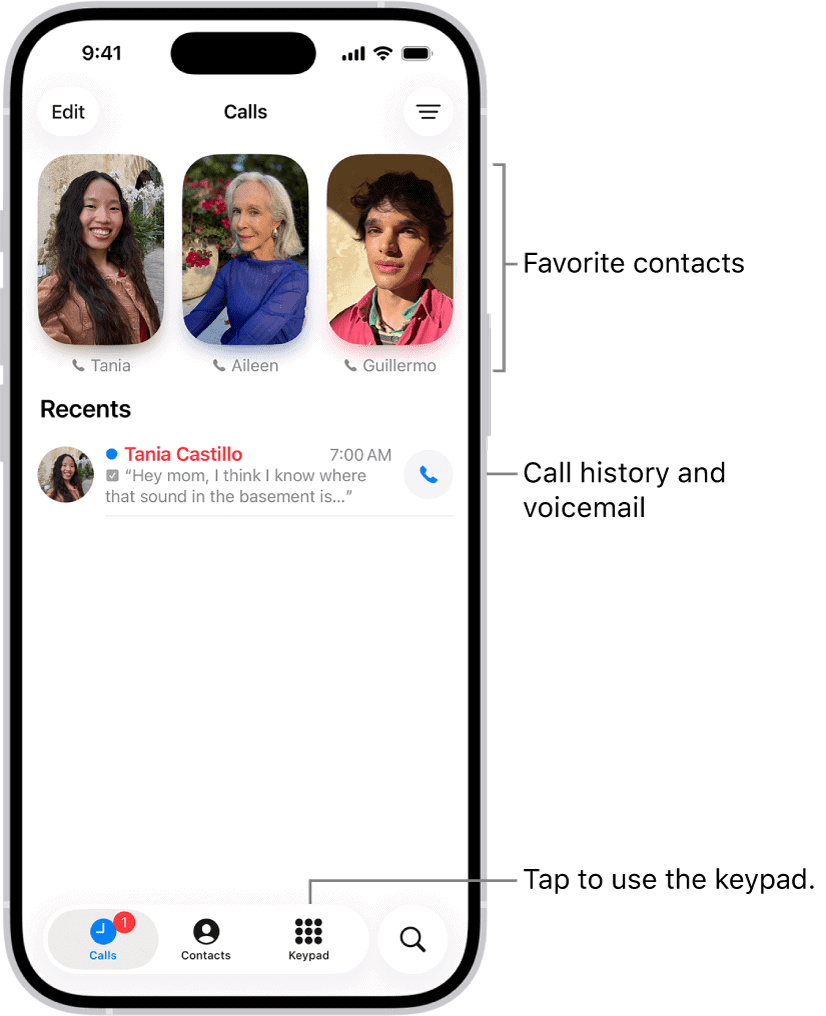
Users describe seeing names disappear from Messages conversations, Favorites turning into plain phone numbers instead of the contact name, and recently added contacts suddenly missing. For many people, the problem was not limited to just phone numbers alone. Contacts also included addresses, emails, notes, business information, and other important personal data.
What makes the issue even more frustrating for affected users is that many were already using iCloud and believed their information was safely backed up there. Numerous people reported trying the standard recovery steps; restoring from iCloud, re-syncing accounts, restarting devices, and toggling Contacts settings; only to find that the missing contacts never returned back.
In this article, I look closely at the reports from affected users, the possible explanations being discussed, the solutions that worked in some situations.
Please try these fixes if your iPhone contacts are randomly disappearing.
1. Check ‘All Contacts’ or ‘Contact Lists’
The first fix you should try is to check whether all contact lists were enabled on your iPhone. In some situations, the contacts were apparently not deleted at all, but hidden because the iPhone was only showing one account or one group. To check this:
- Open the Phone or Contacts app on your iPhone
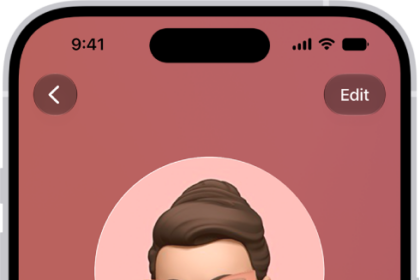
- Tap “Lists” or “Groups” in the top-left corner, tap the left-side arrow.
- Select “All Contacts”
Several users said their missing contacts instantly reappeared after doing this, although many others reported it did not solve the problem for them.
2. Re-Authenticate Old Email Accounts
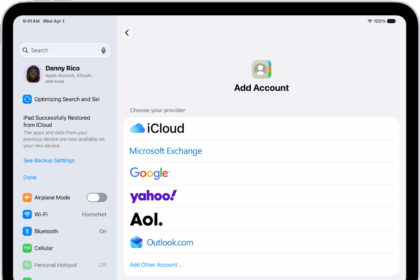
Check to see if your Outlook, Exchange, Gmail, Yahoo, school, or work accounts showed an “Account not authenticated” message inside Contacts settings:
- Open Settings app on your iPhone
- Go to Apps > **Contacts **> Contacts Accounts
- Open each connected account one by one
- Sign back into any account showing authentication problems
- Make sure the “Contacts” toggle is enabled:
3. Turn iCloud Contacts Off and Back On
Another step I recommend is to refresh iCloud Contacts syncing. Follow these steps:
- Open Settings app on your iPhone
- Tap your Apple Account
- Go to iCloud and tap See All.
- Turn Contacts OFF
- Restart the iPhone
- Turn Contacts back ON
4. Restore Contacts from iCloud Data Recovery
You may be able to restore older contact archives directly from iCloud. Follow these steps:
- Visit iCloud.com and sign into your Apple account
- Go to Data Recovery
- Select “Restore Contacts”
- Choose an older archive