When your iPhone keeps restarting, it can disrupt your daily activities
I know you have probably read countless articles and watched multiple YouTube videos, but still haven’t found a working solution for your iPhone keep restarting.
The issue can be so complex that without an organized troubleshooting guide, it’s hard to pinpoint the root cause.
I have done extensive research on iPhone restarting problem and I will show you how to fix this problem for good.
Please read through the entire guide carefully as I don’t want you to miss any important steps, as each solution is connected.
I will walk you through it step by step, and hopefully, one of these fixes will work for you.
However, keep in mind that this issue can be caused by faulty hardware, like a damaged flex cable for the charging port or sensors.
In that case, you will need to visit a repair shop or contact Apple for a fix.
First, let’s explore the reasons why your iPhone might be restarting, and then I will guide you through the step-by-step troubleshooting process.
Reasons Why Your iPhone Keeps Restarting
If your iPhone keeps restarting, it could be due to a few issues, ranging from software glitches to faulty hardware:
The most common reasons for older iPhones constantly restarting include a faulty battery, damage to the display panel’s ribbon, issues with the charging port flex cable, storage problems, failed updates, misbehaving apps, or corrupted system files, all of which can trigger a boot loop.
For the latest iPhone models like the iPhone 16, the issue is less likely to be battery-related. Instead, if your phone keeps restarting every 3 to 5 minutes, a faulty charging port flex could be the culprit.
The charging port flex has a temperature sensor, and if it malfunctions, it might not detect whether the phone is overheating, causing the device to restart.
Other potential issues include app crashes, software update failures, and corrupted system files.
If the problem is with the charging port flex (which I’ll show you how to diagnose later in this guide), it’s recommended to replace the entire charging port flex for models before the iPhone XS.
In newer iPhone models like the iPhone XS, XS Max, and the 11, 12, and 13 series, the charging port is part of a flex cable assembly that can include multiple components, such as microphones, sensors, and even haptic feedback mechanisms.
This makes it more common to replace only the faulty part (like the charging port) instead of the entire assembly.
Replacing the entire flex can sometimes cause forced reboots due to sensor failures.
Additionally, if you recently dropped your phone and the issue started afterward, it might be due to damaged or loose internal components, which could be causing the boot loop.
For earlier iPhone models, water damage such as even a small amount of water inside the phone could also be a issue.
I know all this tech talk might seem a bit boring, let’s start troubleshooting.
The troubleshooting is divided into two parts. If you can access your iPhone’s screen for 3 to 5 minutes, follow the steps below. However, if you can’t even access the screen for that long, skip to the second part of the guide.
Troubleshooting Steps for iPhones That Stay On for 3 to 5 Minutes
If your iPhone stays on for just 3 to 5 minutes before going into a boot loop, this issue is often linked to a faulty charging port flex, especially in newer models. However, software problems can also be at fault.
Note: If you can access your iPhone for those 3 to 5 minutes, try to back up your data as soon as possible. because later when we do advanced troubleshooting, you might not be able to back up your data. Connect your iPhone to your computer and quickly transfer important files, or use iCloud if you have less data to back up. It’s better to do this now while you have the chance.
Step 1: Force Restart your iPhone
I know you might have probably done it but again try it as A force restart is often the first step you should try when facing iPhone software issues.
It’s a simple and safe method that can help resolve temporary software glitches.
The process of hard resetting an iPhone varies by model:
If you have an iPhone X or later, a second-generation or later iPhone SE, an iPhone 8, or an iPhone 8 Plus, press and quickly release the volume up button, then press and quickly release the volume down button, then press and hold the side button until your screen goes black and the Apple logo appears.
On an iPhone 7 or iPhone 7 Plus, press and hold both the power button and the volume down button until your screen goes black and the Apple logo appears.
If you have an iPhone 6S or earlier, press and hold the power button and the home button at the same time. Keep holding the buttons until your screen goes black and the Apple logo appears.
Step 2: Check For An iPhone Software Update
Apple releases bugs for software issues all the time, and this problem may have been resolved by the time you read this article! To check for a software update, go to Settingsand tap General > Software Update. Tap Update Now if a new software update is available.
Step 3: Check for Bad Apps
Sometimes, a specific app might be causing your iPhone to restart. Here’s how to check if an app is the culprit:
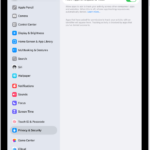
Go to Settings > Privacy & Security > Analytics & Improvements > Analytics Data. You’ll see several entries listed here. Typically, these logs indicate that the app is crashing and causing the iPhone to restart.
Quickly scroll through the list and look for any apps that are listed over and over again. For example, if you see repeated mentions of an app like “cash app,” that might be the problem.
What to Do Next:
- Update the App: Check if there’s an update available for the app.
- Reinstall the App: Try deleting and reinstalling the app to see if that fixes the issue.
If the restarts always happen when using a particular app, these steps might help. However, if it doesn’t resolve the problem, the issue could be something else. so follow the next step.
Step 4: Review your iPhone battery health
For newer iPhone models, the battery is less likely to be the cause of restarting issues, but it’s still possible to receive a device with a faulty battery from the start.
To review your iPhone battery health:
Go to Settings > Battery, then tap Battery Health & Charging. Youll see information about your iPhone’s battery capacity, peak performance, and whether your battery needs to be serviced.
If your battery health shows 100% capacity and peak performance capability, your battery is in good shape. Even if it’s around 70% or 60%, it’s usually not a major concern.
Note: if your battery health is as low as 20% or 15%, or if a new phone shows significantly low battery health (like 60%), this might indicate a problem. In such cases, contact Apple for a replacement or a refund.
Step 5: Free Up More Space
Check your storage if it’s full, it might be causing the boot loop. iPhones need extra space for booting up and updates, so a lack of storage can lead to issues.
To check storage on your iPhone:
- Go to Settings > General > iPhone Storage.
- The available storage is shown at the top of the screen.
If you have very low storage space available, try to increase the available space by removing items you no longer need.
Step 6: Remove your SIM Card
iPhone restart loops can be caused by issues with your iPhone’s connection to your wireless carrier. Your SIM card connects your iPhone to your wireless carrier, so removing it is best way to troubleshoot issues where your iPhone keeps restarting.
Don’t worry: Nothing can go wrong when you remove your SIM card. Your iPhone will immediately reconnect to your carrier as soon as you put it back in.
If you are using eSIM, skip this step.
Insert a paperclip into the tiny hole in the SIM tray and press until the tray ejects. You may need to apply a fair amount of pressure to get the tray out, and that’s normal – but use your common sense.
Then, take out the SIM card and then force restart your iPhone this simple step might just help your phone get back from the boot loop.
If this solves the issue, you can go ahead and put your SIM card back into your iPhone. If the problem persists, move on to the next step.
Step 7: Reset All Settings
Next, let’s reset all settings on your iPhone. This process can help resolve issues by restoring your settings to their factory defaults, which might fix the problem.
Here’s how to do it:
- Go to Settings > General > Transfer or Reset iPhone > Reset.
- Tap Reset All Settings.
- Follow the prompts.
All settings—including network settings, the keyboard dictionary, location settings, privacy settings, and Apple Pay cards—are removed or reset to their defaults. It’s a bit of a hassle, but it can often resolve these types of problems and is worth a try before moving on to more complex solutions.
Reset all settings will not delete your data
If these troubleshooting steps haven’t worked for you, it’s time to move on to the more advanced solutions.
Advanced Troubleshooting Steps for iPhones That Stuck on Boot Loop
These solutions will help with iPhones stuck in a boot loop and those that keep restarting after 3 to 5 minutes.
So I will be using now the Iphone recovery mode and DFU mode.
Understanding iPhone Recovery Mode vs. DFU Mode
Here’s a simple breakdown of what each does and how they differ:
Recovery Mode
- Purpose: Recovery Mode helps when your iPhone is having trouble with iOS and needs restoring or updating. It loads a basic version of iOS and connects to iTunes/Finder.
- When to Use: Use Recovery Mode if your iPhone is stuck on the Apple logo or behaving in a way that prevents normal operation.
- How to Access: Your screen will show a connect-to-iTunes logo or a recovery message when you’re in this mode.
DFU Mode (Device Firmware Update)
- Purpose: This is your heavy-duty fixer. DFU Mode lets you restore or update your iPhone’s firmware without using the current operating system. Think of it as your last-resort tool for major fixes if recovery mode fail to do the update.
- When to Use: Go for DFU Mode if you need to restore your iPhone to factory settings, update firmware without booting up the current OS, or even downgrade iOS versions.
- How to Access: You’ll have to press a specific combination of buttons. If done right, your screen will stay black.
So DFU Mode is your go-to for deeper issues when Recovery Mode doesn’t do the trick. Both have their roles in getting your iPhone back to working order.
So let first try recovery mode.
Step 8: Enter Recovery Mode to Update or Restore Your iPhone
If your iPhone keep restarting and won’t let you update it, here’s how to enter recovery mode so you can update or restore it.
First, connect your device to a computer.
If you have a Mac using macOS Catalina or later, open the Finder. If you’re using macOS Mojave or earlier, open iTunes. If you’re using a Windows computer, open Apple Devices or iTunes.
Note: Make sure the iTunes is updated to the latest version
Enter Recovery Mode:
Depending on your iPhone model, follow these steps:
- If you have an iPhone X or later, a second generation or later iPhone SE, an iPhone 8 or an iPhone 8 Plus, press and quickly release the volume up button, then press and quickly release the volume down button, then press and hold the side button until the recovery mode screen appears.
- On an iPhone 7 or iPhone 7 Plus, press and hold both the power button and the volume down button until the recovery mode screen appears.
- If you have an iPhone 6S or earlier, press and hold the power button and the home button at the same time. Keep holding the buttons until the recovery mode screen appears.
Update or Restore:
On your computer, you will see a message saying there’s a problem with your iPhone and asking you to update or restore it.
Click Update, and the newest compatible version of iOS will download and install on your device. Just follow the prompts and be sure to keep your device connected while the Apple logo and progress bar are on the screen.
You might be asked to review and accept the terms and conditions in order to continue. If you agree, click Agree to confirm.
If the update can’t complete, you’ll be prompted to restore your device. It will restore to factory settings, and you will need a backup to recover any data.
If the download takes longer than 15 minutes, your device will exit recovery mode. To re-enter recovery mode, you’ll need to repeat the button presses described in the previous section. After the update is completed, your device should restart and your lock screen will appear.
If the recovery mode is also not working for you the last advanced troubleshooting step is DFU mode.
Pro tip: If you see errors 9, 4005, 4013, or 4014 then try to update your device again · Make sure that your Mac has the latest version of macOS or the latest version of iTunes
Step 9: DFU Mode to fix the Restarting of your iPhone
Step 1: Connect Your iPhone to a Computer
As before, connect your iPhone to a computer with iTunes or Finder installed.
Step 2: Enter DFU Mode
The steps to enter DFU mode differ slightly from Recovery Mode:
For iPhone 7 Or Older:
- Plug your iPhone into your computer and open iTunes if you have a Mac running macOS Mojave 10.14 or a PC. Open Finder if you have a Mac running macOS Catalina 10.15 or newer. It doesn’t matter if your iPhone is on or off.
- Press and hold the Sleep / Wake Button and Home Button (iPhone 6s and below) or the volume down button (iPhone 7) together for 8 seconds.
- After 8 seconds, release the Sleep / Wake Button but continue to hold the Home Button (iPhone 6s and below) or the volume down button (iPhone 7) until your iPhone appears in iTunes or Finder.
- Let go of the Home Button or volume down button. Your iPhone’s display will be completely black if you’ve successfully entered DFU mode. If it’s not, try again from the beginning.
For iPhone 8 Or Newer:
- Quickly press and release the volume up button, then quickly press and release the volume down button, and then press and hold the side button until the screen goes black.
- As soon as the screen turns black, press and hold the volume down button while continuing to hold the side button.
- After 5 seconds, release the side button while continuing to hold the volume down button until your iPhone shows up in iTunes or Finder.
- As soon as it appears in iTunes or Finder, release the volume button. Your iPhone is in DFU mode.
Note: If the Apple logo is appearing on the screen, you held down the volume down button for too long. Start the process over from the beginning and try again.
Step 3: Restore your iPhone using iTunes or Finder
Once your iPhone is in DFU mode, you should see a message in iTunes or Finder indicating that your iPhone needs to be restored.
Click Restore and follow the prompts.
Now you have to exit DFU mode, here’s a quick guide:
- Perform a Hard Reset:
- Unplug your iPhone from the computer.
- If you have an iPhone X or later, a second-generation or later iPhone SE, an iPhone 8, or an iPhone 8 Plus, press and quickly release the volume up button, then press and quickly release the volume down button, then press and hold the side button until your screen goes black and the Apple logo appears.
- On an iPhone 7 or iPhone 7 Plus, press and hold both the power button and the volume down button until your screen goes black and the Apple logo appears.
- If you have an iPhone 6S or earlier, press and hold the power button and the home button at the same time. Keep holding the buttons until your screen goes black and the Apple logo appears.
- Setup After DFU Restore:
- Once you see the Hello screen, unplug your iPhone.
- If you have an iCloud backup, set up your iPhone directly.
- If you have an iTunes backup, leave it connected and follow the setup process.
If you can’t get into DFU mode what to do?
- Try Different Ports and Cables: Switch to another USB port or cable if you’re having trouble.
- Clean the Charging Port: Remove any lint or debris from the port.
- Disable Antivirus Software: If you’re using a PC, turn off antivirus software as it may interrupt the process.
If DFU Mode Isn’t Working for you then it possible Your iPhone may be broken if it’s not detected even after multiple attempts. This could be due to severe hardware issues like water damage or drops.
Step 10: Check For A Hardware Problem
Hardware problems are a common reason why iPhones get stuck in a restart loop. If you’re using a case on your iPhone, remove it before you continue.
Look closely at the charging port on the bottom of your iPhone. Check to see if any debris is stuck inside and for signs of corrosion.
If something doesn’t look right, grab a toothbrush you’ve never used and gently brush out the charging port. A short circuit or other problem inside the charging port can cause all sorts of problems with your iPhone.
Contact Apple Support
We’ve eliminated the possibility a software issue is causing your iPhone to keep restarting and we’ve checked for hardware issues on the outside of your iPhone. If your iPhone is in a restart loop, your iPhone probably needs to be repaired.
If you choose to get help at your local Apple Store, make sure you have an appointment with the Genius Bar so you don’t have to wait in line for long.
If you don’t have an Apple Store near you, a reputable local repair shop can also help. Just make sure to choose one with a good track record for repairs.
Wrapping It Up
By this point, I hope we’ve fixed the problem that caused your iPhone to keep restarting. However, if you’ve tried everything and it’s still restarting, don’t hesitate to reach out to Apple Support for further help. Best of luck, and hopefully, your iPhone will be back to normal in no time!