After iOS 26 update, some users have been seeing one of various SIM card related error messages, such as SIM Failure, Invalid SIM, No SIM, No SIM Installed, etc., popping up on their iPhones. You may also have seen a notification like No Service, Searching, No Signal, or SOS on the iPhone’s screen.
Are you encountering SIM card related errors on your iPhone after iOS 26 update, causing the absence of cellular signal bars? If your SIM card does not work due to these errors, making calls, using mobile/cellular data, and sending or receiving SMS texts will not be possible. As a side note, you may still be able to send iMessages and make regular Wi-Fi calls. The good news is that you may be able to troubleshoot and resolve the issue quickly.
Please try following the steps below, in this order, until your issue is fixed.
1. Turn Airplane mode on and off
Toggling airplane mode on and off may fix SIM card issues you are experiencing on your iPhone after iOS 26 update. Head over to Settings and turn on Airplane Mode. Wait a few seconds. Then turn off again. If your carrier name appears in the status bar or Control Center, it indicates that the SIM card is functioning properly.
2. Restart your iPhone
I myself experienced SIM card errors on my iPhone after updating to iOS 26. When I restarted my iPhone, the problem was gone. Here is how you can restart your iPhone:
- iPhone 11 or newer: Press and hold the side and the volume up (or down) buttons until you see the power icon and then drag the slider from left to right. Then wait for about one minute and press and hold the side button until you see the Apple logo.
- iPhone SE models: Press and hold the side button until you see the power off slider. Then drag the slider from left to right. Then wait for about a minute. Now press and hold the side button until you see the Apple logo.
3. Update your iPhone
Apple may have released a new iOS 26 version to fix this SIM card problem. Head over to Settings > General > Software Update to check for updates. If there is an update, follow the instructions on the screen.
4. Check for a carrier settings update
Especially after major iOS releases like iOS 26, carriers may release updates to ensure that their service is working perfectly with iOS. These types of updates do not occur often. To check this, head over to Settings > General > About. If there is an update, a popup alert will appear. If there is an update, simply update by tapping Update. Please ensure that your iPhone is connected to Wi-Fi, as this requires an active internet connection. If you do not have Wi-Fi, find a Wi-Fi and try this step again.
5. Check to see if your SIM card is damaged
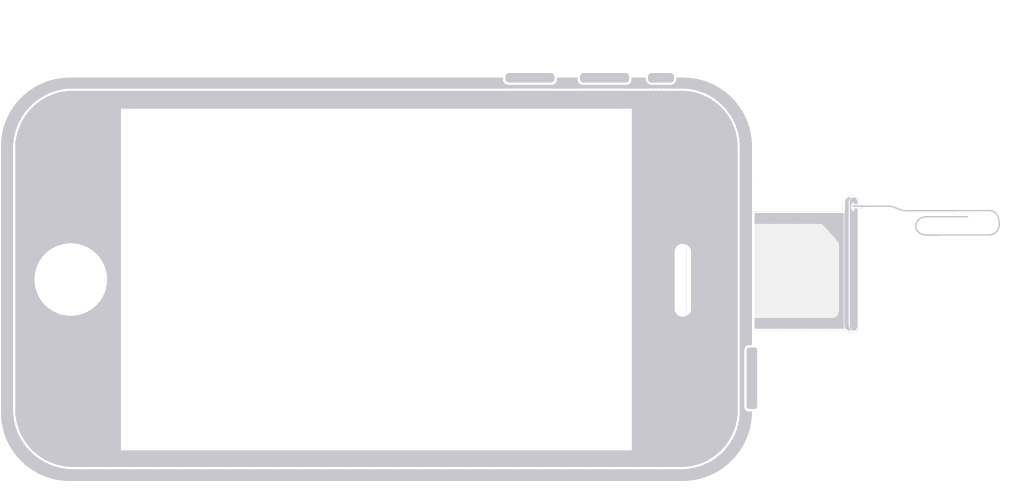
Remove the SIM card from your iPhone, wipe it gently with a soft, dry cloth and place it back in. Please note that this step is applicable for iPhones with a physical SIM card. Not all iPhone models have SIM cards, as some iPhone 14, 15, and 16 models only have eSIMs.
- Locate the SIM tray on the left side of your iPhone.
- Eject the tray using the SIM ejector tool that came with your iPhone or a paperclip. Simply insert a paper clip into the hole beside the SIM tray (you may have to push firmly). and the tray will pop out.
- Now remove the SIM card and gently wipe it with a dry, soft cloth.
- Then, put the card back into the tray. Please ensure that the notched corner matches the notched corner of the tray.
- And push the tray back in.

If you see visible damage to the SIM, contact your carrier and ask for a replacement, as we explain in the next step.
6. Contact your carrier
You can contact your carrier by phone or by visiting their local store. Tell them about the SIM card error you are experiencing on your iPhone. And ask them for a SIM card replacement. Carriers will either replace the card at no cost or for a nominal fee.
7. Reset your network settings
If your issue continues, try this step. Please note that when you choose to Reset Network Settings on your iPhone, it means you are initiating a process that will revert all network-related settings to their default configurations. This action includes Wi-Fi passwords (you will need to reenter them afterward), VPN settings, Bluetooth pairing and more. But you should also know that your content (photos, files, etc.) and other data stay intact. To do this, go to Settings > General > Transfer or Reset iPhone > Reset > Reset Network Settings.