





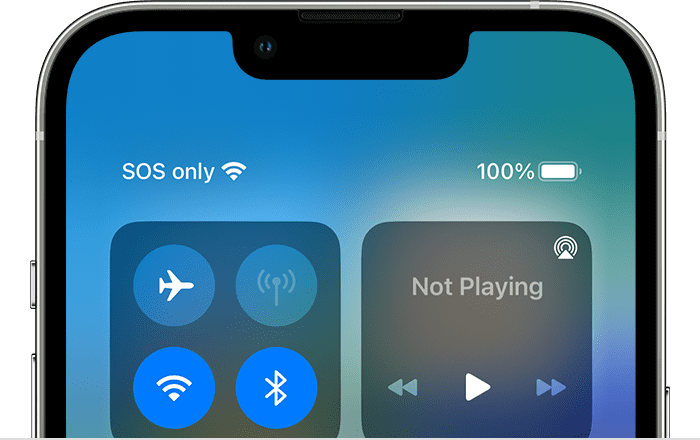
Are Cellular bars not showing on your iPhone after iOS 26 update? WiFi signal is also missing from the status bar? In this article, I’ll explain how to fix these problems.
Cellular Bars Not Showing On iPhone in iOS 26?
Users affected by this issue have reported that cellular signal is missing from the status bar when browsing the home screen on iPhone.
WiFi Signal Missing on iPhone in iOS 26?
Users affected by this issue have reported that Wi-Fi bars do not display in the status bar next to the battery icon, when iOS 26 is displaying the Home Screen.
How To Fix Cellular Bars And WiFi Signal Not Appearing on iPhone
Switch Screen
When I experience this problem, I always do this first. This can help you quickly resolve this. Simply open an app, launch the Control Center or Lock your iPhone’s Screen.
The idea is to switch away from the Home Screen. This should bring back the carrier bars and WiFi signal in the status bar!
Toggle Airplane Mode on and off
The next troubleshooting step is to enable and then disable Airplane Mode. Here’s how:
- Go to Settings.
- Turn on Airplane Mode.
- Wait a few seconds. Then turn it off.
This will force your iPhone to reconnect to the network and force the Wi-Fi and Cellular signals to show on the Home Screen.
Update your iPhone
This issue may be caused by a software bug. There may already be an upgrade or update addressing that bug. Thus updating your iPhone to the latest version of iOS might fix your problem.
On your iPhone, tap Settings > General > Software Update and complete the steps if there is an update.
Restart your iPhone
You may think that this is too simple but sometimes your iPhone needs a restart to fix a bad connection. Restarting your iPhone can clear glitches that may be preventing Cellular Data and Wi-Fi bars from appearing while on the Home Screen. Here is how:
iPhone X, 11, 12, 13, or later: Press and hold the side button and either of the volume buttons until you see the power off slider. Drag the slider. Wait a few seconds for your iPhone to turn off. Then press and hold the side button until the Apple logo appears.
iPhone SE (2nd or 3rd generation), 8, 7, or 6: press and hold the side button until the power off slider appears. Then drag the slider. Wait for your device to completely power off. Then press and hold the side button until you see the Apple logo.
Reset Network Settings
If all else fails, try resetting your network settings. This will clear away your network settings such as Bluetooth or Wi-Fi. This is easy to do but a bad thing about this option is that your Wi-Fi passwords will be erased. If you are sure to proceed, go to Settings > General > Transfer or Reset iPhone > Reset then choose Reset Network Settings. Then follow on-screen instructions.
If nothing else has worked, you should contact Apple Support for further help.
Have you managed to fix carrier and WiFi bars not showing on iPhone? Do you know any other solution not mentioned in this article? Share your feedback in the comments section below!
See also: Why iPhone Wi-Fi says ‘Privacy Warning,’ and how to fix it











