Summary
- The easiest way to print photos from your iPhone or iPad is with AirPrint.
- When you add a printer to your iPhone with AirPrint, you can print photos with a wireless connection.
- You can also print photos wirelessly without AirPrint by downloading your printer’s app.
If you want to print photos on your iPhone or iPad, it can be easier than you might think. The simplest way to print photos from an iPhone or iPad is by adding a printer with AirPrint, so you can print directly with a wireless connection.
You can also print photos wirelessly without AirPrint by downloading your printer’s app on an iPhone or iPad.
Here’s how to do it all.
How to Print a Photo from iPhone & iPad
To print from your iPhone, you need an AirPrint-compatible printer. Most current printers with wireless capabilities have the AirPrint feature, which allows the printer to easily sync up with an iPhone or iPad and print directly.
Quick tip: You can check the list of AirPrint-compatible printers at Apple website to see if your printer has AirPrint. The list is very long, but if you use your browser’s search function (Ctrl F or Command F) and type in the name of your printer, you can quickly check.
Please note: in order to use AirPrint, the printer must be connected to the same Wi-Fi network as your iPhone. If you haven’t already, connect your iPhone and printer to the same Wi-Fi network, then follow the steps below to learn how to print pictures from phone:
1. Open the Photos app.
2. Tap Select.
3. Tap one or more photos to print on your iPhone or iPad.
4. Locate and tap the Share button. The Share button typically appears as a square with an arrow pointing upward out of its center.
5. Scroll down and tap Print. (If you don’t see Print, try swiping up.)
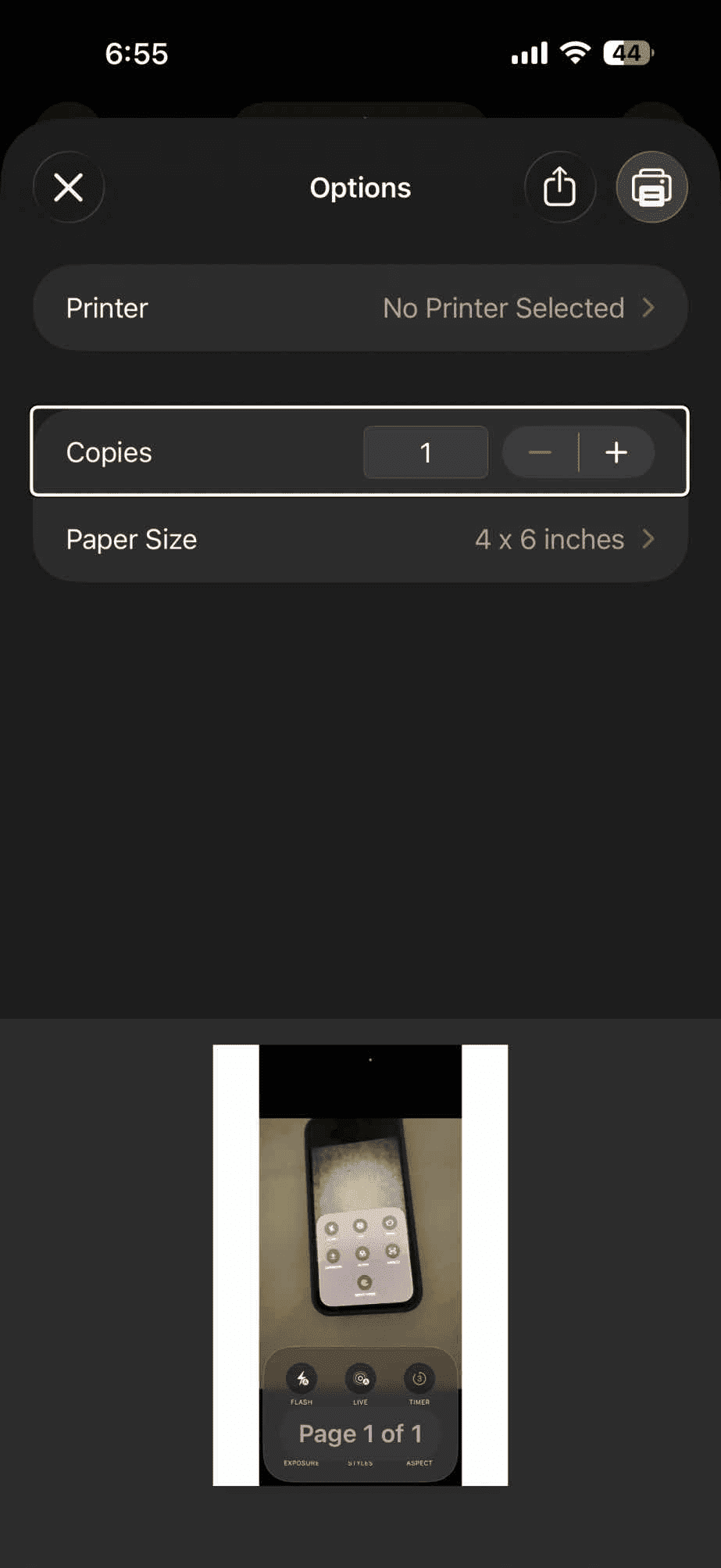
6. Tap No Printer Selected, then choose an AirPrint-enabled printer from the list.
7. Choose the number of copies or other options, like paper size to adjust the size of paper that you’re using.
8. Tap Print in the upper-right corner.
Quick tip: Trying to print photos from an iPad? You can also add a printer to your iPad and print via AirPrint using the same steps.
The AirPrint-enabled printer will now be added to your list of preferred devices and will appear as an option for printing whenever you are in range. You can add another printer to your iPhone at any time by following the same steps with a new printer.
How to print photos from an iPhone or iPad without AirPrint
Not all printers have the AirPrint feature, especially if they are a bit older. But if they have wireless capability, you should still be able to print from them wirelessly — you’ll just have to download your printer’s app from the App Store.
Quick tip: If you have an HP printer, download the HP app (formerly HP Smart) from the App Store. For Canon printers, download the Canon PRINT app (formerly Canon PRINT Inkjet/SELPHY).
To set up a printer on your iPhone or iPad without AirPrint and use it to print photos:
1. Open your printer’s app on your iPhone or iPad.
2. Turn on your printer’s Wi-Fi.
3. Go into your iPhone or iPad’s Settings and tap Wi-Fi.
4. Locate your printer under OTHER and tap on it.
5. Select the photos you want to print, then tap the Share icon.
6. You should now be able to connect the printer through the app and print your photos.
How to view and cancel a print job
You can view or cancel print jobs via the App Switcher:
1. To open the App Switcher:
- If you have an iPhone X or later (Face ID models): Swipe up from the bottom of the screen to the middle and hold until you see the App Switcher.
- If you have an iPhone with a Home button (including iPhone SE 2nd and 3rd generation): Double-press the Home button.
2. Swipe left or right to find Print Center, then tap it.
3. If you want to cancel the job, tap Cancel Printing.
Alternative method (iOS 26): You can also add Print Center to your Control Center for quick access. Swipe down from the top-right corner of your screen (on Face ID iPhones) or swipe up from the bottom (on Home button iPhones) to open Control Center. Long press on an empty space, tap Add a Control, search for Print Center, and add it. You can then access Print Center directly from Control Center at any time.
Now you know how to print pictures from iPad and iPhone. If you have any other question about your iPhone or iPad, please let us know in the comment section below.