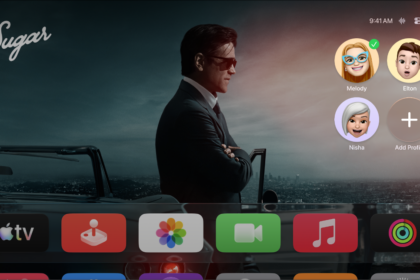
Status indicators appear in the upper-right corner of the Home Screen on Apple TV 4K when Control Center isn’t active. These status icons tell you at a glance what’s going on, like when Do Not Disturb is active, the battery in the remote needs to be recharged, or a game controller is connected.
| Status icon | Description |
|---|---|
 | Shows the current profile. If you have a custom profile image, the profile icon is replaced by it. |
 | A connected camera or microphone is active. |
 | A connected camera or microphone is not active. |
 | Do Not Disturb is active. |
 | Content restrictions are active. |
 | The sleep timer is active. |
 | The battery in the remote needs to be recharged. |
 | A Continuity Camera is connected. |
 | A FaceTime video call is active. |
 | A FaceTime audio call is active. |
 | SharePlay is active. |
 | Audio is currently playing. |
 | Bluetooth® earbuds, headphones, or AirPods are connected. |
 | A game controller is connected. |
 | A keyboard is connected. |
 | Apple TV 4K is connected to a virtual private network. |
 | Apple TV 4K has no internet connection. |
Not all features and content are available in all countries or regions or on all Apple TV hardware models.
See also