





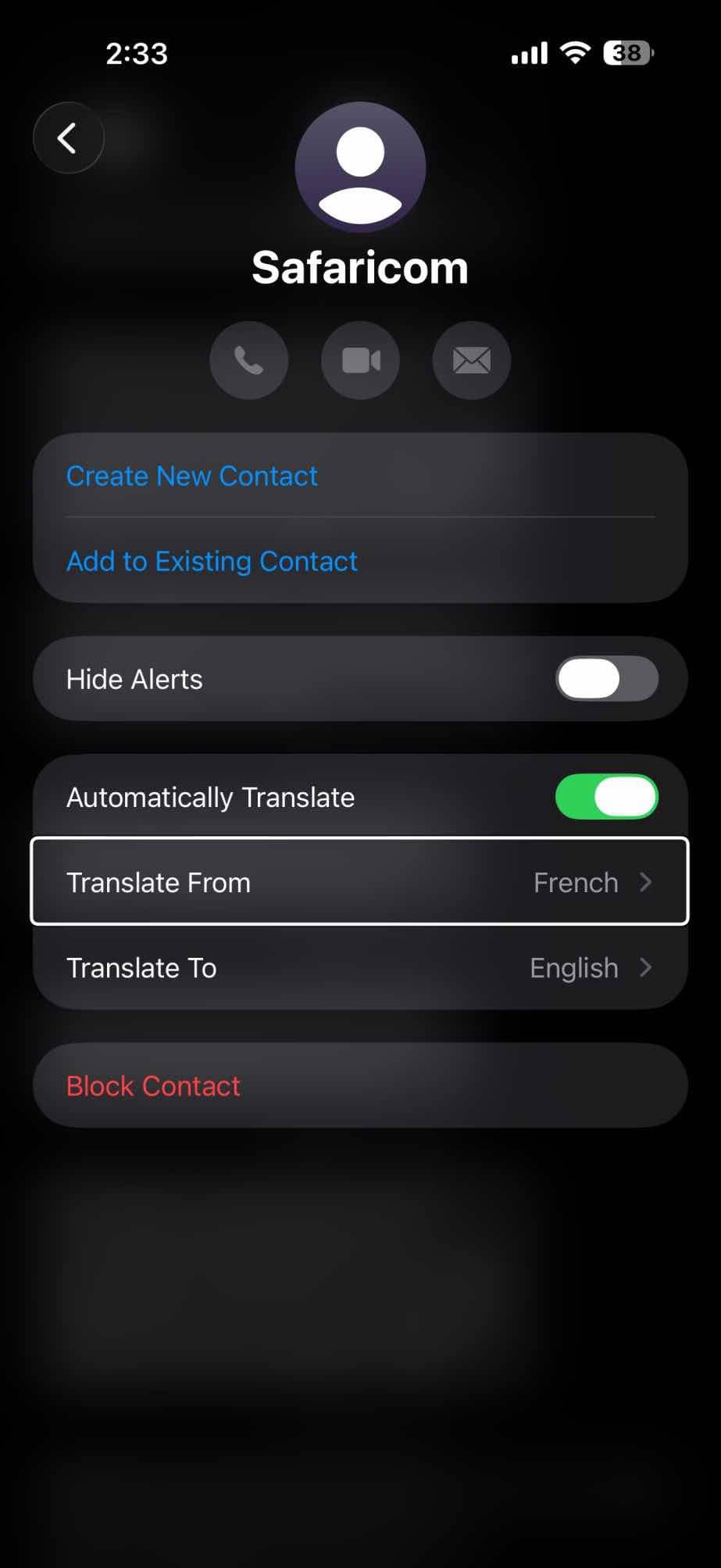
Messages app on your iPhone enables you to translate incoming text. Live Translation in the Messages app is enabled by Apple Intelligence. This lets you see incoming texts in other languages, automatically translated to your preferred language.
Note: Live Translation in Messages is available in English (UK, U.S.), Dutch, French (France), German, Italian, Portuguese (Brazil), Spanish (Spain), Turkish, Chinese (Simplified), Chinese (Traditional), Japanese, Korean, and Vietnamese.
To set up translation on iPhone Messages, follow these steps:
- Open the Messages app on your iPhone.
- Tap the conversation to open it.
- Tap the contact’s avatar to display the contact’s details.
- Tap the Automatically Translate switch as if to turn it on.
Instead of the switch going green, an overlay opens. - Make sure the Translate To pop-up menu shows the right language. If not, tap the menu and tap the language you want.
- In the Translate From box, tap the language from which you want to translate.
The overlay closes. If you haven’t used this language before, iOS downloads it, displaying a progress readout as it does so. Once the download finishes, iOS turns the Automatically Translate switch on (green), and Messages is ready to translate incoming text for you.




I’m trying to find a way to translate from Arabic to English, messages from my X app