Several users have reported that the iPhone 18 Pro Compass app is not working properly. These are common users reported problems:
- Compass freezes or points in the wrong direction.
- Compass is behaving strangely.
- Compass is unable to find the location or elevation data.
This article explains how you can fix when Compass is not working properly.
Compass is a very useful app. Using Compass, your iPhone 18 Pro can be used for finding direction and location.
Magnetic interference
Your Compass app may show the wrong direction because of magnetic interference. Compass is very sensitive to interference. Magnetic interference can be caused by electronic objects. You may be experiencing interference from a nearby power line, a microwave oven, or another electrical device. Here is what you can do:
- Do not use accessories that use magnets or magnetic metal.
- Keep your iPhone a safe distance away from other devices (at least 3 feet) that can cause interference.
Check your settings
Please review these settings and ensure that they are correctly set:
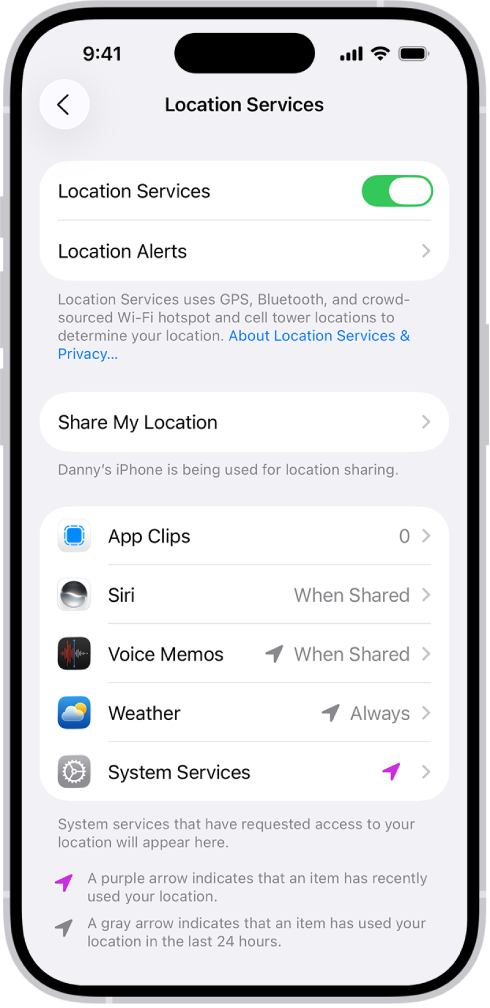
- Go to Settings > Privacy & Security > Location Services and ensure that Location Services is enabled and Compass is set to While Using the App. You can also change this setting by going to Settings > Apps > Compass > Location.
- Tap Settings > General > Date & Time and ensure that the date, time, and time zone are set correctly. You may also want to turn on Set Time Automatically.
- Go to Settings > Cellular or Mobile Data and then ensure that Use Cellular Data is on for Compass. If not, turn on Compass.
- Go to Settings > Privacy & Security > Location Services > and scroll down and tap System Services and then turn on Compass Calibration.
- Go to Settings > Apps > Compass and turn on Use True North.
Third-party compass app
Are you having issues with a third-party compass app? If this is the case, here is what you can do:
- Ensure that the app is up to date.
- If your issue persists, contact the app developer.
Restart the app
Restart the Compass app and then try again. Here is how:
- Swipe up from the bottom of your iPhone screen.

- Swipe side-to-side through the open apps until you find Compass.
- Swipe up on it.
- Then open Compass again and test again.
Delete, reinstall and calibrate the compass
Remove the app from your iPhone and then reinstall. Then calibrate the Compass app. Since Compass is digital, you may need calibration. Here is how:
- On your iPhone, go to Settings > General > iPhone Storage, find Compass and tap Delete App and tap Delete App again.
- Now open the App Store app on your iPhone and find the Compass app and download and install.
- Open Compass.
- Try to hold your phone flat.
- You will be prompted to calibrate.
- Follow the onscreen instructions.
Restart
This might sound too obvious, but this may fix your problem. Restarting will clear up your RAM and other cache files. Here is how:
- Simultaneously press and hold the side button and either volume button until the sliders appear, then drag the Power Off slider.

Update your iPhone 18 Pro
Update your iPhone 18 Pro to the latest version of iOS. This is also very easy. Go to Settings > General > Software Update.
Reset Location Data
Resetting your location settings to the factory default may fix your compass problem. Go to Settings > General > Transfer or Reset iPhone > Reset and tap Reset Location & Privacy and follow the onscreen instructions.
After resetting, you may have to adjust your location settings.
Contact Apple
If you are still having issues, contact Apple. Your iPhone includes a built-in magnetic field sensor to give compass readings. It is possible that this sensor is not working. Contact Apple to fix it. You may want to get a Genius Bar reservation.