After updating to iOS 26, a growing number of iPhone users say that their notification sounds have become unreliable or stopped working altogether. Text tones may work sometimes and then go completely silent, even though the ringer switch is set to sound and all the usual notification settings look correct. This has been reported on several models (including iPhone 12, iPhone 13, iPhone 14, iPhone 15, iPhone 16 and iPhone 17 series), and in many cases the sound temporarily comes back only after toggling the Silent switch or changing a setting–then disappears again a day or two later.
It seems that this isn’t just one person’s incorrect settings. Some users report that updating to iOS 26.1 reduced or resolved the problem, while others say the issue persists or even affects additional apps and alerts. Until Apple fully addresses this in a software update, there are a number of checks and workarounds you can try to restore your notification sounds and reduce the chances of missing important calls, texts or app alerts.
In this article, I explain why notification sounds are not working after the iOS 26 update, then walk you through step-by-step troubleshooting–from simple checks (Focus, text tone, per-conversation muting) to more advanced options such as resetting notification settings.
We have been reporting on several iOS 26 issues you may want to review, for example:
- How to fix notifications not working on iPhone after iOS 26 update
- iPhone ‘Call Failed’ After iOS 26
- Missing Photos in iMessage After iOS 26 Update? Here’s How to Fix the Photos Tab Bug
- iPhone Slow and Laggy After iOS 26 Update? How to Fix
1. Make sure your iPhone isn’t actually muted
The first fix you should try if your iPhone notification sounds are not working is to make sure that your device isn’t muted. Many users on Reddit and Apple community report their iPhones slip into silent mode even though the switch shows "sound."
- Check the Silent/Ring switch on the left side.
- Toggle it back, then forward again.
- You should see Silent Mode Off or Ring on screen.
This temporary fix works for many, but it may return after restarts–so continue with the steps below.
2. Turn off Allow Notifications for Messages, restart, then turn it back on
- Head over to Settings > Notifications > Messages
- Turn Allow Notifications OFF
- Restart your iPhone
- Return to the same menu and turn Allow Notifications ON again
Some users on Reddit say this permanently restored text tones; others say it only helped partially.
3. Force restart your iPhone
A force restart can reset the audio notification processes without erasing anything. Here’s how:
- Press and release the Volume Up
- Press and release the Volume Down
- Hold Side button until the Apple logo appears on the display
This works for some users, although the issue may return after powering off/on.
4. Check your notification tone (it may have changed to None)
After updates, iOS sometimes assigns "None" as the text tone.
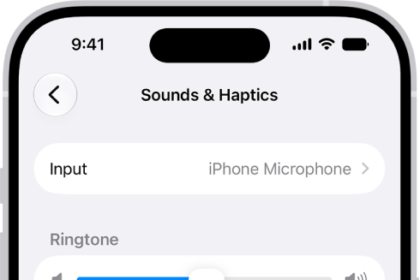
- Head over to Settings > Sounds & Haptics > Text Tone
- Make sure a sound is selected (not None).
- Try choosing a different tone and test it.
5. Check for per-conversation muting in Messages
It is possible that your message threads had a muted bell icon.
- Open the Messages app
- Swipe left on a conversation
- If you see a bell without a slash, tap it to unmute
- Or open the thread > tap the name at top > make sure Hide Alerts is off
6. Make sure Focus modes aren’t blocking sounds
A bug in iOS 26 may activate Focus quietly in the background.
- Head over to Settings > Focus
- Turn off all Focus modes temporarily
- Disable Share Across Devices
- Test your alerts again
If Notification Center seems unusually quiet, this is a likely cause.
7. Reset All Settings (recommended when nothing else works)
This was suggested by several experienced users on Reddit and often fixes audio/focus routing issues.
Head over to Settings > General > Transfer or Reset > Reset > Reset All Settings
This does NOT erase personal data. But it resets:
- Sound settings
- Network
- Bluetooth devices
- Home screen layout
- Notifications settings
See this article to learn what exactly occurs when you reset all settings.
Many users say this resolved random audio failures after updates.
See also: No Sound Coming From Your iPhone? Here’s How To Fix It