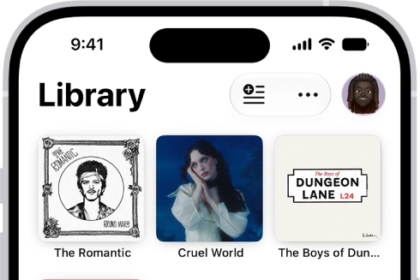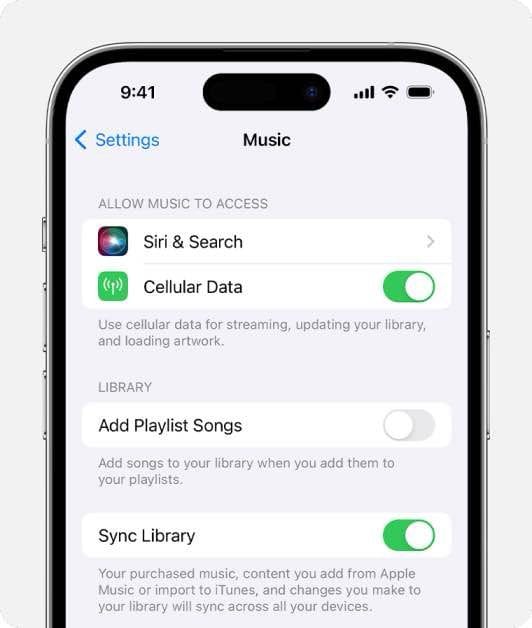
You can easily sync your Apple Music library across devices. Normally, you can sync your Apple Music library or locally stored music across your devices through the Music app or Finder. However, after updating to macOS Tahoe 26 on your Mac and iOS 26 on your iPhone or iPad, you may find that syncing music the old-fashioned way — over USB — suddenly isn’t working properly. Many users say that when they connect their device and open the Music app on the Mac, the device appears and may even sync automatically, but the Sync Settings button does nothing when clicked (Sync Settings is available in the Music app under Devices in the left sidebar, after selecting your iPhone or iPad.).
This means you can’t change which playlists, artists, or albums are synced to your iPhone, iPad, iPod, or Apple Watch — or, in some cases, syncing stops working altogether or the button is hidden off-screen. While Apple has acknowledged this as a bug and some updates seem to improve it for certain users, others still report problems even on newer Tahoe builds.
In this article, I’ll explain what you can do if Sync Settings is greyed out, unresponsive, or missing in the Music app on macOS Tahoe. I will show a Syncing method using Finder. I will also show changing display/full-screen options.
IMPORTANT: Before you do anything, ensure that your Mac and iPhone/iPad are up to date.
See this article if you see the ‘Sync Library is Off,’ message.
1) Try syncing through Finder instead of Music
- Open a Finder window on your Mac.
- Connect your iPhone, iPad, or iPod with a USB cable.
- Select your device under Locations in the Finder sidebar.
- Your usual sync options should appear here — music, photos, backups, etc.
- Adjust your settings and click Apply. (See this article if you keep seeing ‘Preparing to Sync’).
2) Open the Music app in Full Screen mode
- Open the Music app.
- Connect your device with the cable.
- Select it under Devices in the left sidebar.
- Go to the menu bar and choose View > Enter Full Screen. Alternatively, you can also press fn + F (or the assigned full-screen shortcut).
- The Sync Settings button often becomes clickable again.
3) If the Sync Settings button is hidden or covered, adjust display settings
- Open System Settings on your Mac.
- Select Accessibility and Displays.
- Change Text Size to Smaller (or the smallest option).
- Reopen the Music app and your device’s page.
- Enter Full Screen again if needed.
4) Try drag-and-drop from different sections in Music
If you only need to add specific albums or songs, try this:
- Drag-and-drop may fail from Artists, but may work from Albums or Recently Added.
- Use the search bar in Recently Added, then drag the album onto your device.