- To fix an iPad that won’t connect to Bluetooth, first make sure Bluetooth is turned on.
- You should ensure the other device is in range of your iPad and it’s turned on.
- You can also try updating the iPad’s software, resetting network settings, and restarting the device.
- In this article, we’ll explain why your iPad won’t connect to Bluetooth and show you how to solve the problem once and for all.
Bluetooth is a technology that wirelessly connects your iPad to Bluetooth devices, like headsets, keyboards, or your car stereo.
However, if it isn’t working for one reason or another, Bluetooth is worthless.
There are a number of reasons why Bluetooth won’t work on an iPad, and we’ll walk you through the troubleshooting process step-by-step.
Here are seven ways to troubleshoot your iPad’s Bluetooth connection.
Note: The information in this article applies to iPad, iPad Air, iPad mini, and iPad Pro.
If you’re having trouble connecting your iPad to car Bluetooth specifically, we recommend taking a look at our article How to Connect An iPad To Car Bluetooth.
Before We Begin…
There are a few things we need to make sure are happening before your iPad can pair with a Bluetooth device. First, let’s make sure Bluetooth is turned on.
- Open the Settings app.
- Tap Bluetooth.
- Make sure the toggle next to Bluetooth is green. If not, tap on it so it turns green.
Quick tip: You can also turn on Bluetooth by bringing up the Control Center on your iPad and tapping the Bluetooth icon so it turns blue. If the icon was gray, you may have accidentally disconnected from Bluetooth devices until the following day!
Second, we need to make sure that the Bluetooth device you’re trying to connect to is on and fully charged or connected to power. If your accessory uses batteries, see if they need to be replaced.
Finally, make sure that the Bluetooth device you’re trying to connect to is in range of your iPad. Unlike Wi-Fi devices that can connect from anywhere (as long as they’re connected to the internet), Bluetooth devices are dependent on proximity. Bluetooth range is usually about 30 feet, but make sure your iPad and device are right next to each other as you go through this article.
If your iPad won’t connect to Bluetooth, begin by trying to connect it to two separate Bluetooth devices one at a time. If one Bluetooth device connects to your iPad while the other doesn’t, you’ve identified that the problem is with the particular Bluetooth device, not your iPad.
How To Fix An iPad That Won’t Connect To Bluetooth
If your iPad still isn’t connecting to Bluetooth, we’ll need to go a bit deeper to diagnose your problem. First, we need to find out whether the problem is being caused by your iPad’s software or hardware.
Let’s address the hardware first: Your iPad has an antenna that gives it Bluetooth functionality, but that same antenna also helps your iPad to connect to Wi-Fi. If you’re experiencing Bluetooth and Wi-Fi problems together, that’s a hint that your iPad may have a hardware problem. But don’t give up — we can’t be sure of that yet.
Follow our step-by-step walkthrough to figure out why your iPad won’t connect to Bluetooth so you can fix the problem for good!
1. Turn Your iPad Off And Back On Again
Turning your iPad off and back on is a simple troubleshooting step that can fix minor software glitches which could be the reason why your iPad won’t connect to Bluetooth.
Go to Settings > General > Shut Down. Swipe the power icon from left to right to turn off your iPad. Wait approximately 30 seconds to make sure your iPad completely shuts down.
To turn your iPad back on, press and hold the Top button until the Apple logo appears on your screen. After restarting your iPad, try connecting to your Bluetooth device again to see if it fixed the problem.
2. Turn Bluetooth Off And Back On Again
Turning Bluetooth off and back on again can sometimes fix minor software glitches that may be preventing your iPad and Bluetooth device from pairing. There are three ways to turn Bluetooth off and back on again on your iPad:
Turn Bluetooth Off In The Settings App
- Open Settings.
- Tap Bluetooth.
- Tap the switch next to Bluetooth. You’ll know Bluetooth is off when the switch is gray.
- Tap the switch again to turn Bluetooth back on. You’ll know Bluetooth is on when the switch is green.
Turn Bluetooth Off In Control Center
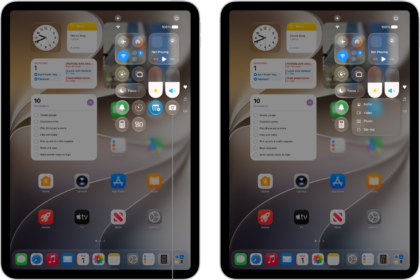
- Swipe down from the top-right of the screen of your iPad to open Control Center.
- Tap the Bluetooth icon, which looks like a “B.” You’ll know Bluetooth is off when the icon is black inside of a gray circle.
- Tap the Bluetooth icon again to turn Bluetooth back on. You’ll know Bluetooth is on when the icon is white inside of a blue circle.
Turn Bluetooth Off Using Siri
- Turn on Siri by pressing and holding the Top button, or by saying, “Hey Siri.”
- To turn Bluetooth off, say, “Turn off Bluetooth.”
- To turn Bluetooth back on, say, “Turn on Bluetooth.”
After turning Bluetooth off and back on any of these ways, try pairing your iPad and Bluetooth device again to see if it solved your problem.
3. Turn Pairing Mode On Your Bluetooth Device Off And Back On
If a minor software glitch is preventing your Bluetooth device from connecting to your iPad, turning pairing mode off and back on may solve the problem.
Almost every Bluetooth device will have a switch or a button that makes it easy to take the device in and out of pairing mode. Press or hold that button or switch off your Bluetooth device to take it out of Bluetooth pairing mode.
Wait about 30 seconds, then press the button or flip the switch again to put the device back into pairing mode. After turning pairing mode off and back on, try connecting your Bluetooth device to your iPad once again.
4. Forget The Bluetooth Device
When you forget a Bluetooth device, it’s as if the device was never connected to your iPad. Next time you pair the devices, it will be like they are connecting for the very first time. To forget a Bluetooth device:
- Open Settings.
- Tap Bluetooth.
- Tap the blue “i” next to the Bluetooth device you want to forget.
- Tap Forget This Device.
- When prompted again, tap Forget Device.
- You’ll know the device has been forgotten when it no longer appears under My Devices in Settings > Bluetooth.
Once you’ve forgotten the Bluetooth device, reconnect it to your iPad by putting the device in pairing mode. If it pairs to your iPad and starts working again, then your problem is solved. If you’re still having iPad Bluetooth problems, we’ll move onto software resets.
5. Reset Network Settings
When you reset network settings, the data on your iPad from all of your Bluetooth devices, Wi-Fi networks, and VPN (Virtual Private Network) settings will be erased. Resetting network settings will give your iPad a completely fresh start when connecting to Bluetooth devices, which can sometimes fix more complicated software problems.
Before you reset network settings, make sure that you know all of your Wi-Fi passwords because you’ll have to re-enter them afterwards.
- Open Settings.
- Tap General.
- Tap Transfer or Reset iPad.
- Tap Reset.
- Tap Reset Network Settings.
- Enter your passcode when prompted on the screen.
- Your iPad will reset network settings and restart itself.
- When your iPad restarts, your network settings have been reset.
Now that your network settings have been reset, try to pair your Bluetooth device with your iPad once again. Remember that all the Bluetooth device data that was on your iPad has been erased, so you’ll be pairing the devices as if they are being connected for the first time.
6. DFU Restore
Our final software troubleshooting step for when your iPad won’t connect to Bluetooth is a Device Firmware Update (DFU) restore. A DFU restore is the most in-depth restore you can do on an iPad and is a last resort fix for troublesome software issues.
Before performing a DFU restore, make sure that you back up all the data on your iPad to iTunes or iCloud if you can. We also want to make this clear — if your iPad is damaged in any way, a DFU restore can potentially break your iPad.
7. Repair
If you’ve made it this far and your iPad still won’t connect to Bluetooth, you may need to repair your device. You can set up an appointment at the Genius Bar at your local Apple Store or use Apple’s mail-in repair service. If you’re looking to save some money, we also recommend Puls.
No More Bluetooth Blues!
Your iPad is connecting to Bluetooth once again and you can go back to using all of your wireless accessories. Now that you know what to do if your iPad won’t connect to Bluetooth, be sure to share this article with your friends and family on social media. Feel free to leave us a comment down below if you have any other questions about your iPad!