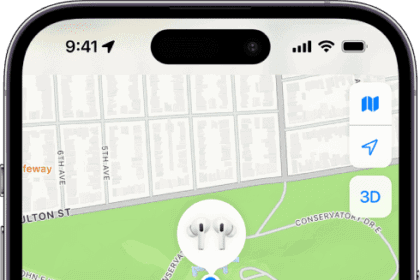
Find My items lack an interface: they’re a one-way conduit of information. The owner of an item can see it displayed on a map, with details updated whenever qualifying Apple devices are nearby and relay the Bluetooth beacons.
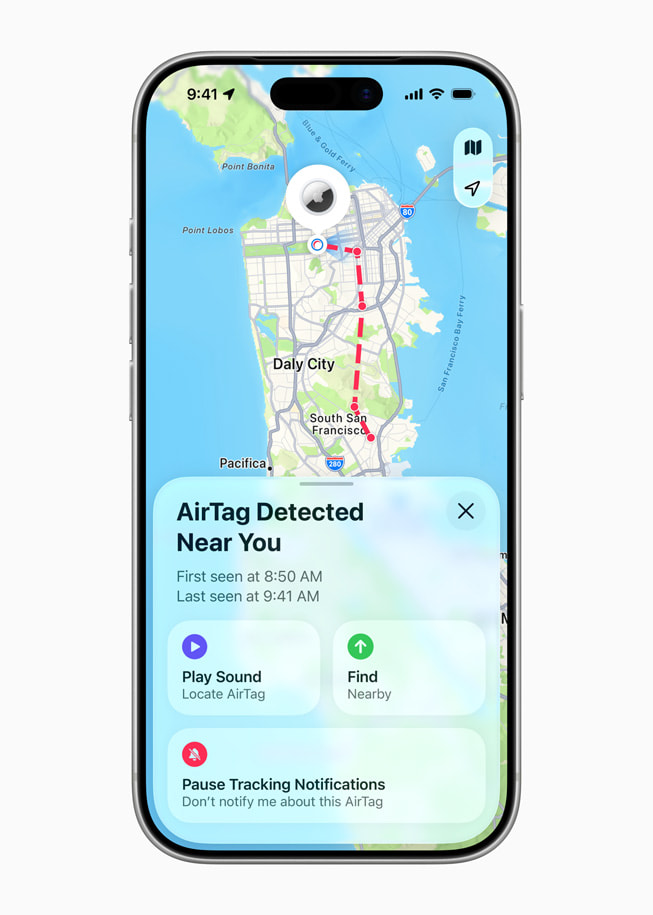
While a 2nd-generation AirTag has minimum requirements for pairing and tracking via the Find My apps, the new model still reveals information to people using devices that aren’t paired with it. This is part of both helping people find lost objects and Apple’s strategy to deter and detect unwanted tracking.
However, when someone finds one, whether marked lost or not — see what someone sees when they find your lost device — their interaction is limited.
If a device paired with a Find My item is near it, like an iPhone, an AirTag, or other item, it won’t appear to other devices when using a Find My app. This makes sense: if the owner and the paired device are in proximity, it’s not considered lost or tracking you separately. Any AirTag you have shared access to also won’t show up.
Here’s how you can obtain information about an AirTag you’ve found and have in hand, or if you’re trying to find if there’s an AirTag nearby.
Tap an AirTag against a phone
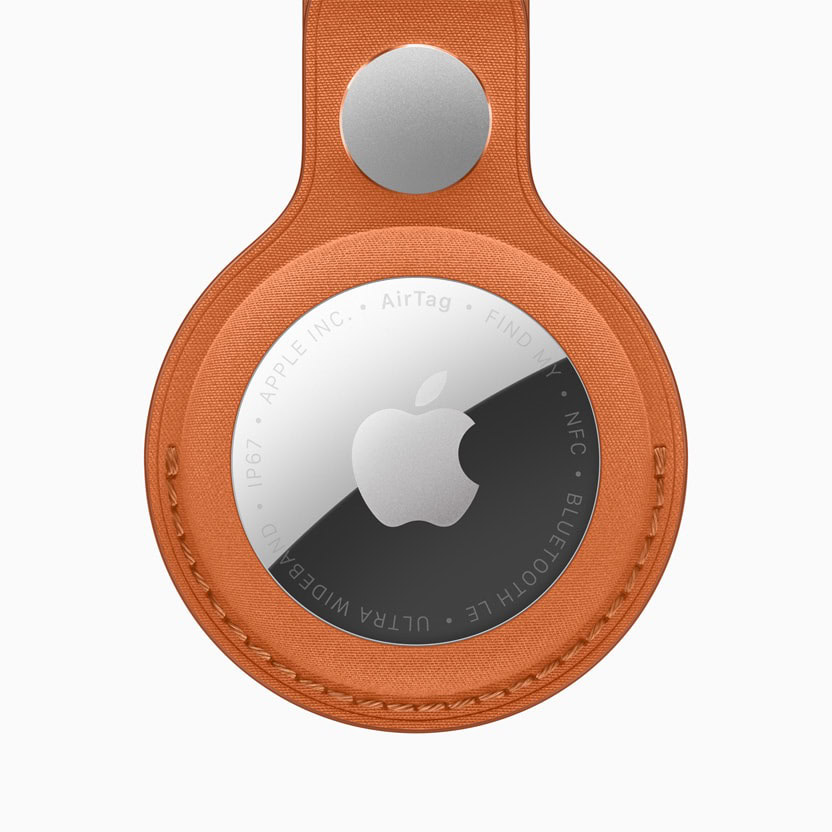
Hold the white side of the device close to an NFC-capable iPhone, iPad, Android, or other device that knows how to read NFC information. That should result in a message appearing that has a link embedded.
Following the link takes the finder to a webpage associated with the AirTag’s serial number. If the item was marked as lost, then the owner’s phone number or email address appears there.
If an item was not marked as lost, the information page shows a “masked” phone number, the last four digits of the phone number connected with the paired Apple Account for the item. This appears to be related to reducing potential abuse; see how Apple and Google detect an unwanted AirTag.
Identify a third-party tracker
With all other Find My items:
- Launch Find My, tap the Items button, swipe down, and tap Identify Found Item.
- Your iPhone or iPad will list any Find My item nearby that’s out of Bluetooth range of its paired device. Tap the item and tap Continue.
- Apple provides information and instructions on how to proceed. For instance, with a Chipolo ONE Spot, you will be told you have to press the button in the item’s middle to retrieve information.
- Click Continue on Website to see the tracker’s associated details.
If the tracker is not an Apple Find My item but one that works on Google’s Find My Device network, there’s no way to trigger information about it appearing on your iPhone or iPad. However, because your iPhone or iPad will notice a device that’s not yours that’s following you, you will eventually receive an alert and can tap that to obtain more information as above. See what an “AirTag Found Moving With You” alert means.
If you have an Android phone
With Android 6 or later and an update released in 2024 by Google, you’ll be alerted to any devices moving with you without your knowledge. See how Apple and Google detect an unwanted AirTag.
If you have an Android 9 or later device, find an AirTag, and lack NFC or find any Find My item, you can install Apple’s Tracker Detect, an Android app that performs an active scan for Find My items in the vicinity similar to Identify Found Item in the native Find My apps.
Apple didn’t update the app between February 2022 and December 2025. Reviews are extremely poor, although some people think the app offers Find My features rather than generically revealing nearby Find My items. The adoption of built-in alerts for Android releases dating back several previous releases replaces its purpose.
Find the serial number
If you want to find and potentially make a record of the serial number of a Find My item, select it in the Find My app. On a Mac, also click the Info button next to its name. Now tap or click the label for the last-seen time (like Now or a date and time), and Find My toggles to show its serial number and firmware revision. For third-party Find My items, swipe down to see the serial numbers, as well as the maker, model, and firmware release.