Several users have said that a popup saying “Unable to Download Item, please try again later” keeps appearing on the iPhone 18 Pro. The error message also contains “Done” and “Retry” button options. It appears that this message appears randomly and, many times, repeatedly.
The message indicates that an item could not be downloaded. You may see this message even when you think you have not tried to download or update anything. In other words, this message may seem to appear even if there are no reasons for it to appear.
This message usually indicates that your iPhone was trying to automatically update an app, or there is an app on your device attempting to download something in the background.
This error message is annoying and strange. This article explains how you can fix this problem. Please try the following steps until this message no longer appears.
1. Airplane mode
When you see this message again, try these steps:
- On your iPhone 18 Pro, open Control Center by swiping down from the top-right corner of your screen. And enable Airplane Mode. If you cannot open Control Center for some reason, you can use Siri to turn on Airplane Mode.
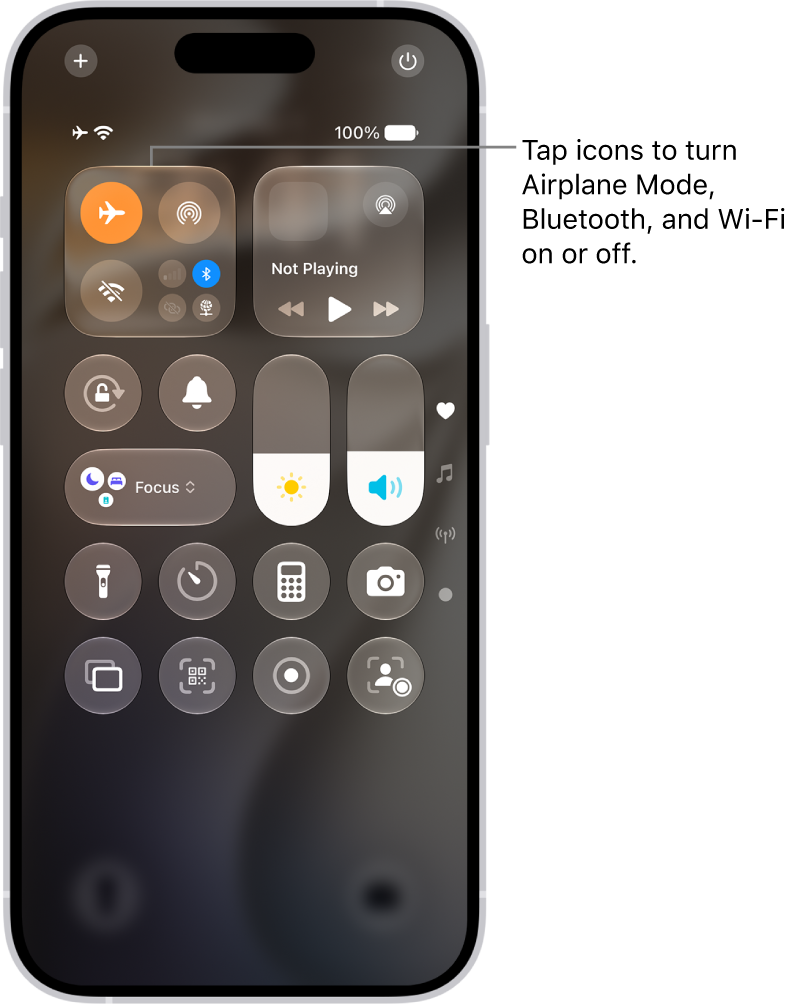
- Tap the Done button to dismiss the popup message.
- Then wait a few seconds and turn off Airplane Mode.
2. Update
This could be related to an update. Ensure that all of your apps are up to date. Furthermore, make sure that your iPhone 18 Pro is up to date, as iOS updates will help with compatibility with apps installed on your device. Here is how:
- You can manually or automatically update your apps. If you want to update manually, open the App Store app and then tap your picture, tap App Updates and tap Update All.
- After updating your apps, go to Settings > General > Software Update to ensure that you are using the newest version of the iOS software. If there is an update, you can follow the onscreen instructions to update your iPhone 18 Pro.
3. Restart
Restart your iPhone 18 Pro to see if this fixes your problem. You can restart your iPhone by following the steps below:
- Simultaneously press and hold the side button and either volume button until the sliders appear, then drag the Power Off slider.

Do you keep seeing the popup after restarting?
4. Turn off Background App Refresh
If you are seeing this download message, you may want to turn “Background App Refresh” off. By default, this feature is turned on. What this does is that, when this is enabled, your iPhone will check for new data in the background. You can do so by going to the “Settings” menu, tapping “General” and choosing “Background App Refresh” and then selecting “Off”.
5. Clear the history and cookies from Safari
This step will ensure that there is no web app trying to download something. This involves deleting history, cache, and cookies in Settings. Here is how:
- On your iPhone, go to Settings > Apps > Safari, and tap Clear History and Website Data. This will delete your history, cookies, and browsing data.
6. Reset network settings
Reset your network settings. When you reset the network settings, all of your Internet and networking data such as your Wi-Fi passwords will be erased. On your iPhone, go to Settings > General > Transfer or Reset iPhone > Reset > Reset Network Settings and then follow the onscreen instructions.