StandBy may show the wrong date, time or city, but these are easy to change to reflect the correct settings. StandBy is one of the cool features that Apple introduced that allows you to turn your iPhone 18 Pro into a bedside night clock.
Several users have said that the StandBy time is showing the Cupertino time, even though they do not live in Cupertino. Did you notice something similar as well? If your StandBy clock is set to the wrong time zone or wrong city, you can change it easily.
If StandBy shows the wrong time, that could cause issues for you. For example, you may just look at it in the morning and mistakenly think that there is still time before you have to wake up for work. So, you really can’t use StandBy until it is fixed.
The StandBy feature is enabled by default (you can check to see if it is on if you would like by going to Settings > StandBy). This mode will be activated automatically whenever (day or night) you have your iPhone locked (it is on the Lock Screen), on its side (either side up) and connected to a power source.
How to change the StandBy clock time
You do not need to go to the iPhone’s time and date settings to change this. Here is how you can do this:
- Start the StandBy mode by locking your iPhone 18 Pro, connecting it to a charger and putting it on its side.
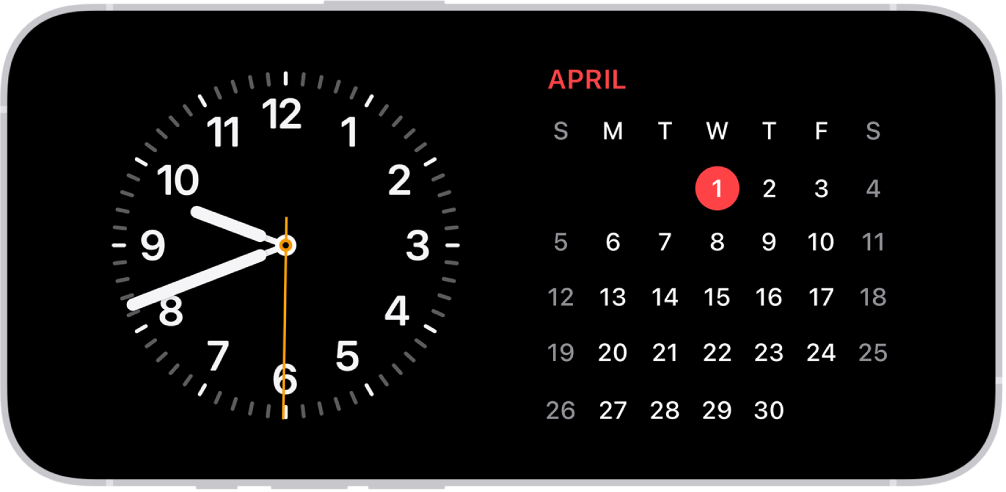
- Long press on the Clock. An edit screen should appear.
- Tap the Clock widget. A popup will show you the current city.
- Tap the City (Cupertino) listed.
- Pick your city or location. You can use the search field to find your city or the closest city to you.
- The widget should reflect your new city choice in the edit screen. Tap Done in the top-right corner of the screen.
And the StandBy will now show the right time for you.
Your iPhone 18 Pro has an Always On display, so StandBy will always be on so that you can see the time.