Some Apple Music users have found that songs that were previously available to them are now greyed out and unavailable. There are a few versions of this problem and a few possible causes. In this article, we’ll go through some of the most common reasons for this problem and how you can fix it.
Songs are greyed out in Apple Music or iTunes
Here we describe some of the different situations and what you can do to try and fix things. Here are a couple of things to keep in mind:
- Some users who have experienced this problem have said that the greyed-out songs became available after a short period of time. It is possible that the problem is temporary and will sort itself out in a few days.
- It is always a good idea to make sure you are running the latest version of iOS on your device.
If you see “This song is not currently available in your country or region”
- This could be because you have changed your Apple Account country/region settings or because you are currently in another country.
- Also, Apple Music is not known to work with VPNs. If you use a VPN, you may need to turn it off in order to use Apple Music.
- However, some users have reported that they receive this message “out of nowhere.” I have also seen this on a few songs – no VPN or changes to my country/region.
Here are some things to try:
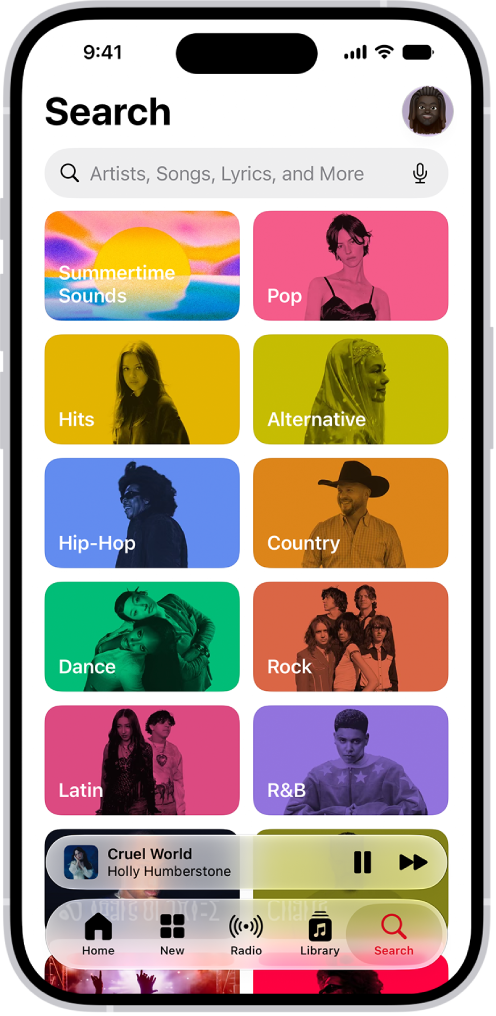
- You can do a search in Apple Music for a different version of the same song and then add that to your library or playlist. Make sure you search the Apple Music catalog and not your own library; use the Search tab (iPhone).
- If you might have changed regions, check your Apple Music regions:
- Go to account.apple.com and select Sign In. Enter your password. Select Personal Information to see your Country/Region.
- Try closing the Apple Music/iTunes app and then rebooting your device.
- Sign out of Apple Music and then sign back in. To sign out:
- On iPhone 18 Pro: Open Settings and select your Apple Account at the top. Tap on Media & Purchases, then select Sign Out.
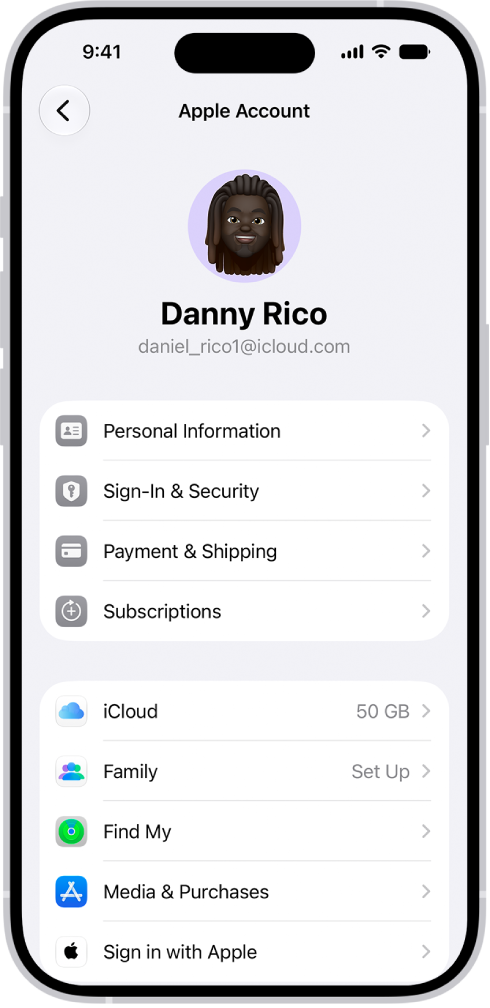
- On iPhone 18 Pro: Open Settings and select your Apple Account at the top. Tap on Media & Purchases, then select Sign Out.
If the song says “No Longer Available” and is greyed out
- Then the song was removed from the Apple Music catalog. This means it is no longer available to anyone, but you may not need to worry:
- Sometimes a song’s version gets updated. This makes the old version unavailable. In this case, a new version should be available. The song should eventually get updated, but this may take time, especially if they are working out copyright, licensing etc.
- You can do a search in Apple Music for a different version of the same song and then add that to your library or playlist. Make sure you search the Apple Music catalog and not your own library; use the Search tab (iPhone).
If the greyed-out song has a little cloud with an exclamation mark
If the greyed-out song has a little cloud with an exclamation mark next to it, then the song has not synced across your devices. If you tap the cloud icon, you will see the message “This song is not synced across your devices.” The message also tells you how you can fix the issue: Open iTunes on your PC or Apple Music on your Mac and sync your library.
Other things to try
Some users have had success with one of the following:
- Turn off Sync Library and then turn it back on. To turn off Sync Library:
- On iPhone 18 Pro: Open Settings, tap Apps, then tap Music. Toggle the switch next to Sync Library.
- Try deleting the greyed-out songs from your library and then searching for them in the Apple Music catalog. Add the songs (possibly different versions) back to your library.
- Check for Screen Time restrictions:
- On iPhone 18 Pro: Open Settings and tap on Screen Time. If you see an option to turn on Screen Time, then it isn’t on. Otherwise, select Content & Privacy Restrictions. If it is enabled, select App Store, Media, Web & Games, then Music, Podcasts, News, Fitness and see if it is set to Clean or Explicit.
- Check for hidden purchases:
- On iPhone: Open the iTunes Store app, then scroll down and tap on your Apple Account. Select View Apple Account. Under Downloads and Purchases, tap on Hidden Purchases. Tap on Music and see if any songs are listed. You can tap on All Songs and then tap on Unhide All.
If none of the above has helped
If you are still having problems accessing your songs in Apple Music/iTunes, you can contact Apple Music support for further assistance.