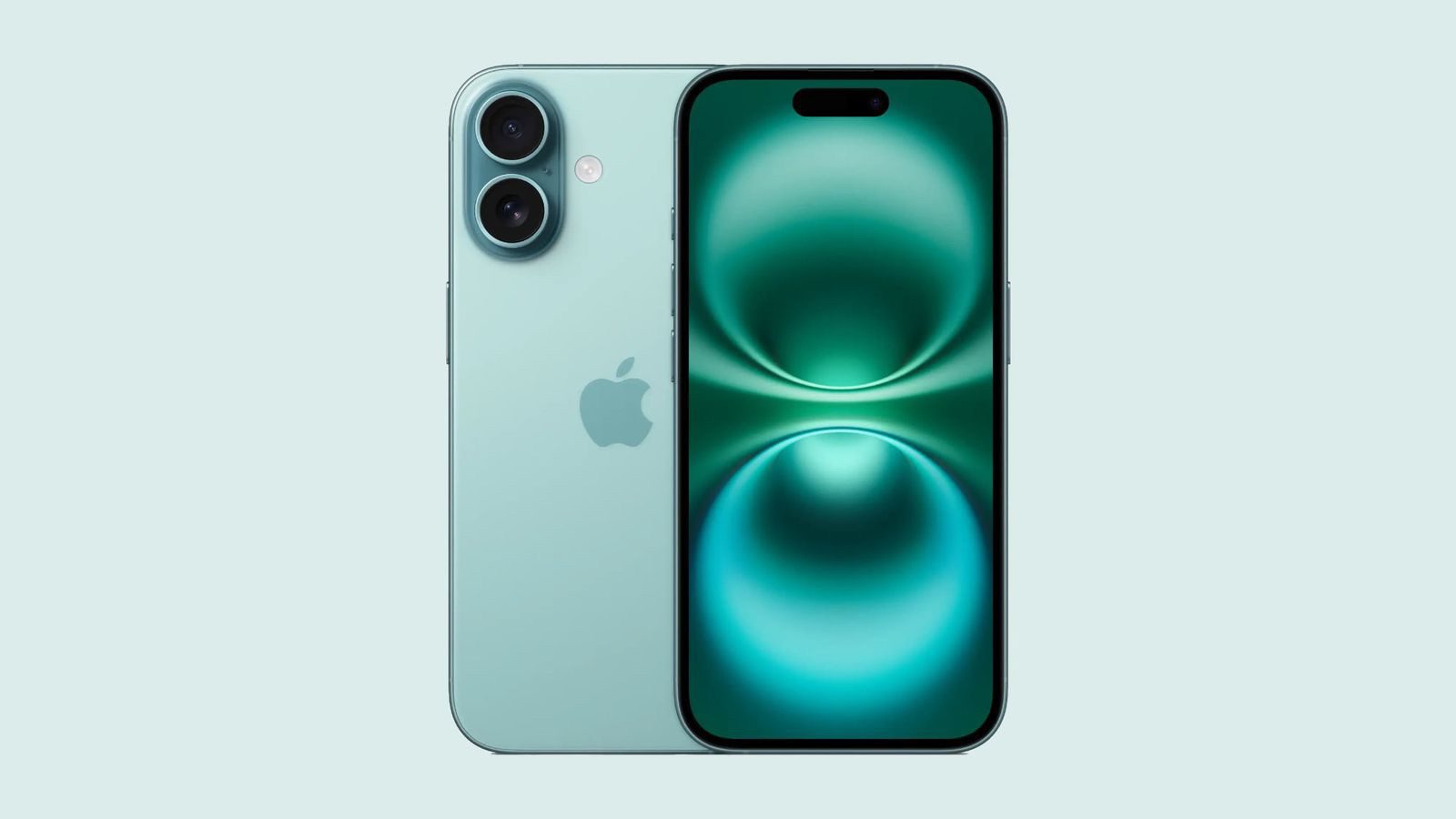
It’s important to keep your device up to date, that is why it’s so frustrating if your iPhone 16 or iPhone 16 Pro won’t update. Let’s take a look at reasons why your iPhone 16 or iPhone 16 Pro won’t update and how you can fix the problem.
You might be unable to update your iPhone 16, iPhone 16 Plus, iPhone 16 Pro or iPhone 16 Pro Max wirelessly, or over the air, for one of these reasons:
- There isn’t enough available storage space on your phone
- The update takes a long time to download
- Your phone isn’t able to reach the update server
- The update doesn’t complete
Please see the fixes below. After each step, try updating again.
Manually Check for Software Updates
By default your iPhone 16 will notify you of new updates and apply them at convenient times. Sometimes this doesn’t happen, and other times you might want to apply the update immediately. In this case, you can force your iPhone to check for the update manually.
Head to the Settings app on your iPhone by tapping the icon. Once there, go to General > Software Update. If an update is available, you’ll be able to download it from this screen.
Make Sure You Have Sufficient Free Space
If there isn’t enough space to download and install an update, the software on your iPhone 16 will try to make space. It will remove only app data that it can download again and doesn’t remove or relocate any of your data. You can make room for the update by removing content and apps on your device that you don’t use.
To check how much free space you have available on your iPhone 16, go to Settings > General > iPhone Storage. Scroll down to see which apps are using the most space, then tap on them to see what options you have for reducing space.
Charge Your iPhone or Connect to Power
When you’re updating over the air, keep your iPhone 16 connected to a power source. If your iPhone runs out of power, connect it to a power source and turn on the phone to let the update or restore complete.
Double-Check Your Internet Connection
You need an internet connection to update your iPhone 16. Make sure you’re connected to a reliable Wi-Fi network when you try to update. It’s worth restarting your router if you haven’t done so in a while. If you have continued issues, you might also try connecting to another network and seeing if you have the same issue there.
Please note, the time it takes to download the update varies according to the size of the update and your internet speed. You can use your phone as usual while downloading the update, and your phone will notify you when you can install it. To improve the speed of the download, avoid downloading other content and use a Wi-Fi network.
Keep in mind that not all connection types are equal. Some networks are highly restrictive, particularly those in educational institutions, public Wi-Fi, businesses, and similar. If you’re connected to a Wi-Fi network of this nature, the system administrator may have placed restrictions on devices that interfere with updates.
If you can’t update your iPhone 16 on any Wi-Fi network, reset your device network settings to start fresh. Note that this will clear out all network preferences you’ve saved, so you’ll need to reconnect to all previously saved Wi-Fi networks again. This will also reset any VPN configurations you use, as well as Bluetooth connection settings. Go to Settings > General > Transfer or Reset iPhone > Reset > Reset Network Setting.
Disable Your VPN
If you’re using a VPN, try turning it off. I’ve personally encountered an issue where my iPhone 16 reported that “an error occurred while downloading iOS” and the culprit was my VPN. Disabling the VPN for a moment and trying the update again resolved the issue.
If you’re not comfortable exposing your device to the internet without a VPN enabled, try switching servers instead.
Reboot Your iPhone
Have you tried turning it off and on again? It’s amazing how many problems can be resolved with a simple restart. You can restart the iPhone 16 by holding the Side button and Volume Up or Down until you see “Slide to Power Off” appear. You can also ask Siri to restart your iPhone for you.
Once your iPhone has rebooted, try updating iOS again. The reason this fixes so many problems is that it resets all of the background processes that are responsible for the normal operation of your iPhone, effectively wiping the slate clean.
Remove and download the update again
If you’re installing the update, the progress bar might appear to move slowly. The time an update takes depends on the size of the update and the number of files on your device. If you still can’t install the latest version of iOS on your iPhone 16, try downloading the update again. To do this, go to Settings > General > iPhone storage, then scroll to the bottom of the page. You should see an iOS file – tap the update, then tap Delete Update. Now head back to Settings > General > Software Update and try downloading it again.
iOS stuck in the ‘preparing update’ stage?
If, after initiating the iOS download, your iPhone 16 is stuck in the ‘preparing update’ stage, don’t panic – it can sometimes take up to an hour for iOS updates to begin installing. The good news is that you can still use your iPhone as normal while this preparation (and the eventual download) occurs in the background; just be mindful that your phone may suddenly reboot itself while you’re in the middle of an iMessage conversation.
If, however, your iOS download hasn’t started after an hour or more, you can restart the download process. To do this, follow the the steps explained on the above section.
Check Apple’s System Status
Sometimes your iPhone 16 won’t update because of a problem on Apple’s end. When trying to update your iPhone 16, you might see a message saying:
"Unable to Check for Update. An error occurred while checking for a software update."
Try updating your iPhone 16 again using the same network. If you still see this message, try updating your device using another network. If the problem persists, take a look at the Apple System Status website for the latest information.
If you see a green light and an “All services are operating normally” message, the problem is likely on your end. Expand the status by using the plus (“ ”) button to show the status of individual services. Note that Apple has no separate indicator for iOS software updates (but it does for macOS updates).
Despite this, problems with the App Store, Apple IAccount and iOS Device Activation could cause issues updating your device. Your iPhone must request the update from Apple, then download it from Apple’s servers, verify your device, and only then will the update be applied. A weak link in the chain could cause problems.
Check if Your iPhone 16 is Already Up to Date
If you don’t see any updates under the Settings > General > Software Update screen, the simplest explanation might be that your iPhone 16 is already running the latest iOS version. You might need to do a bit of research to find out what the latest version of iOS is (Wikipedia will know), then head to Settings > General > About and look under “iOS Version” to see what’s installed.
Convinced there’s a newer version? Don’t get confused with preview releases that occur as part of the iOS Public Beta program. You can enroll your device to get a taste of pre-release software before it’s released, but you should be prepared to encounter bugs and performance issues if you go this route.
Try Updating Your iPhone 16 Using a Mac or PC
The ability to update your iPhone 16 over-the-air (OTA) is convenient, but it’s not the only way to go. You can always plug your iPhone into a Mac or PC and update using Finder or iTunes.
On a Mac, connect your iPhone 16 using a USB-C cable or a Wi-Fi connection. Click the Finder icon in the Dock to open a Finder window, then select the device in the Finder sidebar. In the row near the top, click General. Click Check for Update. To install an available update, click Update. The process is virtually identical on Windows: download and install iTunes, launch it, select your device, and then hit “Check for Update” on the “General” tab.
iPhone 16 Updating Troubles: Fixed!
It’s frustrating when your iPhone 16 won’t update. Hopefully, one of these fixes solved your problem and you can now enjoy the latest version of iOS.