Summary
To fix iPhone Cellular Data that’s not working, you should first check if Mobile Data is enabled and that you have an active Mobile Data plan. It’s also worth checking to make sure that Airplane Mode is not enabled and that you have a good cell signal. You can further diagnose by disabling your VPN, restarting, updating, or reinserting your SIM card. If all else fails, reset network settings on your iPhone.
You’re connected to mobile data and notice that emails aren’t coming through. Trying to open X only leads to the loading symbol turning endlessly. Then when you try to search for something on google, the Safari webpage doesn’t load either. The only message you see is “Your iPhone is not connected to the internet.”
Why is your iPhone’s cellular data not working? Let’s look at these easy ways to fix your iPhone’s cellular data problem now.
Ways to fix iPhone cellular data that’s not working
. Here’s what to do if your iPhone won’t connect to cellular data:
Turn on Cellular Data
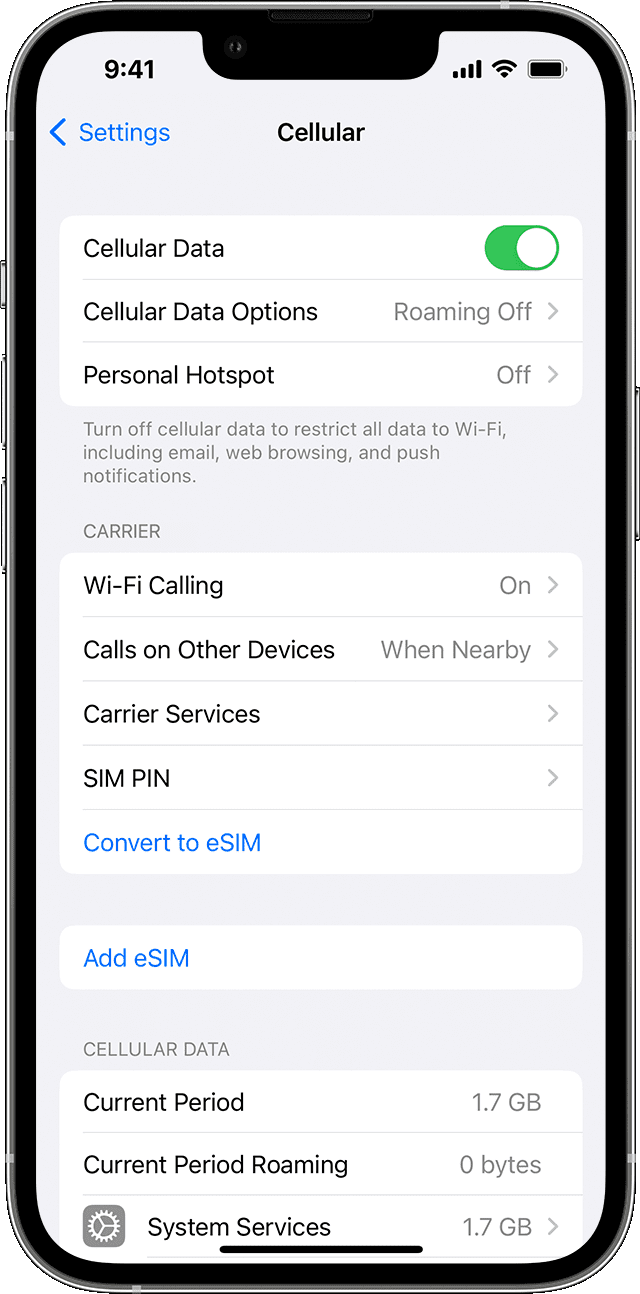
I know this is an obvious one, but the first thing you should do is ensure that Cellular Data is enabled on your iPhone. To check, go to Settings > Cellular and toggle on Cellular Data if it’s off.
If Cellular Data is already enabled, but it’s still not working, try disabling and re-enabling the feature. In the same Cellular setting page, toggle off Cellular Data, wait 10 to 15 seconds, then toggle on Cellular Data again.
Check Your Data Plan’s Status
Did you forget to renew your mobile data plan and it expired? Have you reached your plan’s mobile data quota for the month?
If these are the causes, you’ll need to reactivate your mobile plan or top up your quota, then you’re good to go! Your cellular data should immediately start working again. Contact your carrier’s support if you have issues doing so, and consider limiting your data usage in the future to avoid running out again.
Check Airplane mode
If Cellular Data isn’t working on your iPhone, it may be due to the Airplane Mode setting, which disables all your networking features, including Cellular Data. Quickly check your settings to make sure your iPhone wasn’t accidentally put in airplane mode. Go to Settings, and if Airplane Mode is toggled on, toggle it off so your iPhone will let you connect to cellular network again.
If Airplane Mode is already off, turn it on, wait 10 to 15 seconds, then turn it back off. This brief power interruption clears any temporary data hang-ups and errors, restoring the transceivers to a default state.
Check your cell signal
If you’re in an area with a poor cell signal, Cellular data won’t work properly.
You can check your phone signal by looking at the bars displayed in your iPhone’s status bar at the top of your screen. The more bars are filled in, the stronger the signal, and vice versa.
, if you see "No Service" or "Searching" in the status bar, where you’d normally see signal bars, it means your device isn’t connected to a cellular network. If you see "SOS only" then you’ll still be able to make emergency calls but you won’t be able to access the internet or make regular phone calls.
If you are having network issues, you can try moving to a different room or nearer to a window to find a good signal.
Even your iPhone’s protective case might hinder the strongest signal. It might be a pain, but removing that Otterbox or LifeProof could make the difference if you’re struggling to find a few bars.
Disable Your VPN
If you have a VPN enabled on your iPhone, it may also cause Cellular Data to stop working. The easiest way to rule out your VPN as a cause is to disable it and try again. To disable your VPN, go to Settings > General and select VPN & Device Management. Select VPN. Tap VPN Status to turn the feature off.
You can also open your VPN provider’s app and disconnect.
Test your Cellular Data again. Don’t forget to enable your VPN again when you’re done troubleshooting!
Restart your iPhone
If disabling your VPN didn’t resolve the issue, the next step is to turn your iPhone off and back on. This should clear out any temporary hiccups blocking your mobile data. To do this:
- Go to Settings > General > Shut Down.
- Drag the power off slider to the right.
- Wait a a few seconds for your iPhone to turn off completely.
- Press the power button to turn your iPhone back on.
Turn off Wi-Fi
A particularly useful solution if Cellular Data isn’t working on an iPhone is to disable Wi-Fi. Go to Settings > Wi-Fi and turn it off.
Check for a carrier settings update
Your carrier may have provided updates that improve cellular network connectivity, which can help solve your mobile data problem.
Here’s how to check for these:
- Connect your iPhone to Wi-Fi.
- Go to the Settings app and select General.
- Tap About.
- If there is an update available, you’ll immediately see a prompt that says Carrier Settings Update and asks whether you want to proceed with the update now. Tap Update to begin the installation.
Check for a software update
Apple’s iOS software updates often come with bug fixes that fix minor software bugs. Sometimes, you can resolve your iPhone’s Cellular Data issues by simply updating your device.
To check for and install software updates:
- Connect your iPhone to Wi-Fi, then go to Settings > General > Software Update.
- Tap Update Now if an update is available.
Reinsert your SIM card, if you have one
If you have all the correct settings in place and the latest updates installed, yet Cellular Data isn’t working on your iPhone, the issue may lie with your SIM card.
I’ve had iPhone Cellular Data problems solved by taking the SIM out, giving it a wipe, and popping it back in.
The SIM card tray is located on the side of your iPhone. To pop out the tray, you can use the SIM-eject tool that is included in your iPhone box (or a straightened paper clip).
After removing the SIM card, gently wipe it with a soft, lint-free cloth. Then, place the SIM card back into the tray and slide it into your iPhone. If that doesn’t work, I recommend that you get a replacement (or try a different SIM in your iPhone) because they can quietly and invisibly fail internally.
Reset your network settings
Still wondering why is my iPhone cellular data not working? Try resetting your network settings. This step will remove saved passwords for Wi-Fi connections, clear out Bluetooth and VPN configurations, and otherwise return all network settings to their default settings. It’s worth trying if nothing else has worked to fix this problem yet. Here’s how:
- Go to Settings > General > Transfer or Reset iPhone.
- Tap Reset > Reset Network Settings.
- Follow the onscreen instructions.