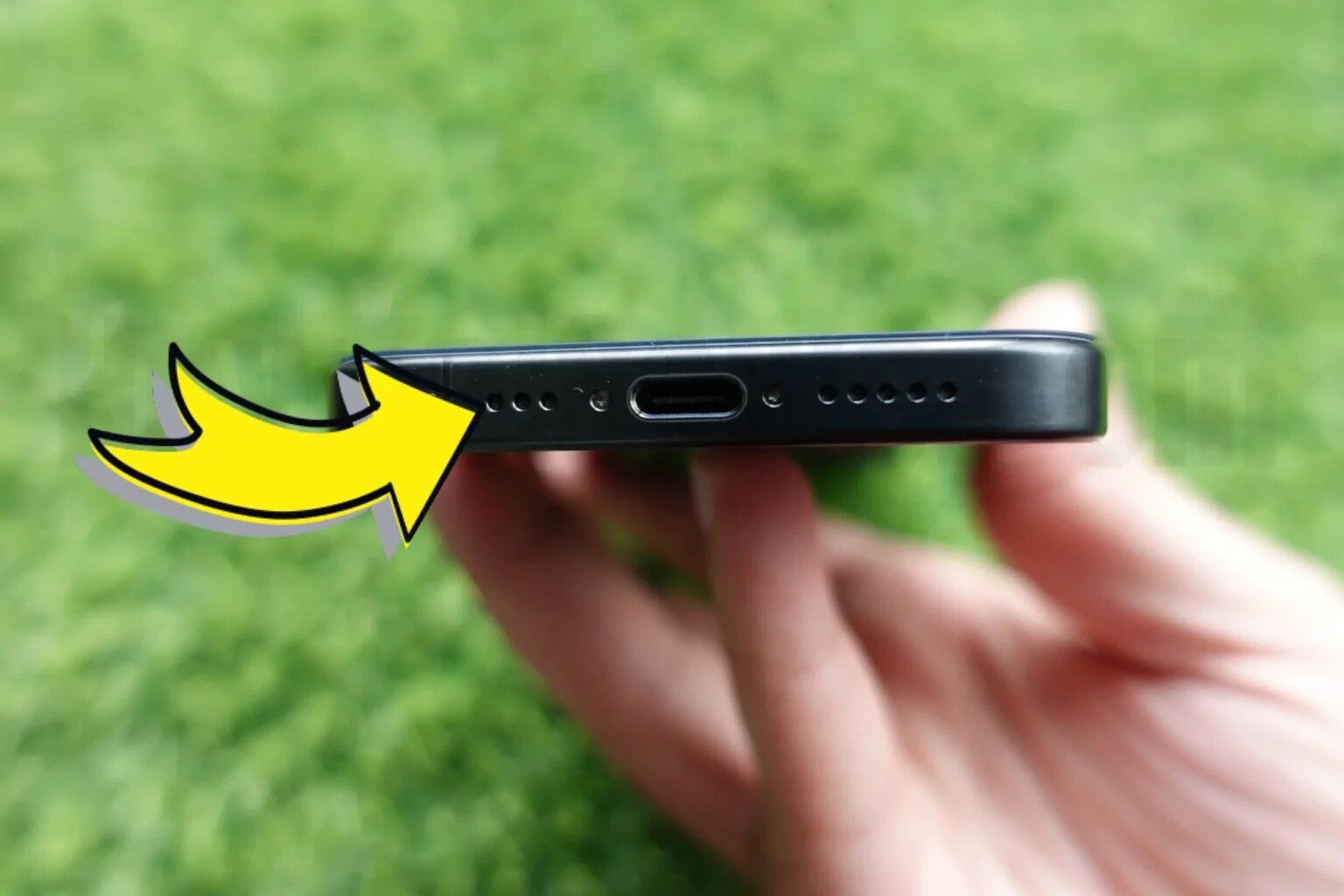
Is your iPhone microphone not working? Or, does your voice sound muffled during voice calls and video calls? There are several factors that could hamper the performance of your iPhone’s microphone. In this article, I’ll explain what you can do if your iPhone microphone is not working!
How to tell if an iPhone microphone is damaged
When your iPhone Microphone is not working, you may experience various sound issues. For example, Siri may not be able to detect your voice; other people may not be able to hear you during a FaceTime call or you may not be able to record audio.
If you suspect that the iPhone mic might be damaged or malfunctioning, it’s best to test it to make sure.
The easiest way to make sure your iPhone’s mic works is to record your voice and listen to the recording. You can easily tell if your voice sounds distorted to can help you ascertain the problem.
- To test the primary microphone, start the Voice Memos app from the iPhone home screen. Tap the Record icon to record your voice. Stop the recording and play it back. If you can’t hear your voice, this indicates the iPhone primary microphone is not working.
- To test the front microphone, start the Camera app from the iPhone home screen. Choose the Video option and toggle to selfie view, then tap the record icon to record your voice. Stop the recording. Go to the Photos app to play the video. If you can’t hear your voice, this indicates the iPhone front microphone is not working.
- To test the back microphone, start the Camera app from the iPhone home screen. Go to the Video option and tap the record icon to record your voice. (It should be in regular view.) Stop the recording. Go to the Photos app to play the video. If you can’t hear your voice, this indicates the iPhone back microphone is not working.
You may not even be aware of the iPhone microphone problems; the worst-case scenario is having a broken mic. Let’s take a look at some of the causes of your iPhone microphone issues and how to fix them.
What’s the Cause of iPhone Microphone Issues?
So why and how do iPhone microphone problems arise? Your mic can become distorted for a variety of reasons, with the most common being a dirty phone. If you aren’t someone who cleans their phone regularly, you might be surprised to see how much dirt gets built up.
Other common issues are related to software updates and third-party app installations. These tend to reconfigure or disable your mic without you realizing it. Your mic can also become damaged due to physical issues, such as internal malfunctioning or damaged hardware from mishandling your iPhone.
Ways to Fix iPhone microphone problems
If you’ve confirmed that your iPhone mic isn’t working properly, it’s time to fix it. Since there are various reasons why your iPhone microphone may malfunction, let’s go through different ways to fix your problem.
1. Restart your iPhone
Sometimes the easiest solution is the best. Restarting your iPhone refreshes the iOS by clearing all processes and open apps. It can be a quick fix to your iPhone microphone problem.
To restart your iPhone, hold the Side and either of the volume buttons until the power off slider appears, then drag the slider. Leave it off for 30-60 seconds before turning it back on, then check to see if the problem is resolved.
2. iPhone Microphone Muffled or Muted? Try Cleaning It
One of the simplest ways to fix your iPhone microphone problem is by cleaning it. If any of your microphones sound muffled when you speak, they might need a good cleaning. iPhone microphones are sensitive, and a small piece of dust or dander can affect how they sound.
To clean your microphone, avoid blowing into it at first, as you could push more dirt in there.
Instead, take a cue tip and dip it in some isopropyl alcohol. Don’t put too much on there, as you don’t need a lot. Then wipe it along the muffled microphone, either on the front, bottom, or back of your iPhone. Try to get inside the microphone hole if you can.
Isopropyl alcohol breaks up grime and dries fast, so it won’t damage your phone. Try using the highest percentage of isopropyl alcohol you can find.
3. Disconnect Bluetooth Devices
Being connected to a Bluetooth device could mean that your iPhone is activating an external microphone and you can’t use the one built into the iPhone itself.
This is a common issue with those who use Bluetooth headphones or smart home systems.
There are three ways to turn off Bluetooth:
Turn Off Bluetooth Using Siri
- Press and hold the Side button to activate Siri, or say, ”Hey, Siri.”
- To turn off Bluetooth, say, ”Turn off Bluetooth.”
Turn Off Bluetooth In The Settings App
- Open the Settings app.
- Tap Bluetooth.
- Tap the switch next to Bluetooth. You’ll know Bluetooth is off when the switch is gray.
Turn Off Bluetooth In Control Center
- Open Control Center by swiping down from top right of the screen.
- Tap the Bluetooth icon, which looks like a "B" made of triangles.
- You’ll know Bluetooth is off when the icon is black inside of a gray circle.
4. Restart communication apps
If the microphone doesn’t work with apps like WhatsApp, Zoom, FaceTime, and Skype, close the app and open it again.
- Swipe up from the bottom of the screen to reveal the App Switcher.
- Find a communication app you wish to close and swipe up on it.
- Reopen the app and check to see if Microphone is working as expected.
5. Give apps microphone access
If you are having a microphone issue when you are trying to use a specific app like WhatsApp, Zoom, FaceTime, or Skype, make sure the app has permission to access the microphone. To do this, go to the iPhone Settings, tap Apps, select the respective app to view its settings, then make sure Microphone is switched On.
If giving permissions does not solve it, and if you are having microphone issues for specific apps, like Skype, Zoom, WhatsApp, etc, it is possible that the app itself is faulty. If this is the case, there are three things you can try:
- Does this app have a microphone or sound settings? Check these settings and make sure that they are set correctly.
- Delete the app from your iPhone and then reinstall it.
- Contact the developer of the app.
6. Remove any screen protector or case from your iPhone
Even if your screen protector or case isn’t blocking any microphone openings, it may still interfere with the microphone. Remove the case and see if this resolves microphone issues on your iPhone.
7. Update iOS or Restore Your iPhone to Default Settings
In some cases, your iPhone might not be working properly due to a bug in the software. Some users have reported that updating to the latest version of iOS can fix a variety of problems, including a microphone that doesn’t work.
To check for software updates, go to Settings > General > software update.
If updating your iPhone’ operating system doesn’t resolve your microphone problem, you might want to restore your iPhone to the default settings. Sometimes, apps can customize settings which can cause your microphone not to work. Restoring your iPhone will fix this.
To do this, head to Settings > General > Transfer or Reset iPhone > Reset > Reset All Settings.
This will restore all the settings on your iPhone without erasing your data.
If neither of these options worked, one other step you can take is to erase all the content on your iPhone and set it up from scratch. While this is very time-consuming, it might be worth a try if all your iPhone microphones stopped working completely.
Make sure you back up your iPhone first. Then, to erase everything, head to Settings > General > Transfer or Reset iPhone > Erase All Content and Settings.
8. Try Using an External Microphone
If you’ve tried all the above fixes but nothing is working, you can still use an external microphone with your iPhone. You can use this while you wait for a repair, or even use an external microphone indefinitely if you can’t afford a repair.
Apple’s earphones have a built-in microphone, and many other headphones have a microphone as well. While not ideal, headphones will connect through your USB-C port, Lightning port or over Bluetooth and don’t rely on your built-in microphones for many tasks.
9. Get help from Apple
If all else fails, there is a good chance your iPhone is having an hardware issue. Mics are delicate parts and can easily break from fall, water, or similar damage. In this scenario, it is best to take your iPhone to an authorized Apple technician who can determine the fault within your device.
iPhone microphone not working: Problem fixed!
There are various reasons your iPhone mic may not work properly. If you ever run into a problem, the methods above should help you identify and fix the issues with the iPhone mic.
The best way to avoid iPhone microphone issues from popping up in the future is to take good care of your device.
See also: Where Are Your iPhone’s Microphones Located? All Models Explained