





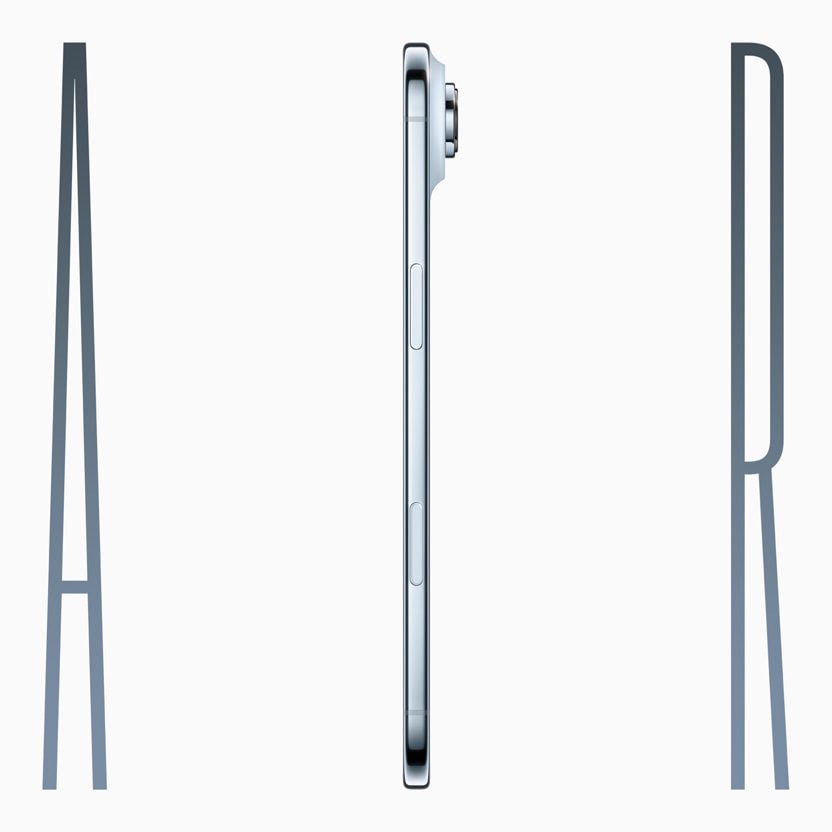
- To fix an iPhone Air that won’t connect to Bluetooth, first make sure Bluetooth is turned on.
- You should ensure the other device is connected to Bluetooth and forget other unnecessary devices.
- You can also try updating the iPhone’s software, resetting network settings, and restarting the device.
Your iPhone Air isn’t connecting to Bluetooth and you’re not sure why. Bluetooth is one of the great innovations with a smartphone — a quick network that allows you to connect your iPhone to everything from TV, to a computer, to a speaker, to your car’s stereo. The only problem is that it doesn’t always work. If an iPhone Air won’t connect to Bluetooth, this article offers eleven tested and proven ways to fix this problem.
If your iPhone Air won’t connect to Bluetooth, first try to connect it to two separate Bluetooth devices one at a time. If one Bluetooth device connects to your iPhone while the other doesn’t, you’ve identified that the problem is with the particular Bluetooth device, not your iPhone Air.
How to fix an iPhone Air that won’t connect to Bluetooth
If your iPhone Air still isn’t connecting to Bluetooth, it’s time to troubleshoot. Try these fixes one by one until your problem is fixed:
Turn Bluetooth off and back on again
Turning Bluetooth off and back on again can sometimes fix minor software glitches that may be preventing your iPhone Air and Bluetooth device from pairing
Go to Settings ⇒ Bluetooth. Tap the switch next to Bluetooth. You’ll know Bluetooth is off when the switch is gray. Tap the switch again to turn Bluetooth back on. You’ll know Bluetooth is on when the switch is green.
This quick fix will make your iPhone Air search for nearby Bluetooth accessories, and your accessory may pop up.
Make sure that your Bluetooth accessory is on and fully charged or connected to power
A Bluetooth accessory that’s low on battery either won’t turn on at all or it’ll turn on but won’t connect to another device. Most Bluetooth accessories have a built-in battery indicator light to let you know it’s low on juice, but just to be safe, let the accessory charge for at least 30 minutes before trying any other fix. If your accessory uses batteries, see if they need to be replaced. If the accessory doesn’t have an inbuilt battery, make sure that it’s plugged to a working power outlet.
Check the Bluetooth accessory isn’t connected to another device
Do you use your Bluetooth accessory with multiple devices or share it with family members? If the answer is yes, there’s a good chance someone else is connected to the accessory.
Check all Bluetooth devices that can playback audio — this includes other phones, tablets, laptops, computers, car stereos, gaming consoles, and even smartwatches. Open the Bluetooth settings of all nearby devices and check if the accessory’s status says “connected.” If yes, disconnect the accessory, and it’s ready to connect to your iPhone Air.
Make sure that your Bluetooth accessory and iPhone Air are close to each other
Bluetooth has a range of about 33 feet (10 meters). If you’re having issues, try bringing the devices closer together.
Make sure your accessory is discoverable
Bluetooth devices aren’t always ready to connect. Most dedicated Bluetooth devices — speakers, headphones, and more — need to be put into pairing mode when you’re connecting them to a device for the first time.
On your iPhone Air, go to Settings ⇒ Bluetooth. You should see the name of the bluetooth device you want to connect to. If the particular device you want to connect to is not shown, place your device in discovery mode and wait for it to show up in the list.
If you bought the accessory recently, turn it on by pressing and holding the power button. Most Bluetooth accessories will turn on pairing mode by default when turned on, typically indicated by a sound or flashing LED on the accessory.
However, some models have to be put into pairing mode manually. There should be a Bluetooth or pairing button that you can press and hold for a few seconds.
If the accessory shows up in the list of Bluetooth devices, tap on it to pair it with your iPhone Air. You might need to enter the PIN or passcode. If you aren’t sure what your PIN or passcode is, check the documentation for your accessory.
If you are unable to put your Bluetooth accessory into discovery mode, refer to the instructions manual that came with the accessory. If you don’t have the manual anymore, contact the manufacturer.
Restart your iPhone Air and accessory
The easiest fix for almost any tech-related problem is to restart the device in question by turning it off and back on again. Turn both devices off, and then on again. Try connecting to Bluetooth again after you’ve done this.
Check Bluetooth permissions
If there’s an app that you use with the Bluetooth accessory, go to Settings ⇒ Privacy & Security ⇒ Bluetooth on your iPhone Air, and make sure that you’ve turned on Bluetooth for the app.
Delete other devices from Bluetooth
Sometimes Bluetooth can have an issue connecting with too many devices, or you can’t tell which device is the one you want, and you have to delete others.
Go to Settings ⇒ Bluetooth. Tap on other devices to disconnect. If it’s a device you will never use again, tap on the More Info button on the right, then tap Forget This Device.
Update your software to the most recent iOS
Some functions, including Bluetooth, won’t work properly on your iPhone Air unless your iOS is up to date. Go to Settings ⇒ General ⇒ Software Update. If a new software update is available, tap Update Now and then follow the onscreen instructions.
Unpair and pair the accessory with your iPhone Air
If you previously connected your Bluetooth accessory to your iPhone Air:
Unpair the accessory, then try to pair and connect it again.
To unpair a Bluetooth accessory, go to Settings ⇒ Bluetooth, find the device you want to unpair, and tap the More Info button, then Forget this Device. This removes the accessory from the list of available Bluetooth devices.
To add the Bluetooth accessory to your iPhone Air again, place it back in discovery mode and repeat the steps to pair your device.
Reset your network settings
If your iPhone Air still isn’t connecting to Bluetooth, reset your phone’s network settings, then try to connect again.
When you reset network settings, the data on your iPhone from all of your Bluetooth devices, Wi-Fi networks, and VPN (Virtual Private Network) settings will be erased. Resetting network settings will give your iPhone a completely fresh start when connecting to Bluetooth devices, which can sometimes fix more complicated software problems.
Before you reset network settings, make sure that you know all of your Wi-Fi passwords because you’ll have to re-enter them afterwards.
Go to Settings ⇒ General ⇒ Transfer or Reset iPhone ⇒ Reset ⇒ Reset Network Settings. You may have to enter your passcode to proceed.
Conclusion
We know it’s frustrated when your iPhone Air won’t connect to Bluetooth. We hope the troubleshooting tips in this article have helped you and you can now pair all of your Bluetooth accessories with your iPhone Air without problems. Now that you know what to do if your iPhone Air won’t connect to Bluetooth, be sure to share this article with your friends and family on social media. Feel free to leave us a comment down below if you have any other questions about your iPhone!











Tried the above fixes w/o luck. So tried something else. Turned off Bluetooth in settings. Shut down phone. Started phone. Turned on Bluetooth. The phone started pairing immediately.