KEY TAKEAWAYS
- To fix AirPlay problems on iPhone 16 or iPhone 16 Pro, make sure that your AirPlay-compatible devices are near each other.
- Check that the devices are updated to the latest software and are on the same Wi-Fi network.
- Restart the devices that you want to use with AirPlay or screen mirroring.
- Consider switching off VPN connections before attempting to stream wirelessly.
AirPlay lets you wirelessly stream video, audio, or your screen from an iPhone, iPad, Mac, or Windows device running iTunes to an AirPlay receiver like an Apple TV, Mac, or smart TV. Sometimes, things don’t "just work" like they’re supposed to, so you’ll need to tweak a few things.
In this article, I am explaining what do to when AirPlay is not working properly and how to fix common AirPlay problems on iPhone 16, iPhone 16 Plus, iPhone 16 Pro and iPhone 16 Pro Max.
What is AirPlay?
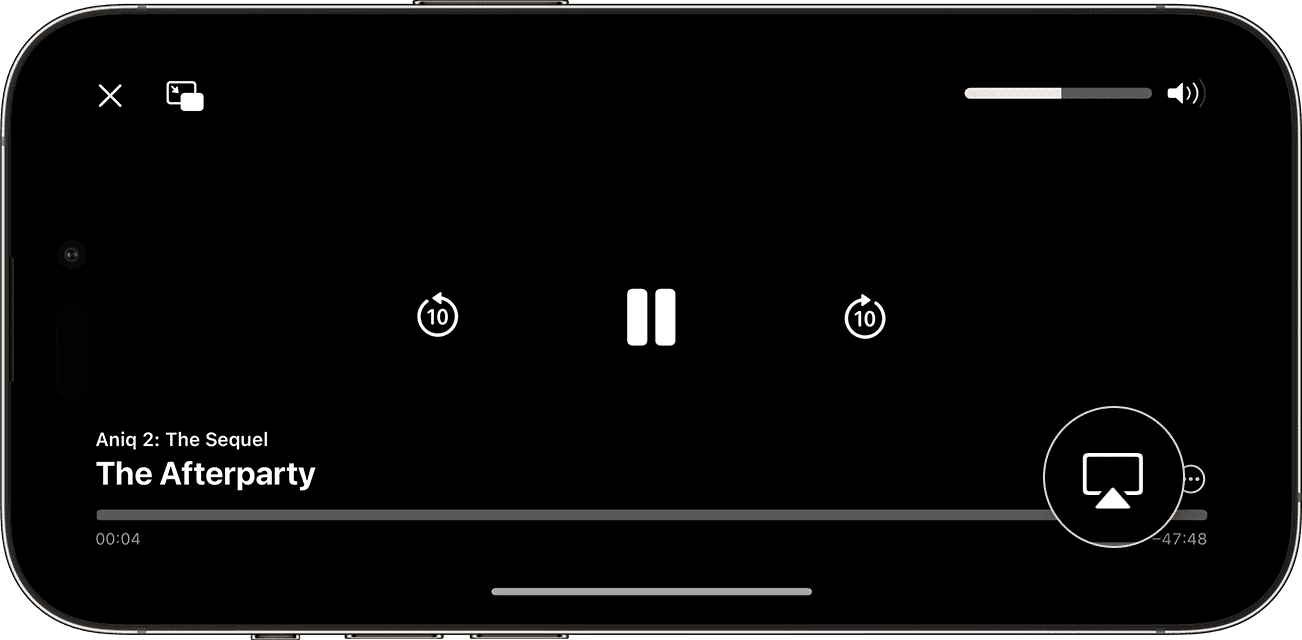
AirPlay is a wireless streaming technology used by Apple devices like the iPhone, iPad, and Mac. You can use AirPlay to stream or share content from your iPhone 16 to your Apple TV, AirPlay-compatible smart TV, or Mac. Stream a video. Share your photos. Or mirror exactly what’s on your device’s screen. This is accessed using Control Center or using the AirPlay button in video and music apps.
Many non-Apple devices can also function as AirPlay receivers including smart TVs from Samsung (Tizen), LG (webOS), Vizio, TCL (and other Roku TV devices), Sony (Android TV) and others. The list includes smart speakers from Sonos and AV receivers from Denon and Marantz.
To use your Mac as an AirPlay receiver you’ll need to be running macOS Monterey or newer. The following Mac models can function as an AirPlay receiver:
- MacBook release in 2018 or later
- MacBook Pro released in 2018 or later
- MacBook Air released in 2018 or later
- Mac mini released in 2020 or later
- iMac released in 2019 or later
- iMac Pro
- Mac Pro released in 2019 or later
- Mac Studio released in 2022 or later
Mirror your iPhone 16 to a TV or Mac
- Connect your iPhone 16 to the same Wi-Fi network as your Apple TV, AirPlay-compatible smart TV, or Mac.
- Open Control Center by swiping down from the upper-right corner of the screen.
- Tap the Screen Mirroring button.
- Select your TV or Mac from the list.
- If an AirPlay passcode appears on your TV screen or Mac, enter the passcode on your iPhone 16.
To stop mirroring your iPhone 16, open Control Center, tap Screen Mirroring, then tap Stop Mirroring. Or press the Menu button on your Apple TV Remote.
make sure that your AirPlay-devices are near each other
Apple doesn’t state exactly how close to a receiver an AirPlay source device needs to be for the technology to work, but it’s worth keeping this in mind if you’re having trouble with wireless streaming (particularly dropouts).
You can test this by sitting down as close to your AirPlay device and trying to connect. If your problem isn’t solved, try one of the other solutions below. If you’re using your Apple TV or HomePod as a wireless AirPlay speaker, keep in mind that walking around the house with the source device (iPhone 16) in your pocket may cause the connection to drop.
Make Sure You’re Connecting to the Right Receiver
Are you sure you connected to the correct receiver? This is mostly a problem with the Apple TV since all Apple TV units are labeled "Apple TV" out of the box. If I had $1 for every time someone who lives nearby had tried to connect to my Apple TV either by mistake or on purpose I’d probably have enough money for a month of AppleTV by now.
The easiest remedy for this is to rename your Apple TV under Settings > General > About > Name. You can do the same for your Mac under System Settings > General > About > Name, though you probably won’t have this issue since your Mac should have the same unique label from when it was first set up, for example, "Dave’s MacBook Pro".
Check that the devices are on the same Wi-Fi network
Both the AirPlay source device (iPhone 16)) and the receiver (your Apple TV, AirPlay-compatible smart TV, or Mac) need to be connected to the same Wi-Fi network for AirPlay to work. Check this on your various devices if you’re having trouble getting things working.
On your iPhone 16, go to Settings > Wi-Fi. On a Mac, go to System Settings > Wi-Fi, and on an Apple TV this can be found under Settings > Network. You should check if your smart TV or another receiver (like a Roku) is also using the same network using the device settings menu.
Wi-Fi extenders shouldn’t interfere with AirPlay playback, but there’s always a chance. Switch settings so that both devices are using the same access point where possible (preferably the home router) to avoid any network mismatch problems.
Change Your AirPlay Receiver Permissions
For an AirPlay receiver to function as a host, it must be set up accordingly. You’ll need to make sure that "AirPlay Receiver" is enabled on your Mac, Apple TV, smart TV, or other AirPlay receiver and that permissions are set accordingly.
- On macOS Ventura or later: Choose Apple menu > System Settings, click General in the sidebar, then click AirDrop & Handoff on the right. Turn on AirPlay Receiver.
- On macOS Monterey: Choose Apple menu > System Preferences, click Sharing, then select AirPlay Receiver in the sidebar.
- On an Apple TV, go to Settings > AirPlay and HomeKit.
- On a smart TV or another device, you’ll need to dig into your device settings.
For the best chance at success, change "Allow AirPlay for" (macOS), "Allow access to Apple TV" (Apple TV), or similar to "Everyone" rather than alternatives like "Current User" or "Anyone on the Same Network". You can also set password requirements here which we’d recommend turning off until things are running smoothly.
Disconnect From VPN on Source and Receiver
VPNs can cause all sorts of issues with AirPlay. If you’re going to attempt to stream wirelessly to a TV, Mac, smart TV, or another receiver, you should disable any VPN connections on either device before you begin. You should be able to avoid this problem if you have a VPN router that encrypts all of your network traffic, since individual device settings seem to be to blame.
Toggle Wi-Fi On and Off
Another potential quick fix for AirPlay problems on iPhone 16 is to disconnect from the current Wi-Fi network and reconnect again. You can do this by toggling Wi-Fi on and off on both your iPhone 16 and receiver.
On your iPhone you can do this by swiping down from the top-right corner of the screen to reveal the Control Center and disabling Wi-Fi then re-enabling it again. You can do the same in Control Center for Mac by clicking on the "Wi-Fi" toggle under Control Center in the top-right corner of the menu bar. On an Apple TV and many other receivers, you’ll need to turn the device off and on again (simply unplug it from the wall).
Restart Your Devices
It’s worth restarting any devices that are having AirPlay issues, including both your iPhone 16 and receiver. Here’s how:
- On an iPhone 16, go to Settings > General > Shut Down then drag the "Slide to Power Off" slider. Alternatively, tell Siri to restart your device). Press and hold the side button to turn your iPhone back on.
- On a Mac, click on the Apple logo then choose "Restart" and your computer will reboot.
- Restart your Apple TV by disconnecting your Apple TV from the power source and wait 10 seconds and then reconnect.
If AirPlay isn’t working on your smart TV you can also try restarting to fix the problem. Since most smart TVs and set-top boxes don’t fully turn off (instead staying in standby mode), the easiest way to do this is to unplug your TV from the wall, wait 30 seconds, then plug it in and try again.
You may also want to try restarting any network equipment that may be causing the problem, including routers and modem. To restart router/modem, disconnect it from the power outlet and wait 10 seconds and then reconnect.
Check that the devices are updated to the latest software
iOS, macOS, tvOS, and other firmware updates may fix problems with AirPlay. Here’s how:
- On iPhone 16, Go to Settings > General > Software Update.
- On Mac, go to System Settings > General > Software Update and install any pending updates.
- On Apple TV 4K or Apple TV HD: Go to Settings > System > Software Updates and select Update Software.
- Other Apple TV models: Go to Settings > General > Software Updates. If there is an update, follow the instructions to update your Apple TV.
Smart TVs and other receivers also receive software updates over the internet. Whether it’s a Roku TV, Samsung, LG, TCL, Vizio TV, or another brand, you’ll need to look around your device settings menu to find this option.
Finally, you may want to update your router’s firmware (check your router’s manufacturer manual to learn how do this.