The iPhone App Store is one of those apps we take for granted, mainly because it simply works as a mediator between users and their precious apps. Hell freezes and the sky falls once you encounter issues with the App Store not working on your iPhone, though. How will you download that new app you have been desperately waiting for?
If your iPhone App Store isn’t working at all — the screen is either blank or stuck loading, App Store not downloading apps, your iPhone app store won’t open, or if you are getting Cannot Connect to App Store error — that can lead to a lot of frustration. Here are the most common methods you can employ to resolve problems with your iPhone App Store app not working.
How to Fix iPhone App Store App Not Working
There’s no direct way to determine why your iPhone App Store app is not working. So, here are some troubleshooting options to help you get to the root of the problem.
1. Close And Reopen App Store
The first thing you should do when your iPhone App Store app is not working is too force-close and reopen the app. It’s possible your iPhone App Store has stopped working because the App Store has crashed. Something as simple as closing and opening the App Store might do the trick. This will take a few seconds and might fix the App Store problem you are experiencing.
If you have an iPhone with a Home button, double-click it to open the app switcher. If your iPhone doesn’t have a Home button, swipe up from the very bottom to the center of the screen to open the app switcher.
Once the app switcher is open, swipe the App Store up and off the top of the screen to close it. Now that the App Store is closed, go back to the Home screen and open it again. If your iPhone app store won’t open, move onto the next step.
2. Check Your Internet Connection
If you are unable to open App Store on your iPhone, make sure that you have a working Wi-Fi connection or good cell reception with available cellular data. Open a web browser and try loading a new webpage to test your internet connection.
If you can’t get online, that will explain why App Store is not loading on your iPhone. Try the steps below to fix your internet connection.
Toggle Airplane Mode Off And Back On
A quick and easy step that you can perform to fix wireless problems when your iPhone App Store cannot connect is to quickly turning Airplane mode on and back off again. This will give your phone and wireless network a new start to reconnect.
It’s worth noting that when Airplane Mode is turned on, the App Store won’t load. When activated, Airplane Mode ceases all applications and services on the iPhone that rely on internet. As one of the most accessible settings, it’s surprisingly easy to accidentally switch on. Making sure Airplane Mode is currently turned off is the easiest first step for troubleshooting why your iPhone App Store cannot connect.
To turn off Airplane Mode on an iPhone SE, and iPhone 8 and earlier, swipe up from the bottom of your screen to open Control Center. If you have iPhone X or newer, swipe down from the top-right corner of your screen.
Look for the Airplane Mode button. If it’s currently orange and white, that means Airplane Mode is on. Tap it, and if it turns grey, Airplane Mode has been shut off. Flip it on and back off again.
You can also check the Status of Airplane Mode by launching the Settings app on your iPhone. The Airplane Mode switch is one of the first buttons listed on the Settings page. If it’s currently green, tap it to toggle Airplane Mode off. If the switch is white and flipped to the left, Airplane Mode is already off. Flip it on and back off again. This gives your iPhone a chance to re-establish its wireless connection, hopefully fixing the App Store issue you are facing.
Toggle Wi-Fi Off And Back On
Just like airplane mode, a quick and easy step that you can perform to fix App Store when it says cannot connect is to quickly turning your Wi-Fi off and back on again. This will give your phone and Wi-Fi network a new start to reconnect.
Start the Settings app and go into Wi-Fi, which will take you to a new page displaying a slider at the top of the screen. If your Wi-Fi is on, the slider should be green, and to turn it off all you have to do is tap the switch. Wait about 20 seconds before turning the Wi-Fi back on to make sure it properly resets. If you are still experiencing problems, tap or click here to learn how to fix Wi-Fi problems on your iPhone.
Turn Cellular Data Off And Back On
Another common reason that an iPhone App Store won’t load is that the Cellular Data setting has been inadvertently turned off. Similar to Wi-Fi, this is feature is easily manipulated via a switch under Settings.
If you are using cellular data, check to make sure it’s turned on in Settings. Start the Settings app and go into Cellular. Check the switch labelled Cellular Data and make sure it’s green, indicating that this setting is is flipped on.
If the switch is off, toggle it on with a tap. If it’s already on, flip it off and back on again. This gives your iPhone a chance to re-establish its Cellular connection, hopefully fixing the App Store problem you are experiencing. If you are still facing issues, tap or click here to learn how to fix Cellular Data problems on your iPhone.
Restart Your Router
I have fixed the problem when my iPhone App Store says cannot connect by simply restarting my router. It may not always make sense, but give it a try, and you might affect the Wi-Fi magic enough to get the App Store working again. Some routers allow restarts to be triggered through an app, while others may have a physical button. If yours has neither, you can unplug the router’s power source and plug it back in.
3. Restart Your iPhone
If Airplane mode, Wi-Fi, Cellular Data and router are properly set up but your iPhone app store still won’t open, the next thing to try is restarting your iPhone. Believe it or not, minor software problems can cause your iPhone App Store to stop working. A lot of small software problems can quickly be fixed by restarting your iPhone.
To turn off an iPhone without Face ID, press and hold the power button on the right side of your device. After a few seconds, a display will appear on your screen with a slider labelled “slide to power off.” Drag the power icon, to the right and your iPhone will shut down.
Once your iPhone turns off, wait about 20 seconds. Then, press and hold the power button until the white Apple logo appears. Once you see the logo, let go of the power button and your iPhone will boot back up.
To shut down an iPhone without Face ID, press and hold the side button and either volume button. After a few seconds, a red and white slider labelled “slide to power off” will appear on the screen. Drag the power icon from left to right to turn off your iPhone.
Once your iPhone turns off, wait about 20 seconds, then press and hold the side button again. Keep holding the side button until the Apple logo appears on your screen. Your iPhone will turn back on shortly after.
As soon as your iPhone is up and running, open the App Store and see if everything’s working again. If the App Store is still not loading, keep reading!
4. Update Your iPhone
Sometimes, App Store problems occur unexpectedly when your iPhone is running an older version of iOS. App Store is a native iOS app, which means it comes pre-installed on your iPhone. The only way to update Native apps is by updating the iOS version on your iPhone. iOS updates contain bug fixes, one of which may help fix the App Store problem your iPhone is currently experiencing.
Start the Settings app on your iPhone and go into General > Software Update. Tap Download and Install or Install Now if an iOS update is available. When the update is complete, open the App Store and see if the problem has been resolved. If the App Store is still not not working, keep reading!
5. Do You Use A VPN On Your iPhone?
If you use a VPN, it could be preventing your iPhone from loading App Store.
While VPNs are great for protecting your personal identity online, they can cause internet connectivity issues when configured incorrectly. It’s also possible that your VPN is making it appear you’re trying to access App Store from a different country or region. Open the Settings app on your iPhone and tap the switch next to VPN to turn it off.
6. Check iPhone’s Date & Time Settings
Wrong Date & Time settings can cause numerous issues on your iPhone, as they can trick your iPhone to think it’s in the past, future, or a completely different time zone. Start the Settings app on your iPhone and go into General > Date & Time. Check to ensure your iPhone is set to the correct Time Zone, and that the date and time are correct.
It’s also a good idea to turn on the switch next to Set Automatically if it isn’t already. This will help prevent Date & Time settings issues from occurring in the future.
7. Check App Store Servers
The next step to take when your iPhone App Store is not working or blank is to check if App Store is currently down. This is pretty uncommon, but services like App Store occasionally go down while Apple performs maintenance.
Go to Apple’s System Status website and make sure the App Store has a green circle next to it.
Different shapes in yellow or red mean Apple is experiencing problems with the App Store. If this is the case, there’s nothing you can do but wait for Apple to fix the issue.
8. Sign out of App Store and Sign in Again
Signing out of the App Store and signing back in can give the app a fresh start and resolve the problem you are experiencing. Follow the steps below to sign out of App Store on your iPhone, then sign in again.
Start the Settings app on your iPhone and tap on [Your Name]. tap Media & Purchases > Sign Out. When prompted, tap Sign Out to confirm.
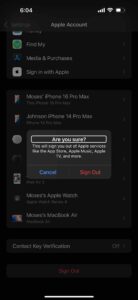
Now, return to Settings Your Name > Media & Purchases to sign in again. Enter your Apple Account details, then open the App Store to see if the problem has been resolved. If the App Store is still not working, keep reading!
9. Reset Network Settings
Resetting Network Settings will erase all Cellular, Bluetooth, Wi-Fi, and VPN settings, reseting them to factory defaults. This means you’ll have to reenter your Wi-Fi passwords, reconnect your Bluetooth devices, and more. While it’s a little inconvenient, it can fix deep network problems on your iPhone. Just keep in mind to write down your Wi-Fi passwords before completing this step!
Start the Settings app on your iPhone and go into General > Transfer or Reset iPhone > Reset > Reset Network Settings. Enter your iPhone passcode, then tap Reset Network Settings again when the confirmation pop-up appears on the screen. Your iPhone will shut down, reset, then turn itself on again.
Now launch the App Store and check if it’s working. If the App Store is still not connecting, move on to the next step!
10. Contact Apple Support And Get Your iPhone Inspected
- Finally, if nothing else fixed your iPhone App Store problem, contact Apple Support and get your device inspected. Make sure to schedule a Genius Bar appointment if you plan on going into your local Apple Store!
Easily Fix iPhone App Store Not Working Issue!
I hope this article has helped you to resolve the issue you’ve been having with App Store. I look forward to hearing from you about your experiences with App Store in the comments section below.