Summary
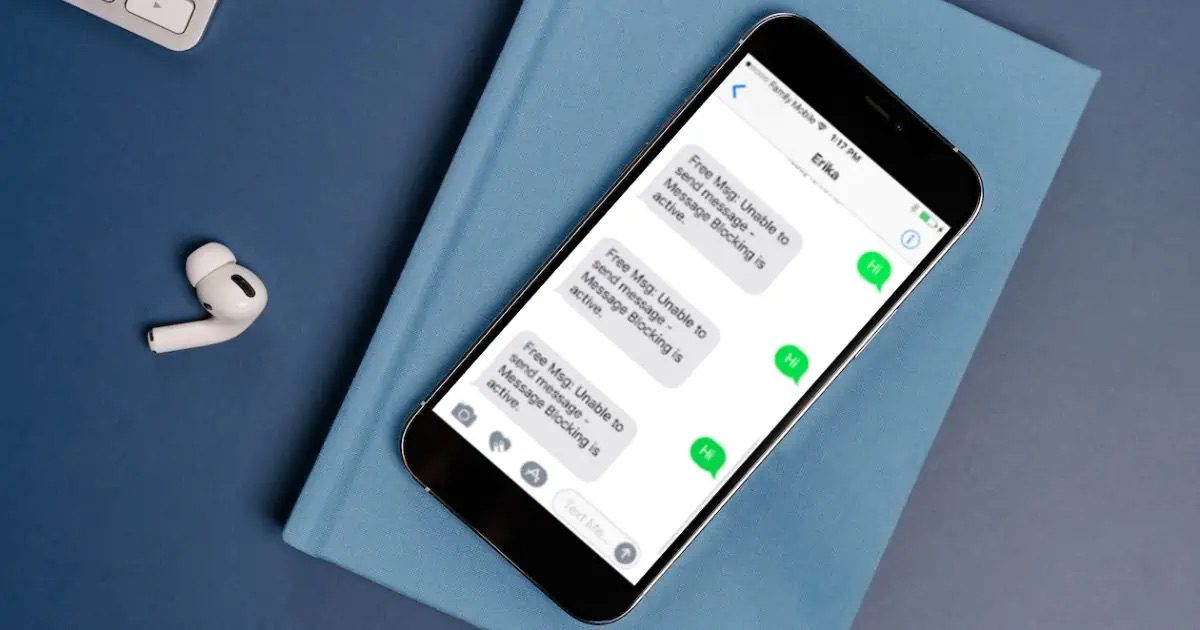
- Message Blocking is Active error indicates that your iPhone is unable to send a text.
- To fix “Message Blocking is Active” error on iPhone, first make sure you are texting the correct phone number.
- You should also check to ensure that the number you want to text is not on your blocked list.
- Try your SIM card on another device to verify if the SIM port is working properly.
- If the problem persist, contact your carrier or Apple support for help.
If you see the “Unable to send message – Message Blocking is Active” error when trying to send a text on your iPhone, it means your message isn’t going through. This problem can be caused by a number of issues. Thankfully, the problem is fixable. In this article, I’ll explain the reasons why you are encountering this error and provide step-by-step solutions to fix it.
What does “Message Blocking Is Active” mean?
When your iPhone keeps showing a “Message Blocking Is Active” error, it usually means the device can’t send a text message. This could be due to a wide range of issues—from a blocked numbers to software bugs or SIM card problems.
Why is “Message Blocking Is Active” appearing?
The "Message Blocking Is Active" SMS error on your iPhone appears for various reasons. Perhaps you mistyped the number; other reasons like a software bugs, incorrect date & time settings, irregularities in iMessage, blocked numbers or a SIM card issue could lead to the error. Network coverage issues, phone plans, and network signals can also cause this issue.
No matter the reason, there are several ways to fix the "Message Blocking Is Active" SMS error.
12 ways to fix Message Blocking is Active on iPhone
Here are the step-by-step instructions to resolve the “Message Blocking Is Active” error on your iPhone:
1. Check the recipient phone number
The first thing you should do when you receive the "Message Blocking Is Active" error while you are texting is to check the recipient’s phone number. Mistyping the number means you can’t send the text message, so double check this.
Also, make sure that you are entering the correct country code if the person you want to text is abroad.
2. Check your phone’s blocked numbers
Another reason why message blocking is active on your iPhone is because you have blocked the number. Here’s how to check:
- Launch the Settings app.
- Tap Apps.
- Scroll down and tap Messages.
- Tap Blocked Contacts.
- Tap Edit.
- Tap the Unblock button next to any phone number you want to unblock.
Once you have unblocked the contacts, try to send them a text message.
If you don’t see the number in this list, the recipient may have blocked you instead. Check out our article to learn how to know if someone has blocked your number on iPhone. The easiest way to check this is to mask your caller ID by dialing *67 before entering their number.
3. Disable iMessage
If the above solutions didn’t work, try to toggle iMessage off and on again. Here’s how:
- Launch the Settings app.
- Tap Apps.
- Scroll down and tap Messages.
- Turn off the switch next to iMessage.
Once you’ve disabled iMessage, try sending the text via SMS and check if it goes through. If you are still getting the “Message Blocking is active” message, move on to the next solution.
Please remember to turn on iMessage if you’ve established it’s not the course of the problem.
4. Check Date & Time Settings to fix the ‘Message Blocking Is Active’ issue
If your iPhone shows the incorrect date and time, it may interfere with its ability to send text messages. In most cases, you simply need to enable Set Automatically setting to fix the ‘Message Blocking Is Active’ issue. Here’s how:
- Launch the Settings app.
- Go to General.
- Tap Date & time..
- Turn on the switch next to Set Automatically.
- If the toggle next to Set Automatically is turned on, turn it off, then turn it back on.
After correcting Date & Time settings, check if you can send texts. If you’re still getting the “active blocking” message, move on to the next solution.
5. Restart Your iPhone
A common but effective fix for most tech issues is to simply reboot your device. Here’s how:
- Launch the Settings app.
- Tap General.
- Scroll down and tap Shut Down.
- Drag the power off slider towards the right.
- Wait for your iPhone to turn off completely.
- Press the power button to turn your iPhone back on.
Now check if your problem is fixed.
6. Reinsert your SIM Card
If you are using eSIM, please skip this step.
If you are using a physical SIM on your iPhone and are facing the “Message Blocking is an active” error, something might be wrong with your SIM card or SIM card port. Turn off your iPhone and remove the SIM card. Inspect the SIM card and port to check for visible damages such as stains, scratches, or other visible damage. If there is visible damage, you may need a new SIM card. Trying your SIM card in another device is handy way to check that your device port is the culprit, but this option isn’t available to everyone, unfortunately.
7. Check for a Carrier Settings Update
Another solution is to check if your carrier provider has network-related updates. Follow the steps below to update the carrier settings on your iPhone:
- Make sure your iPhone is connected to the Internet.
- Launch the Settings app.
- Tap General.
- Tap About.
- If the Carrier setting update is available, a pop-up will appear on the screen. Tap Update.
8. Update to the latest iOS version
Another possible reason you’re receiving the “Message Blocking is active” status is because of an iOS software bug. Luckily, an iOS update can git rid of software bugs causing this issue. Here’s how to update your iPhone.:
- Make sure your iPhone is connected to the Internet.
- Launch the Settings app.
- Tap General.
- Tap Software Update.
- If an update is available, tap Update Now.
- Follow the onscreen instructions.
Now try sending the text. If the error persist, move onto the next solution.
9. Make sure you have an active cellular plan
You should next check whether you currently have an active mobile service plan. If you don’t have one, you won’t be able to send text messages.
While the vast majority of phone plans offer standard unlimited texting, you might have exceeded your monthly limit of text messages if you have a limited plan.
If your mobile service plan has expired, renewing it will fix the “Message Blocking is active” error.
10. Reset Network Settings
If you’re still getting the "Message Blocking Is Active" error, your iPhone’s network settings could be causing the problem. You can reset all network settings on your iPhone and check if the issue is solved
- Launch the Settings app.
- Tap General.
- Scroll down and tap Transfer or Reset iPhone.
- Tap Reset.
- Tap Reset Network Settings.
- Enter your iPhone’s passcode.
- Tap Reset Network Settings to confirm.
11. Contact your carrier
If you are still experiencing the “Message Blocking is active” error, your last option is to contact your mobile operator. Try calling the customer service line and explain to them the problem you are facing. Hopefully, they’ll be able to help you if the problem is on their end.
12. Contact Apple Support
If you are still experiencing problems after trying all these troubleshooting steps, it’s time to contact Apple or an authorized service provider.
Depending on your location, you can book an Apple Store appointment at a Genius Bar.
Fixed message blocking is active on iPhone
I hope that one of the troubleshooting step in this guide has helped you resolve the “Message Blocking is active” error on your iPhone. I understand it can take a little bit of time to figure out exactly what the source of the “Message Blocking is active” error may be. However, if you’re patient and willing to try various troubleshooting methods, you should have no problem getting this error resolved. If you know of any other fix not mention in this article, please drop it in the comments below, and we’ll update our guide accordingly.