Some iPhone, iPad and Mac users have said that they are unable to open certain websites in Safari due to a redirecting problem. Users further have stated that, when attempting to visit some sites, Safari says “Safari cannot open the page because too many redirects occurred”.
The ‘Error too many redirects’ occurred issue is an error that may be caused by several things. In fact, it’s one of the most common errors seen by our readers and other Safari users.
This error can prevent you from accessing web pages in Safari. Thankfully, we’ve troubleshooter the too many redirects issue multiple times, so we know exactly what to do.
In this article, we will show you how to easily fix the ‘Error too many redirects’ occurred issue in Safari.
What Causes the ‘Error Too Many Redirects’ Issue in Safari?
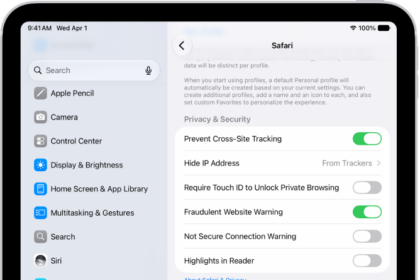
‘Error too many redirects’ is caused by Intelligent Tracking Prevention feature in Safari. This feature is designed to reduce cross-site tracking by changing the way Safari handles cookies and other website data. The aim of this feature is to protect your privacy.
This feature is included in Safari on iPhone, iPad, or Mac. Unfortunately, it seems that this feature can sometimes cause this too many redirects error.
You may experience this problem when you are visiting a page that uses an authentication service. For example, visiting sites like Google, Youtube, Netflix, Hulu, Facebook, Amazon can lead to this error.
Another possibility is that outdated redirect information or a setting in your Safari’s cache or cookies may cause this.
That being said, let’s take a look at how to fix the error too many redirects issue in Safari.
We will walk you through step-by-step troubleshooting, enabling you to visit the site of your choice, and preventing the error from happening again.
Fix iOS and iPadOS redirects error
- Open the Settings app.
- Tap Apps.
- Tap Safari.
- Tap Advanced.
- Tap Website Data.
- Enter the website name that gives this error, such as Google, Netflix, Twitter, etc.
- Swipe from right to left. This will bring up the red Delete button.
- Tap Delete.
- Tap Done.
- Now immediately force close Safari:
- If you are using an iPhone XR or newer, or an iPad with iOS 12 or later, or iPadOS, go to your Home screen and swipe up. This will launch the App Switcher.
- To launch the App Switcher on other devices, double press the home button.
- Find Safari. You may swipe left or right to find it.
- Then swipe up on the Safari’s preview icon.
- Now open Safari again, visit your site to see if you have fixed your problem.
If you are still having this problem, consider deleting All Web Site Data. Here is how you can do that:
- Again go to Settings > Apps > Safari > Advanced > Website Data.
- Scroll down and tap the Remove All Website Data.
If your problem continues, try to use the desktop version of the site. Here is how:
- On your iPhone or iPad, visit the website that’s producing too many redirects error.
- Tap the “Aa” button in the far left of the address bar.
- A pop-up menu will appear. Tap on “Request Desktop Site.”
- And check to see if the error is fixed now.
Fix macOS redirects error
- Open the Safari app on your Mac.
- Choose Safari > Settings, then click Privacy.
- Click Manage Website Data.
- In the search field, enter the name of the website that is giving too many redirects error.
- When the website is found, select it.
- Click Remove. Click Done and exit Preferences.
- Now immediately force quit Safari. To do this, choose Quit from the app’s menu in the menu bar, or press Command-Q.
Now visit the redirecting website to see if your problem is fixed.
Again, if this problem repeats often, you may want to remove all website data. Here is how:
- On your Mac, open Safari.
- Choose Safari > Settings, then click Privacy.
- Click Manage Website Data.
- Click Remove All.
Preventing Error Too Many Redirects in Safari
Hopefully, the steps we just covered have fixed the redirect issue on your device. If they did not fix the problem, then you may need to talk to the website owners to make sure that there isn’t a website issue.